Customize your statement of account, control data views permissions
Enhancements
Lead Forms - Load and Edit
The Forms tab on a lead is now a working surface, not just a record of what a prospect sent in.
You can open any form on a lead and read every answer without leaving the record — it opens a window right on the lead, and returns to where you left off when you come back to it.
Need to gather more information than the prospect originally provided? You can add any of your firm's published intake forms to a lead yourself, regardless of the lead's area of law, and fill it in on the prospect's behalf.
If an answer needs correcting or completing, just click the field and update it in place. Every change keeps a record of who made it and what the answer said before, so the prospect's original response is never lost.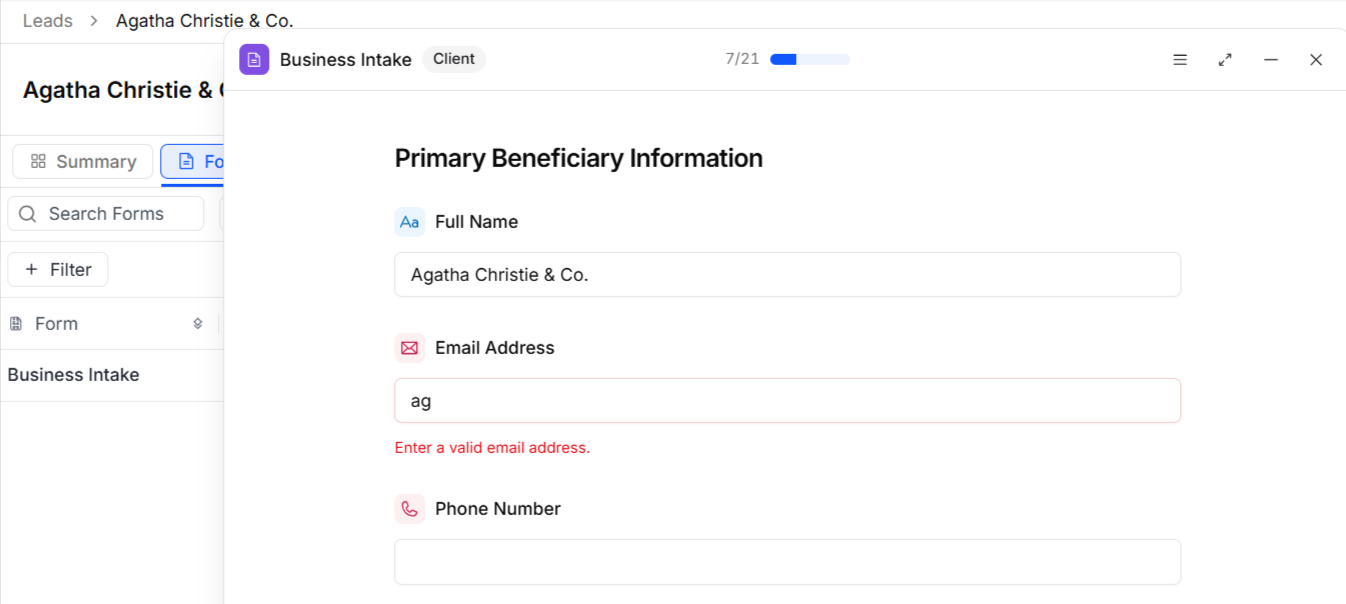
Note: Correcting an answer that maps to the contact also updates that contact record, keeping the lead and the contact in sync.
Once a form is filled in — whether the prospect submitted it or your firm added it — you can download it as a PDF.
Why it matters: Your team no longer has to leave the lead record to review, complete, or correct intake information, and every edit is fully traceable back to the original response.
To learn more, read:
Lead Settings
Firm administrators now have a single place to see the lead statuses and lead sources that drive their intake pipeline.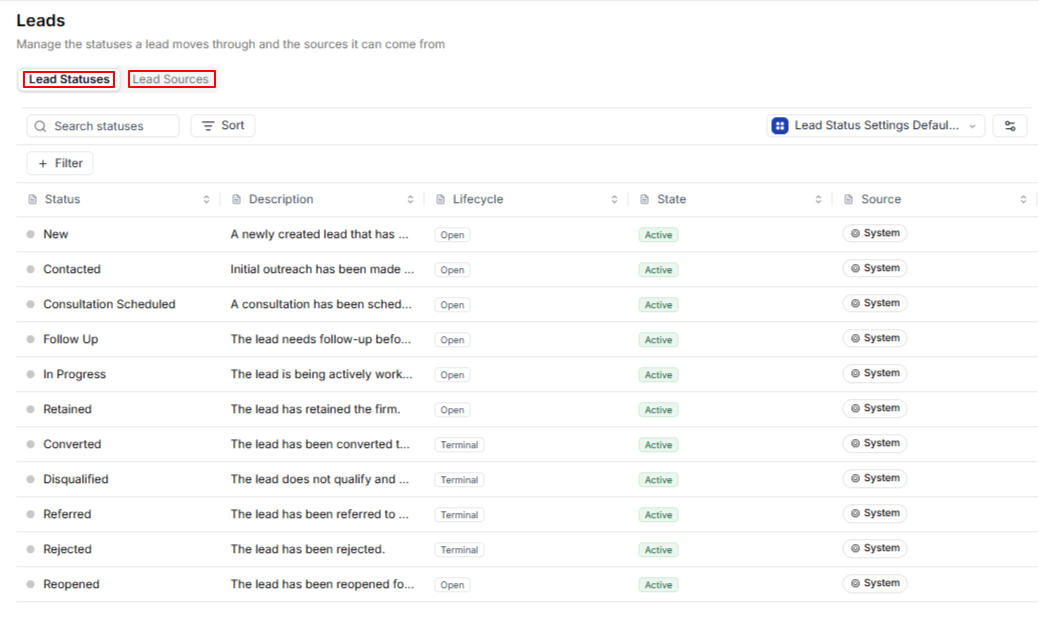
A new Settings button on the Lead Grid opens Configure Settings, with two sections: Lead Statuses and Lead Sources. Each section lists every entry available, showing its color, description, lifecycle (Open or Terminal), and state (Active or Inactive). Both lists sort and filter on every column, so you can quickly narrow the view to just the terminal statuses or just the active ones.
Why it matters: You get a clear, at-a-glance view of how your intake pipeline is configured, making it easier to keep statuses and sources organized as your firm grows.
Customize Your Statement of Account
Firm users with Setup > Firm Settings > Invoice Settings permission can now modify the statement of account cover page the same way they customize invoice templates.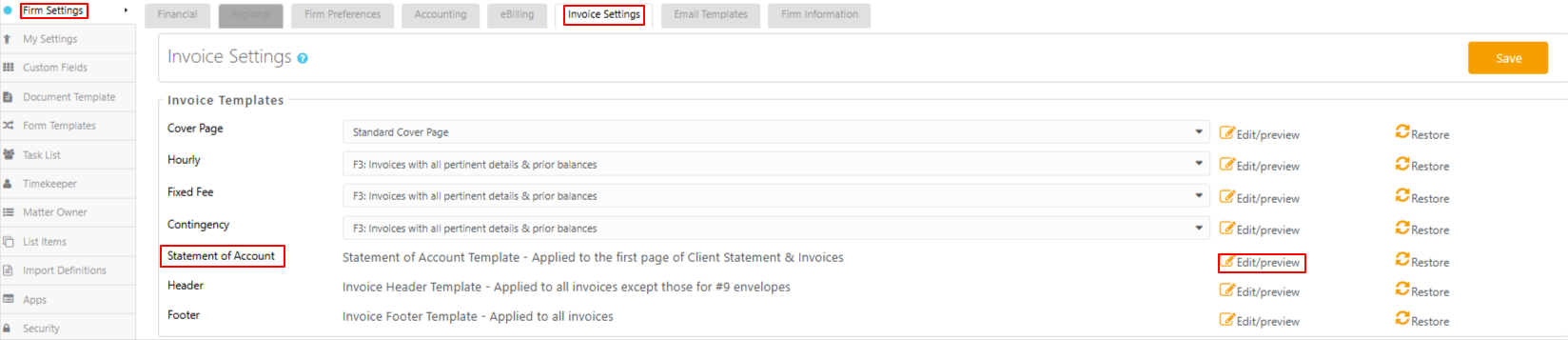
Why it matters: Your statements of account can carry the same firm branding and formatting as your invoices, giving clients a consistent, professional experience.
To learn more, read Customize Your Statement of Account
Balance Breakdown Merge Field
Building on statement of account customization, a new invoice merge field breaks the invoice balance out into its component parts, so you can show clients how a balance is made up rather than just the total.
| [#StatementofAccount1#] |
A table that displays the invoice statement broken down in the following columns:
|
Why it matters: Clients see exactly how their balance breaks down by fees, expenses, and taxes, reducing billing questions and giving your firm more transparent statements.
Permission Controls
- Data Views are now gated by role permissions, so restricted roles no longer see accounting data they shouldn't have access to.
- Unpaid Balance and Unbilled Balance are hidden from Matters grid hover cards for users without the Show Balance permission.
Why it matters: Sensitive accounting information stays visible only to the roles authorized to see it, keeping your firm's financial data properly protected.