Every inquiry that reaches your firm is a potential client. When you use the Leads feature, it turns each new inquiry into a tracked record the moment it comes in, so you and your team always know who has asked about your services, where they came from, and what needs to happen next.
You can capture leads in two ways:
-
Automatically, whenever someone submits one of the intake forms
-
Manually, whenever you want to log an inquiry yourself that came through a phone call, a referral, or a networking contact you met at an event.
Automatically Capture a Lead
If you're using CosmoLex's Intake Form Builder, you don't need to do anything extra to capture a lead. Every time a prospective client completes and submits one of your intake forms, CosmoLex:
- Creates a new lead record automatically, with no re-typing required.
- Populates the lead's contact fields directly from the form data the person entered.
- Checks for an existing contact with matching details. If one is found, CosmoLex links the lead to that existing contact instead of creating a duplicate.
Because every form submission automatically creates a lead, your Leads list is always a real-time view of every inquiry your firm has received — you never have to go looking for a submission that fell through the cracks.
Manually Add a Lead
Use this method to log an inquiry that didn't come through an intake form — for example, a phone call, a walk-in, or a referral from another attorney. To add a lead manually:- From the left navigation, click Intake > Leads.
- In the upper-right corner of the Leads grid, click Add Lead .
- In the Create Lead window, complete each tab as needed:
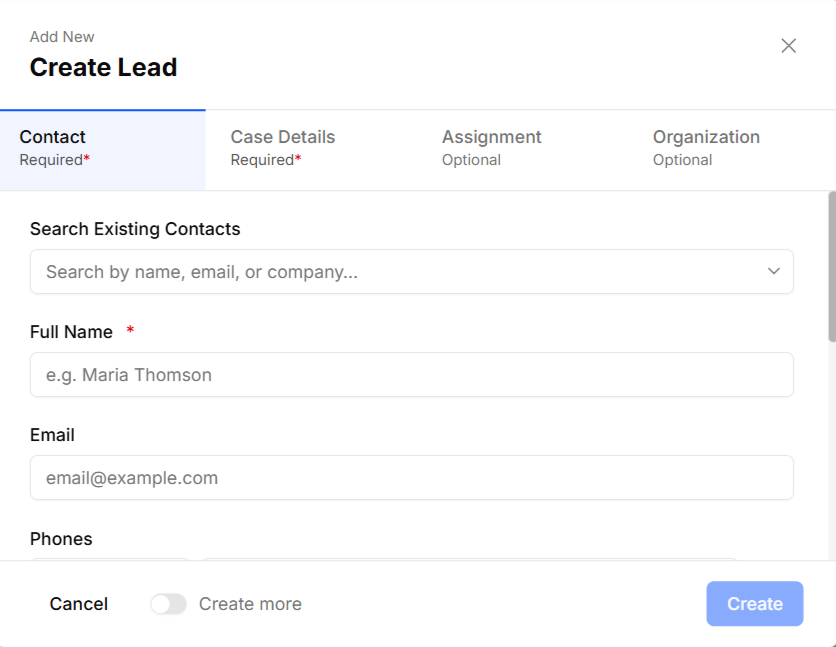
- Contact (required) — Search for an existing contact first to avoid creating a duplicate. If no match exists, enter the person's name, email, phone number, and address to create a new contact.
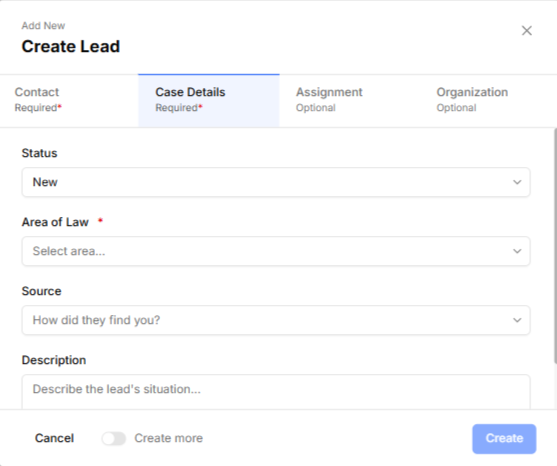
- Case Details (required) — Select the Area of Law and Source (for example, Cold Call, Referral, or Web Form), and add a Description of the lead's situation.
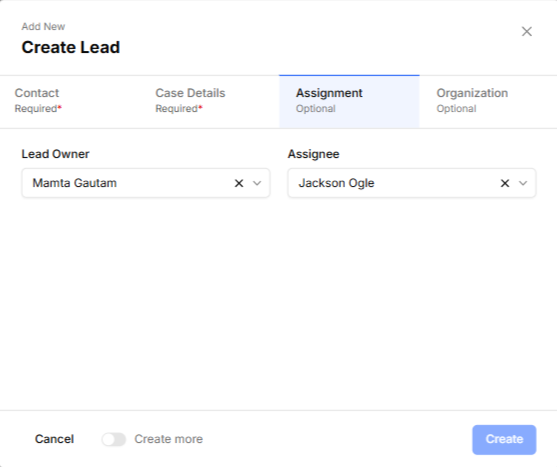
- Assignment Options (optional) — Assign a lead owner or team member to follow up.
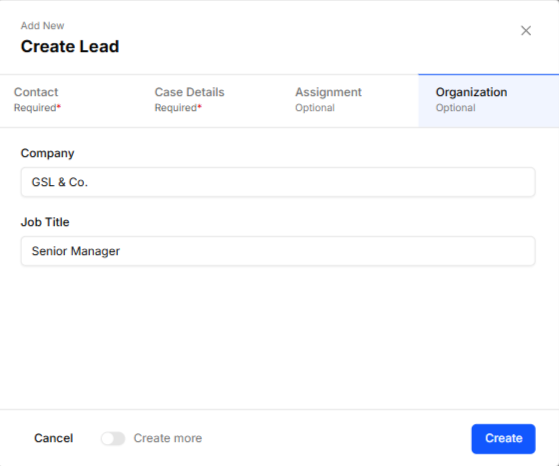
- Organization Options (optional) — Add a company name and job title if the lead is associated with a business.
- Contact (required) — Search for an existing contact first to avoid creating a duplicate. If no match exists, enter the person's name, email, phone number, and address to create a new contact.
- If you want to keep adding leads back-to-back, slide the Create more toggle on before submitting.

- Once done, click Create.
Once a lead is added, whether it arrived through a form or was added manually, it appears on your Leads list with its status, area of law, source, and assigned owner, ready for your team to review, follow up on, and move through your pipeline. For details on working a lead after it's captured, see Manage Your Leads.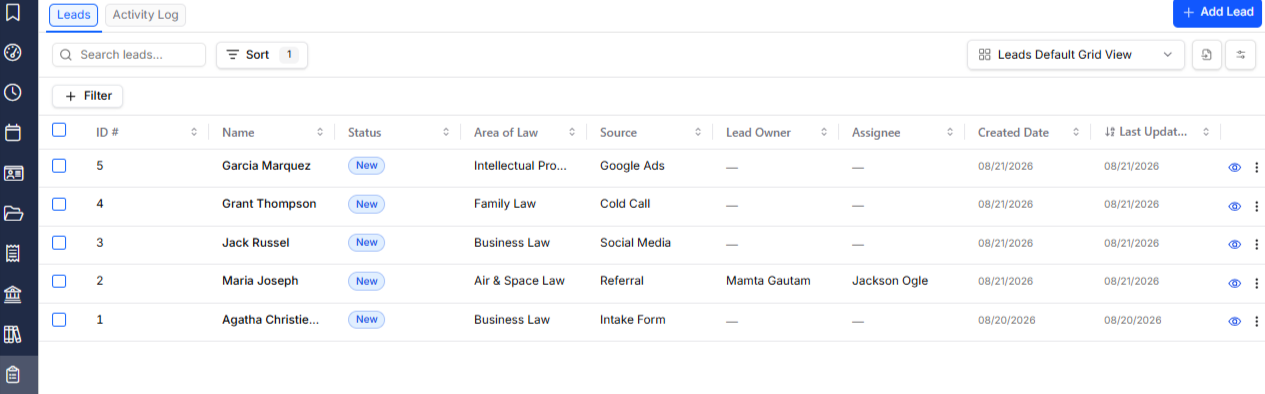
Also read: