If your firm practices in more than one province in Canada, you can enable per-matter province and tax settings. This allows you to override the firm selected province at matter level.
Set Up Multi-Province Settings
To set up multi-province settings at the firm level:
- From the toolbar, click your Profile icon.
- From the drop-down, select Setup.
- From the Setup left navigation, click Firm Settings.
- From the tabs atop the Firm Settings screen, click Accounting.
- On the Accounting screen, scroll down to the Default Accounts for Sales & Service Taxes section.
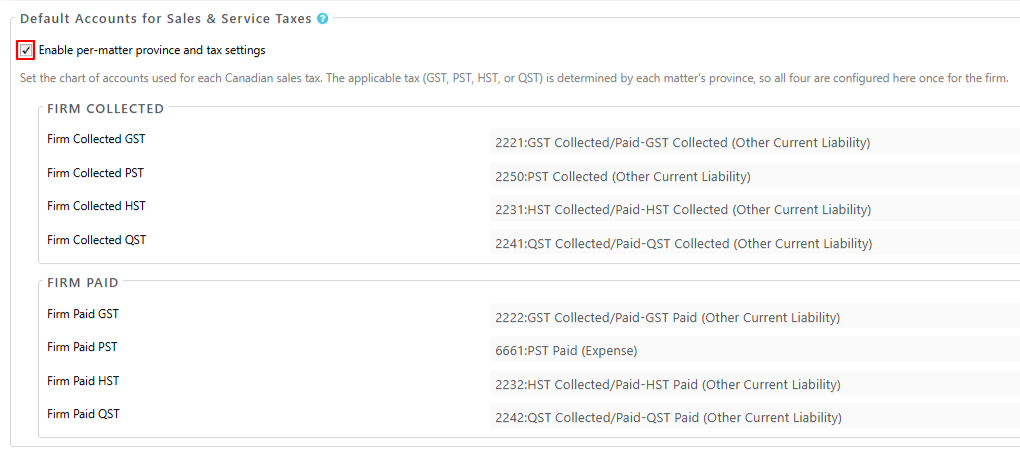
- The box beside Enable per-matter province and tax settings is checked by default.
If your firm practices in just one Canadian province, you can uncheck the box. - All four tax types (GST, PST, HST, QST) are listed for both collected and paid tax.
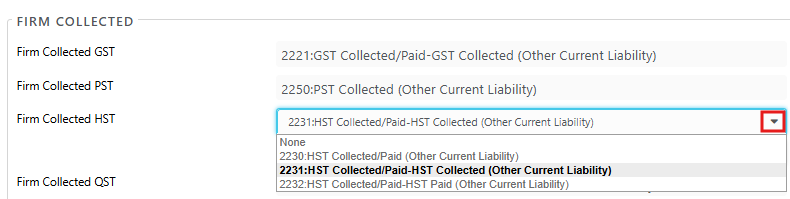
- From the drop-down beside each, assign a Chart of Account, either the system-defined account or a sub-account the firm has created under it. To create a chart of account, read Customize Your Chart of Account.
Set Up Province at Matter Level
To set up province settings at the matter level:
- From the navigation panel, click Matters.
- Double click a matter and from the tabs atop the matter's summary section, click Settings.
- From the tabs atop the matter's Settings screen, click Tax.
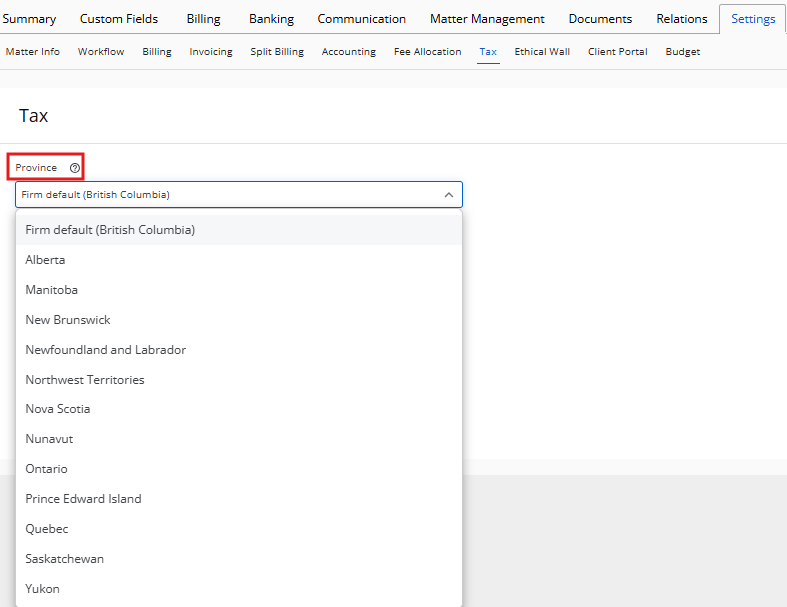
- From the drop-down on the Tax screen, select your tax Province.
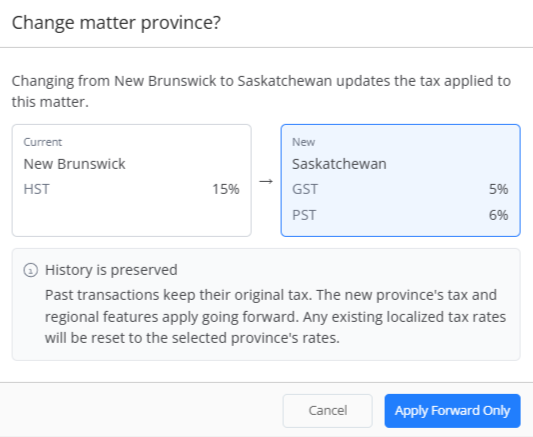
- In the Change matter province window that opens, review the updated tax rates and click Apply Forward Only.
- Mark the tax status as Taxable.
- In the Sales & Service Tax Accounts section, you can override the firm's default collected and paid accounts by clicking the arrow beside the field and selecting from the drop-down.
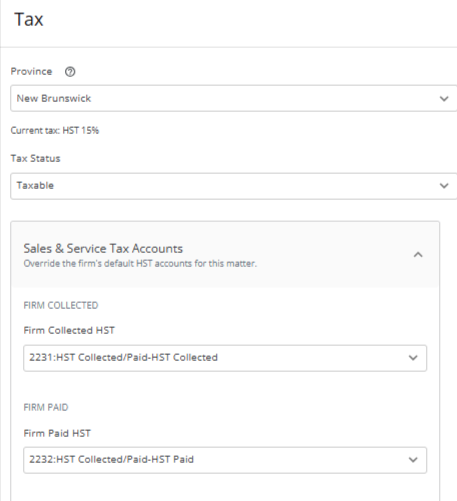
- Once you have made your selections, click Save.
The province you selected for the matter will display below the matter name.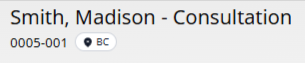
The Tax Payment Account field will list all four tax types (GST, PST, HST, QST) in the drop-down when generating the Billed/Collected Taxes or Paid Taxes Reports.