Exclude recipients when sending invoices, confirm client through id and email during matter creation
Enhancements
Configure Province and Tax Settings at the Matter Level (Canada)
Canadian firms with matters spanning multiple provinces no longer have to manage tax and province settings as a single firm-wide setting. You can now configure these at the matter level, so each matter reflects its own province's requirements.
- A new Province column is available on the Matters grid, including the Configure panel and the Filter picker, so you can assign and filter matters by province.
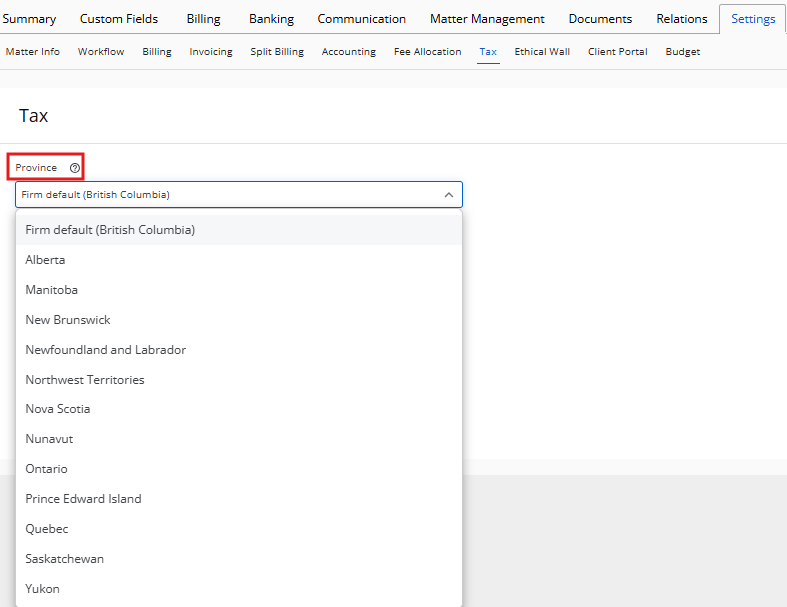
- Province-specific requirements are now handled at the matter level, including the Trust Administration Fee (British Columbia), the Transaction Levy (Alberta, Ontario, Newfoundland and Labrador), and Form 9A (Ontario), along with new tax fields on Add Hard Cost and Add Soft Cost.
- The Paid Taxes Report and Billed/Collected Taxes Report let multi-province firms choose which provincial tax account to report on — GST, PST, HST, or QST — instead of being limited to one tax type.
Exclude Recipients From a Single Invoice
You can now leave specific people off when sending an invoice without changing anyone's saved recipient settings. If a recipient doesn't need to see this particular invoice, you can skip them for just this send — everything reverts back to normal the next time invoices go out.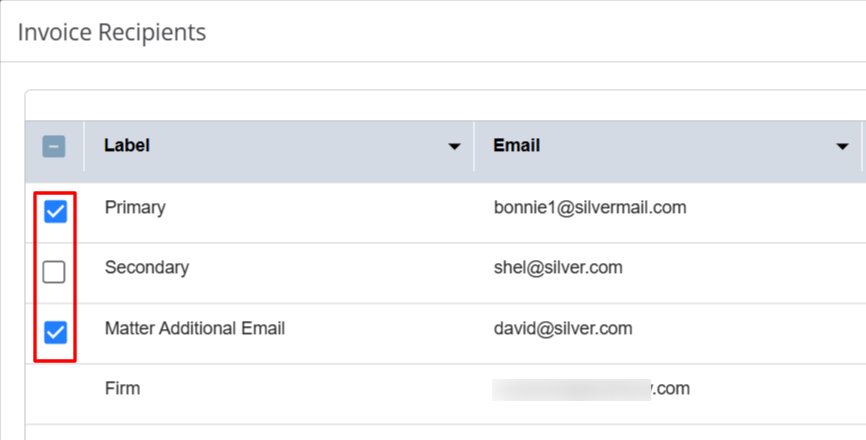
- Right before sending, uncheck one or more recipients — the Primary Contact, Matter Additional Emails, or the firm's copy — to exclude them from that send only.
- Matter, client, and firm invoice-recipient settings stay untouched. The next time you send invoices, every previously configured recipient is checked again by default.
- This works across all three send groupings: By Invoice, By Matter, and By Client.
Improved Add Matter Client Lookup
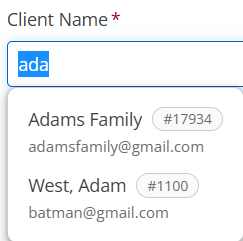
If several clients in your firm share the same name, finding the right client when adding a matter becomes easier if you have the right information. The Client Name lookup on the Add Matter screen now shows each client's Client ID and email address right in the results, so you can confirm you've got the right person before you commit.
- Each result in the Client Name lookup displays the client's Client ID, giving you a reliable way to tell similarly named clients apart.
- Each result also displays the client's email address, for an extra point of confirmation.
- Where multiple clients share a name, you can now identify the right one directly in the drop-down instead of guessing — and risking the matter attaching to the wrong client.
- Selecting a result attaches the correct client, matched on Client ID, so the link is accurate even if the email changes later. Results with no email on file still render cleanly.