Once you publish an intake workflow, it runs automatically for every lead who submits the associated form. This article describes what the lead — the person who submitted your form — receives and needs to do as the workflow runs.
The steps you build in the intake workflow determine what the lead sees: some steps ask them to take an action, while others run quietly in the background.
If you have not yet created an intake workflow, see Build an Intake Workflow.
Form Submission Confirmation
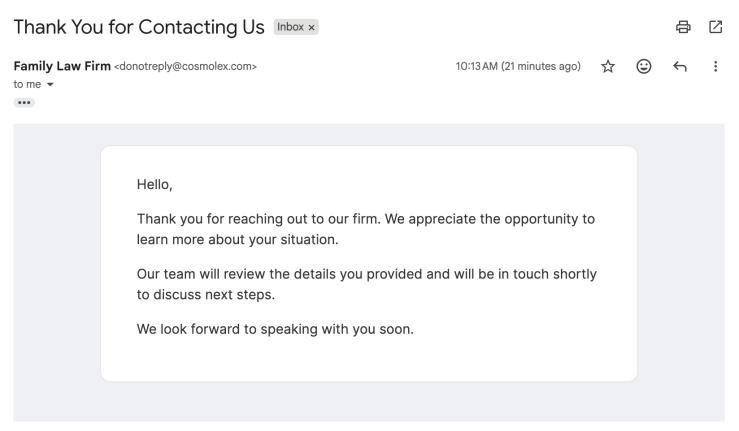
As soon as a lead submits the form, they receive a confirmation email letting them know their submission was received. The email includes a PDF copy of the completed form for their records.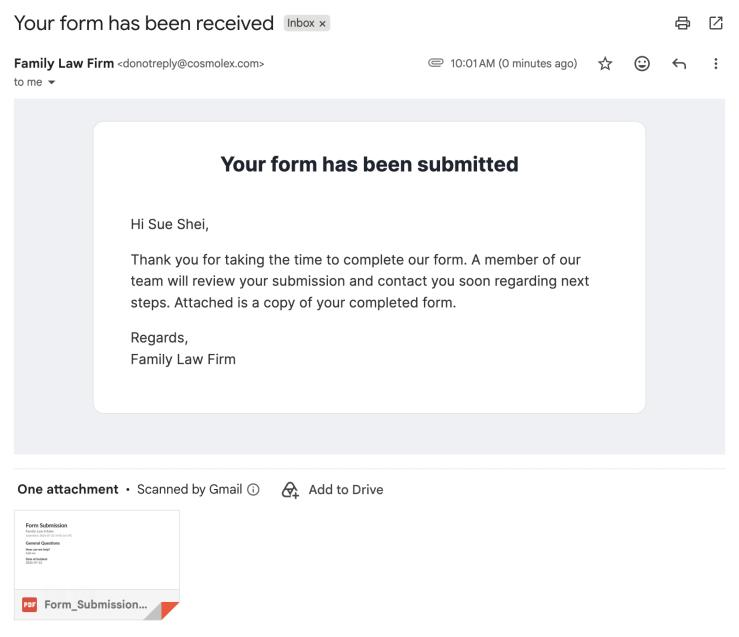
Action Needed
When the workflow reaches a Send Documents or Schedule Meeting step, the lead automatically receives a "pending activity" email letting them know a quick action is needed. The email includes a Continue button that takes them to a secure page to complete that step. Although the email is the same in both cases, where the button leads depends on the step: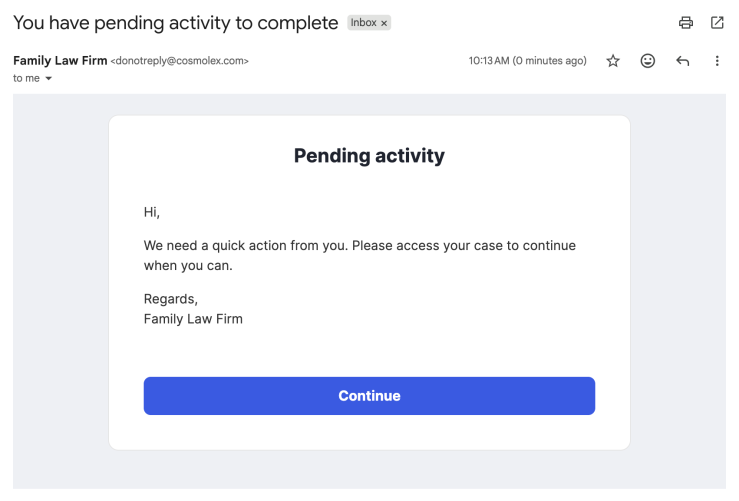
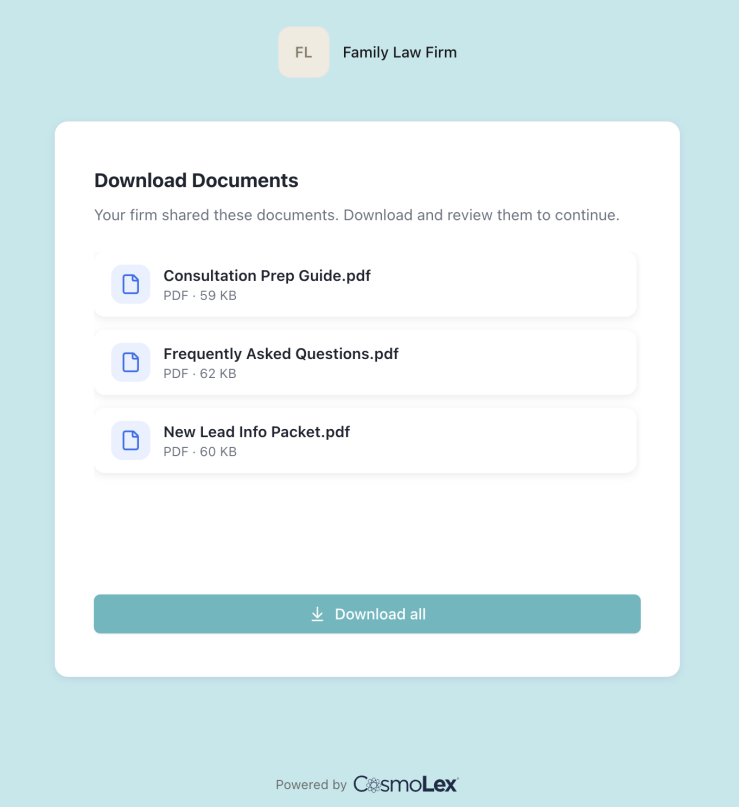
- Send Documents — the button opens a page where the lead can download the document(s) you've shared. Once the documents have been downloaded, the step is marked as complete and the workflow proceeds to the next step.
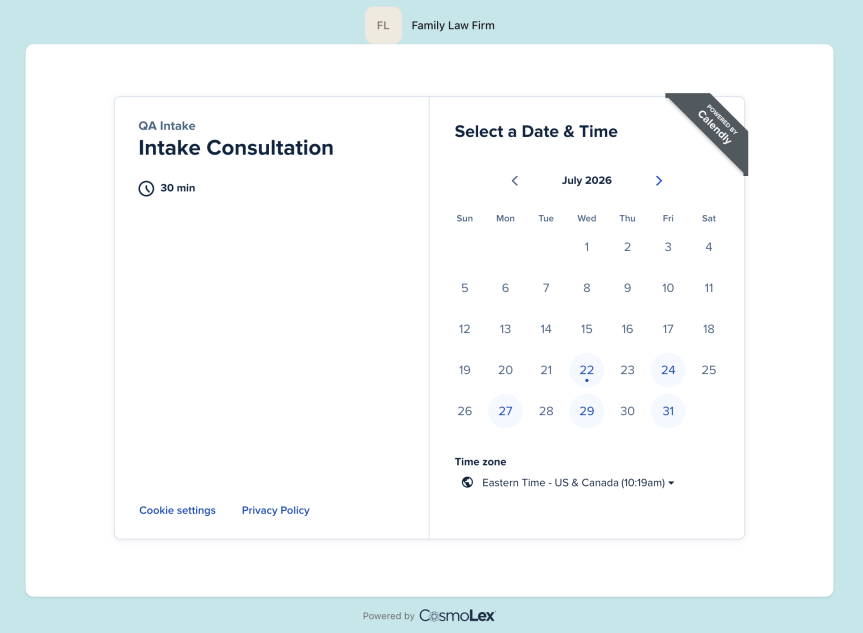
- Schedule Meeting — the button opens your Calendly scheduling page, where the lead can book a consultation using the selected meeting type. Once a meeting has been successfully scheduled, the step is marked as complete and the workflow proceeds to the next step.
Note: The "pending activity" email is a standard system email. Its content is fixed and can't be customized at this time.
No Action Required by Lead
Not every workflow step requires the lead to do something:- Send Communication delivers the email template you configured. No action is required from the lead.
- After Delay pauses the workflow for the specified amount of time. No email or notification is sent while the workflow is in this step.
If a lead opens their link while the workflow is between actions, they'll see a friendly message letting them know there's nothing to do right now and that your firm will reach out when there's a next step.