Set billable hours and goals, automatically apply operating retainer funds at invoice creation, concurrently edit Office 365 documents, and enter time in bulk faster with full keyboard navigation.
Enhancements
Set Timekeeper Targets
If you are subscribed to the Elite tier of NextGen, you can now say goodbye to tracking billable hour goals in external spreadsheets. Timekeeper Targets brings goal-setting and performance tracking directly into NextGen — so you can see how you're tracking against your targets in real time, and your administrators can review progress across the entire firm from a single report.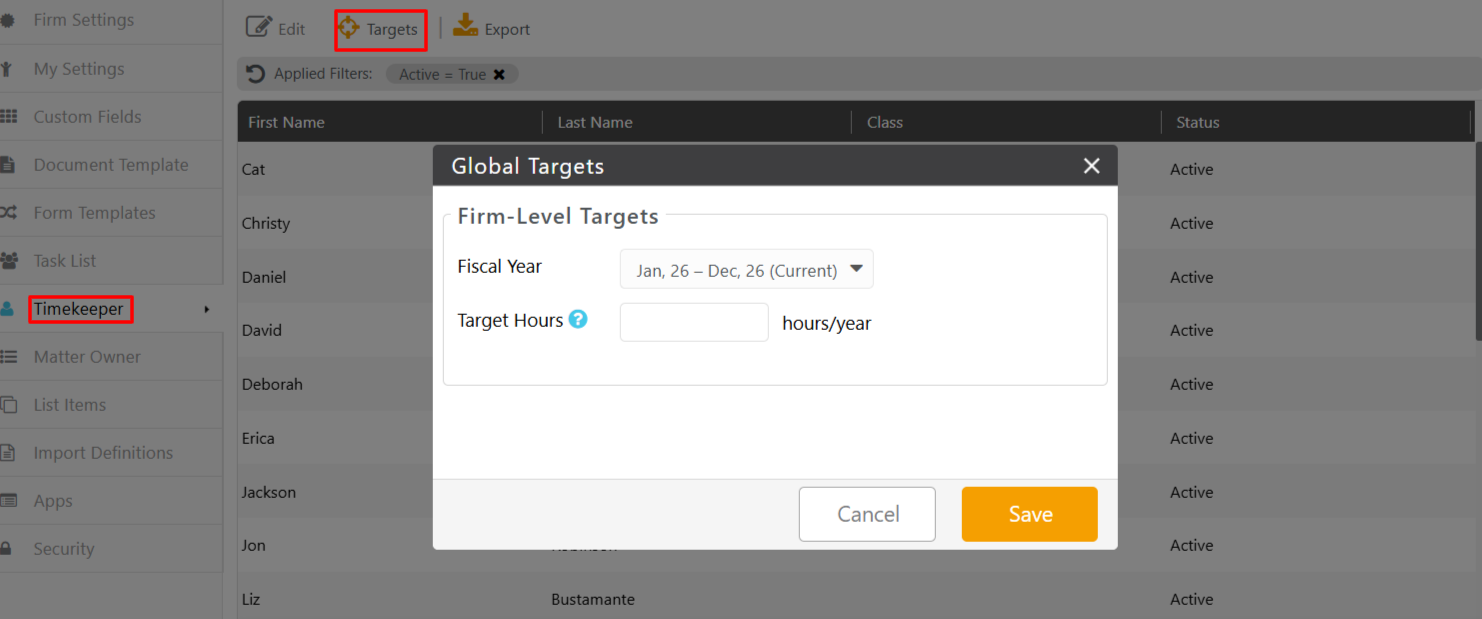
Key Capabilities
- Firm-Wide Default and Per-Timekeeper Overrides: Your administrator sets a default annual billable hour target that applies to everyone automatically. If your arrangement is different — part-time, reduced load, or otherwise — your target can be personalized to match.
- Monthly Breakdowns: Targets don't have to be evenly distributed across the year. Your firm can reflect seasonality and your individual schedule in how targets are set month by month.
- Fiscal Year Alignment: All targets are organized by your firm's fiscal year, keeping everything consistent with how your firm budgets and evaluates performance.
- My Target Dashboard Widget: You'll see a personal My Target widget on your dashboard showing your actual hours worked against your target — with a visual gauge and a hover breakdown of billable, no-charge, and total hours. Toggle between your current month, quarter, or full fiscal year with the period selector.
- Timekeeper Target Report: Administrators can pull up a single report under Financial Productivity to see every timekeeper's progress against their targets, filtered by date range, individual timekeeper, or active/inactive status.
- Permission Controls: Only users with the appropriate admin role — or custom roles granted this permission — can set or edit targets, keeping your data secure.
- Fiscal Year Change Warning: If your firm's fiscal year is ever changed, you'll see a clear warning that existing targets will be reset so nothing gets lost without your knowledge.
Auto-Apply Operating Retainer
If you've used Auto-Apply Trust Retainer, this works the same way — but for operating retainer funds. When you create an invoice, you can apply any available operating retainer automatically, so you no longer have to go back and record a payment after the fact.
Key Capabilities
- Single Invoice Creation: When you create a single invoice, available operating retainer funds are applied for you automatically.
- Bulk Invoice Creation: Running bulk invoices? Operating retainer auto-apply works there too.
- Invoice Approval Workflow: Operating retainer is auto-applied whether you're approving a single invoice or running bulk approval.
- Hybrid Scenarios: You can run operating retainer, trust retainer, and the approval workflow all together in the same invoicing flow — no extra steps needed.
- Application Order: When both operating and trust funds are applied, your operating retainer is debited first.
Document Editing Improvements
Building on the in-app document editing experience introduced earlier, you and your colleagues can now edit Office 365 documents stored in NextGen at the same time — no more waiting for someone to finish before you can make your changes.
Key Capabilities
- Concurrent Editing for Internal Documents: Multiple users can now edit the same .docx or .xlsx file simultaneously when the document editor is enabled, with changes synchronized between editors in real time.
- Source File Sync Preserved: Your edits are always applied to the same source file, so the Client Portal and other surfaces stay in sync with the latest version — no duplicate files, no version confusion.
Timesheet Tab Key Navigation
If you enter a lot of time entries back to back, you know how disruptive it is to keep reaching for the mouse. Now you can move through every field on the Timesheet screen using only the Tab key — keeping your hands on the keyboard and your focus on the work.
Key Capabilities
- Keyboard Focus Order: Tab moves through each Timesheet row field in a logical, left-to-right order — exactly the way you'd expect.
- Reverse Navigation: Made a mistake? Shift+Tab moves focus back in the reverse direction.
- Reduced Friction: Tab navigation is now consistent across the entire row, so bulk time entry is significantly faster for everyone who does it regularly.