This article will walk you through the various fields of a timecard, offering guidance on efficiently adding your time.
TIP: You can navigate through time entry fields by using the tab key on your keyboard, and the selected field will have a blue border.
Watch a Video
You can enter your time from various areas:
- From Global Add Shortcut
- From Global Timer and Timesheet
- From Matters
- From Matter Details
- From Practice Management Functions
- From Money Finder
- Using a Keyboard Shortcut
Add Time Card
If a matter is already chosen when entering time, this field will fill in automatically. If not, you can start typing the client, matter, or file number, and a list of suggested matches will appear for you to select from. This is a required field.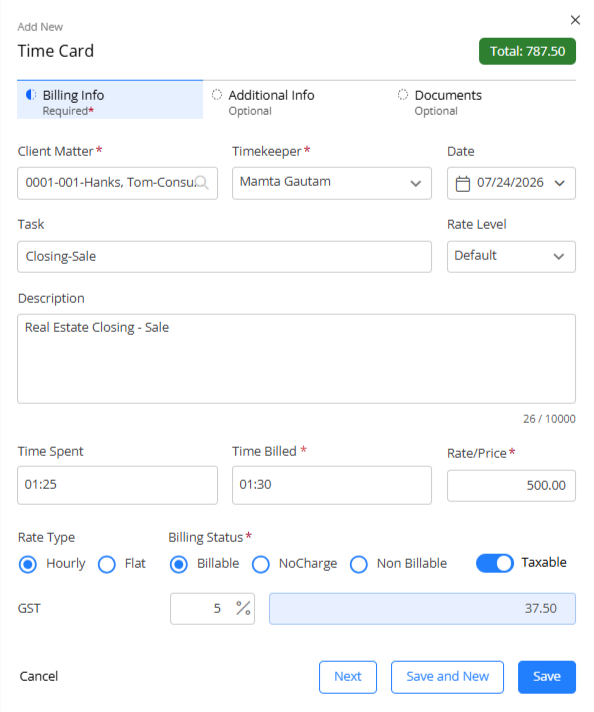
Billing Info Section
| Timekeeper (required) |
|
| Date (required) |
|
|---|---|
| Task |
|
| Rate Level |
|
| Description |
|
| Time Spent |
|
| Time Billed (required) |
|
| Rate/Price |
|
| Rate Type |
|
| Billable |
|
| No Charge |
|
| Non-Billable |
|
| Taxable Off |
|
| Taxable On |
|
LEDES - eBilling
If this matter is set up for eBilling, You will have slightly different options when entering a timecard.
| Activity |
|
| Task |
|
Additional Info Tab
| Hold |
TIP: On the time/expense tab you can use the filters (on the right) to show items on hold. |
|---|---|
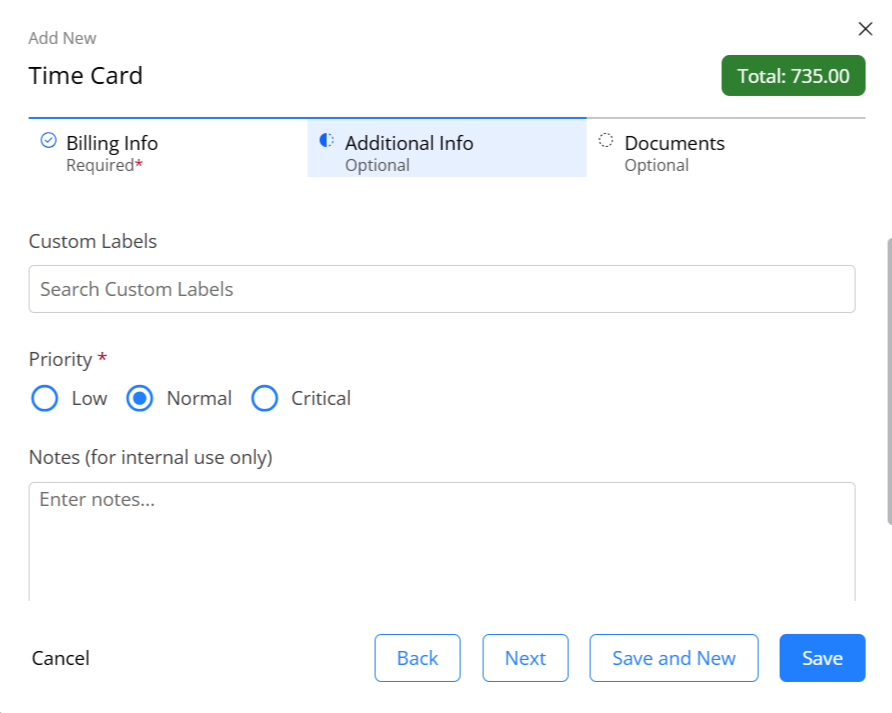
| Custom Labels | Select from the labels in the drop-down. To learn more, see Manage Your Custom Labels. |
| Priority | You can flag the timecard with a priority billing level. |
| Notes |
|
Documents Tab
In this section, you can attach any documents to support the activity you are logging. These documents will be accessible on the timecard itself, as well as within the matters document section. These documents will not be visible to the client unless shared in the client portal.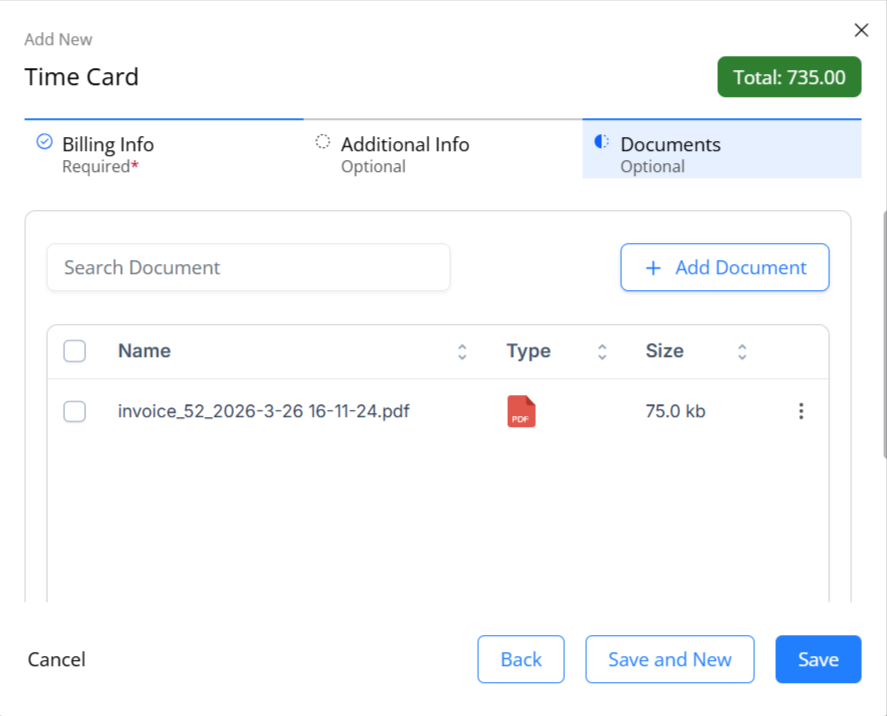
| Add |
|
|---|---|
| Delete |
|
| Download | Use the three-dot menu beside the document to Download a supporting document to your computer. |
| View | Use the three-dot menu beside the document to view PDF and image files. |
Save Options
| Save and New | Click Save and New to save the timecard and enter another timecard right away. Helpful for bulk entry. |
|---|---|
| Save | Click Save to save the timecard and return to the Time/Expense screen. |