To assist you with your accounting needs, the CosmoLex Accounting Partners (CAP) program provides your external/independent bookkeeper or accountant with system access, separate from your firm's staff accounts.
Obtain a CAP License
To obtain a CAP license:
- You, or your CAP emails onboarding@cosmolex.com requesting your CAP's account access.
- Upon receipt of the email, CosmoLex contacts your CAP to verify their contact information and independent status.
- CosmoLex emails your firm to confirm your CAP's access activation.
Do not enter your CAP user prior to receiving the confirmation email.
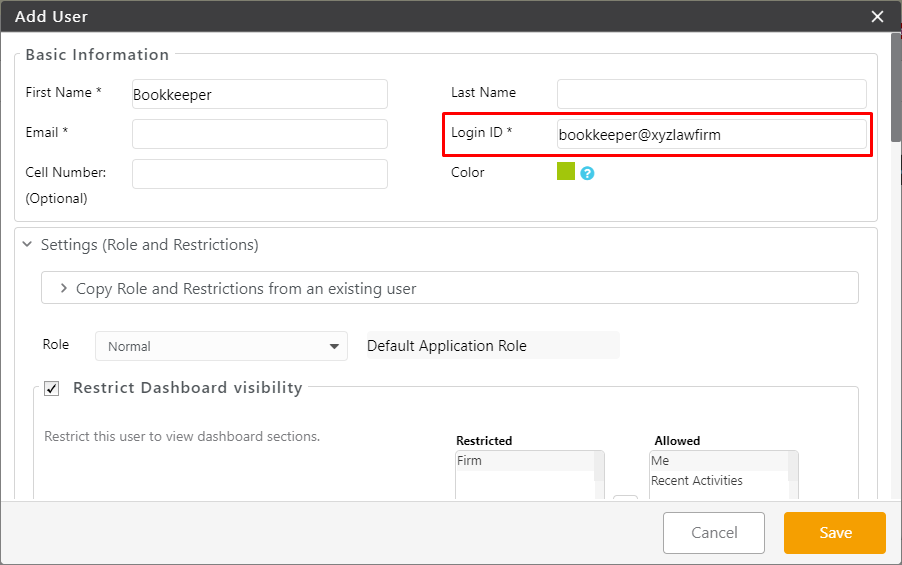
Note: A CAP's access-activated email can be used across multiple firms, so each firm must give the CAP a unique Login ID. If you enter a Login ID already in use, you'll see an alert that the user already exists. Choose a different, unique Login ID (for example, bookkeeper@xyzlawfirm).
For assistance setting up your Bookkeeper's role, rights, and restrictions,
Add Your CAP as a User
For additional information regarding adding your CAP to your subscription, see Add a User.
Assign Appropriate User Role
When you add your CAP user, you can also customize their user role.
Replace Your CAP User
If you need to switch to a different CAP, follow these steps in order to avoid being billed for two CAP users at the same time:
Remove your current CAP user first. (See Remove a CAP User.)
Email onboarding@cosmolex.com to register your new CAP.
Wait for CosmoLex to confirm your new CAP is registered and that you can proceed.
Add your new CAP user only after you receive that confirmation.
Warning: Add your new CAP only after removing the old one and receiving confirmation from CosmoLex. Adding a new CAP while the old one is still active can result in being charged for two CAP users at once. As the firm administrator, you must delete the CAP, then re-invite them to your system.
Remove a CAP User
If you no longer need your CAP user, you can remove them from your subscription. For additional information regarding removing your CAP from your subscription, see Delete a User. After your CAP user is removed, email onboarding@cosmolex.com with questions related to your billing.