When utilizing any payment processing company to accept credit cards, there are per-transaction processing fees. With the increase in credit card usage, small firms especially may look to pass those fees onto their clients. You can accept eCheck (ACH) payments and pass credit card surcharges through to clients, bringing LawPay's full payment capabilities into CosmoLex. Both options are available everywhere clients pay: payment links, integrated payments, and the Client Portal.
Surcharging with LawPay
Once your LawPay account is set up for surcharging, the redirection of processing fees for credit card payments happens automatically.
Here is an example of a $1,000 invoice being paid by credit card using LawPay:
Without surcharging:
- Invoice client for $1,000
- Client pays $1,000
- Law firm receives the $1,000 deposit
- At the end of the month, the law firm is billed by LawPay for accumulated processing fees.
With surcharging:
- Invoice client for $1,000, a surcharge is automatically added to the amount owed.
- Client pays $1,000 + surcharge
- Law firm receives the $1,000 deposit, LawPay receives the surcharge.
- These processing fees never impact the law firm's financials.
Note: There is no surcharging on debit cards or ACH payments. Firms will pay processing fees for debit cards and ACH payments.
Enrolling in Surcharging
CosmoLex does not enable or configure surcharging on your behalf. To enable surcharging, contact LawPay directly. Once it is enabled in your LawPay account, you will need to re-enable your LawPay integration in CosmoLex for the surcharge to take effect.
Important Notes
Keep the following in mind when it comes to surcharging:
- Surcharges apply to credit cards only. Debit card and eCheck payments are never surcharged.
- Surcharging is supported for operating payments only. LawPay does not support surcharging for trust payments, and CosmoLex does not apply a surcharge when clients make payments to a trust account.
Setup Requirements
If your firm is already using the LawPay integration in CosmoLex, you will need to re-enable the integration to activate the new e-check and surcharging functionality. This step is required because CosmoLex retrieves your LawPay account details, including ACH account information and surcharging configuration during the enablement process. Existing integrations do not automatically pick up this information.
To re-enable your LawPay integration:
- From the toolbar, click your profile icon.
- From the drop-down, click Setup and select Apps.
- Locate your LawPay integration and select the option to disable it.
- Once disabled, select the option to enable LawPay again.
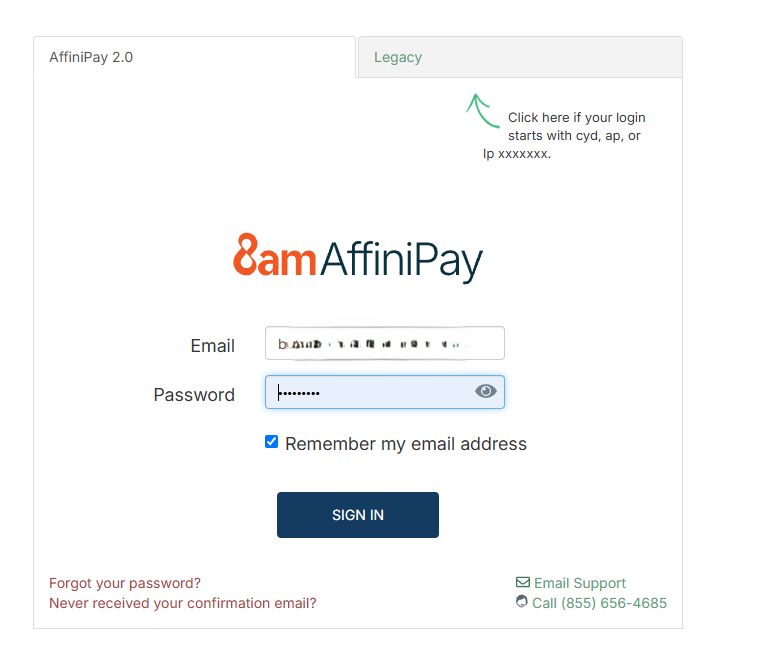
- Log in with your LawPay credentials when prompted.
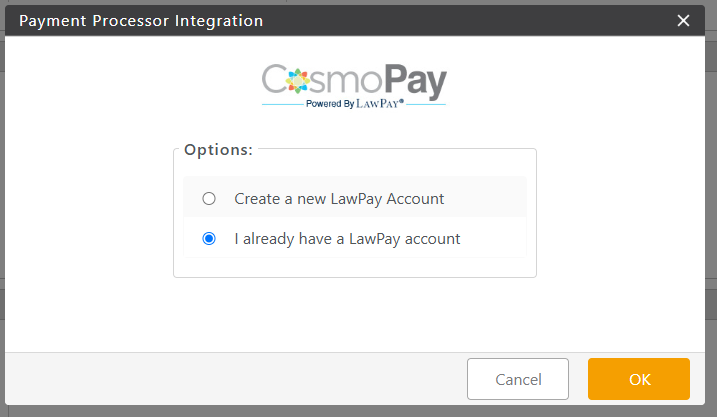
- Choose from the options.
- On the account mapping screen, map your operating account to the credit card account.
Note: You do not need to map the eCheck account, CosmoLex uses the same bank account for both credit card and eCheck payments.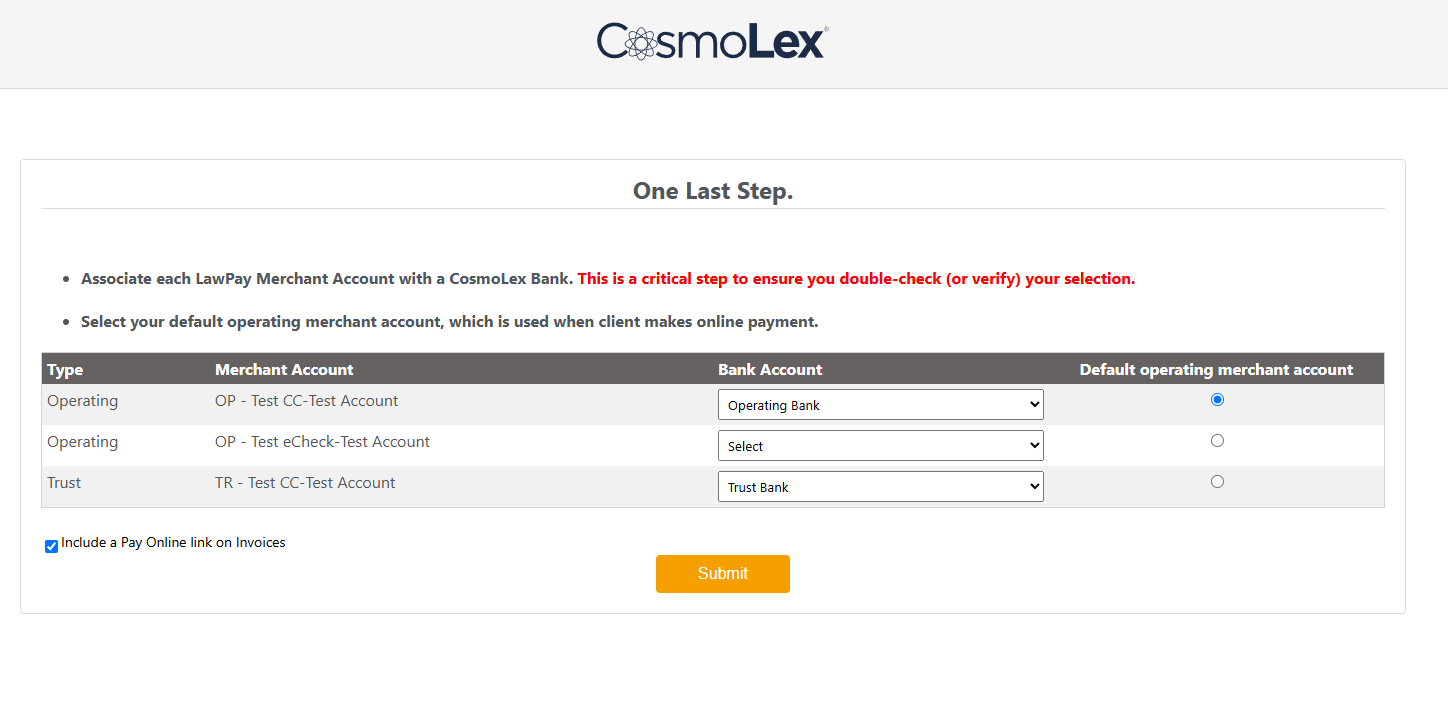
- Map your trust account if applicable.
- Set your operating account as the default and click Submit.
Once re-enabled, your firm will have access to the eCheck payment option and, if applicable, surcharging on credit card transactions.