With CosmoLexPay, you can receive online payment directly into your Trust or Operating accounts.
Watch a Video
To set up online payments, you must first enroll & integrate with CosmoLexPay (US)
For added convenience, we provide the option to email a request for Trust or Operating replenishment which includes a link for payment. When utilized, funds will be deposited into your Trust or Operating account, and all Trust or Operating records will be updated within your application.
Alert: Before emailing online Trust or Operating retainer payments, we recommend reviewing the online retainer request email templates under Setup > Firm Settings > Email Templates > Email Invoice. Learn more about editing email templates
Request an Online Trust Retainer Payment
You can request an online trust retainer payment from a matter or from a matter's banking tab:
- From the left navigation panel, click Matters.
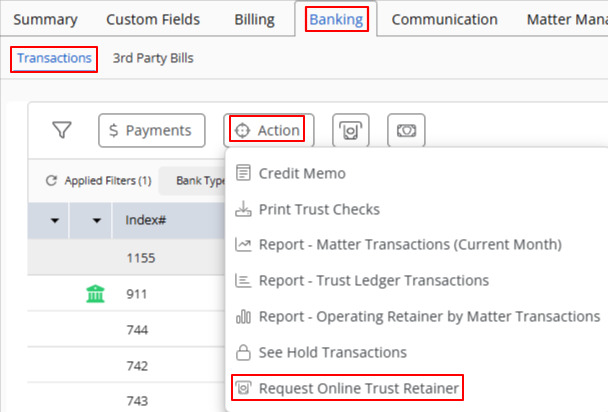
- On the Matters screen, either double-click a matter and from the tabs atop the summary section, click Banking > Transactions.
- From the toolbar on the transactions screen, click Action > Request Online Trust Retainer.
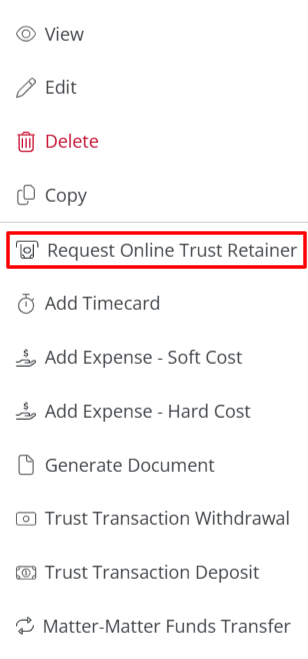
- Or click the matter to highlight it.
- Click on the three dots at the end of the row and from the drop-down, click Request Online Trust Retainer.
- On the Trust Retainer Request screen, from the Bank field's drop-down, click the appropriate trust bank.
Note: Only trust banks associated with this matter will display.
- In the Amount field, enter the amount you want to request from your client.
- Confirm the client's email address is correct. This will populate automatically if it has previously been recorded for the client. You can edit this email address from here if needed.
- In the lower-right corner, click Next.
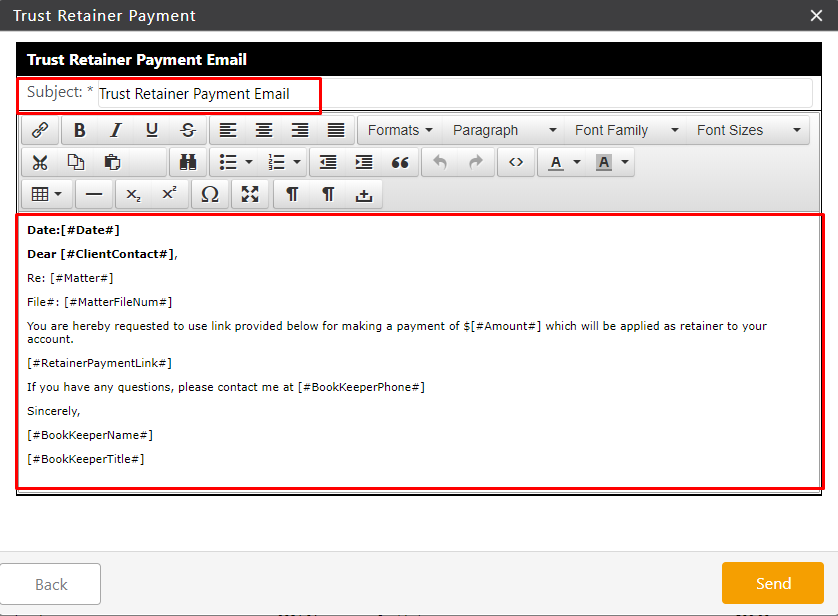
- Review the Trust Retainer Payment Email template text and make any necessary edits.
Note: Do not edit the fields in brackets as those will auto-populate the email with the client's information.
To make permanent template changes, customize your template under Setup > Firm Settings > Email Templates > Online Trust Retainer Payments. Learn more about editing email templates
Important:
- To receive credit card payments into trust, a trust account must be associated with a merchant account through CosmoLexPay.
- If you receive an error stating the trust bank is not configured to receive online payment, it means the trust bank linked to this matter is not integrated with a merchant account.
- To verify which banks are linked to a merchant account, go to Banking. Banks displaying a credit card symbol to their left are connected.
- If using CosmoLexPay
- In the lower right corner, click Send.
The system emails your client requesting an online trust retainer payment and sends a copy to the firm's email address.
The Client Email
Your client receives an email with a retainer payment link.
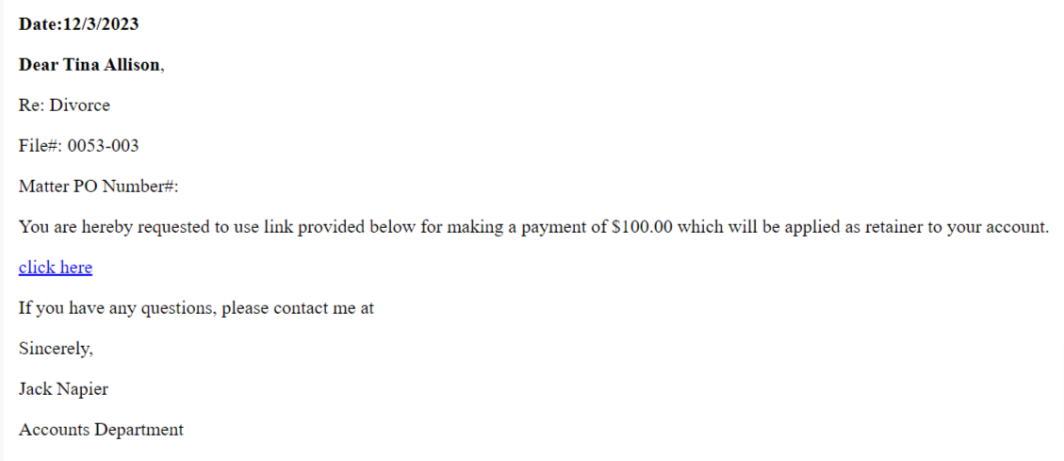
When your client clicks the link, they are directed to a payment screen to enter their payment information and click Submit Payment.
Important: The client cannot edit the amount displayed.
In your application, the payment amount will:
- Appear as a deposit in your trust bank
- Update the invoice balance and status
- Record the deposit with a credit card or eCheck payment icon
- Update your retainer balance
Request an Online Operating Retainer Payment
You can request an online operating retainer payment from a matter or from a matter's banking tab:
- From the left navigation panel, click Matters.
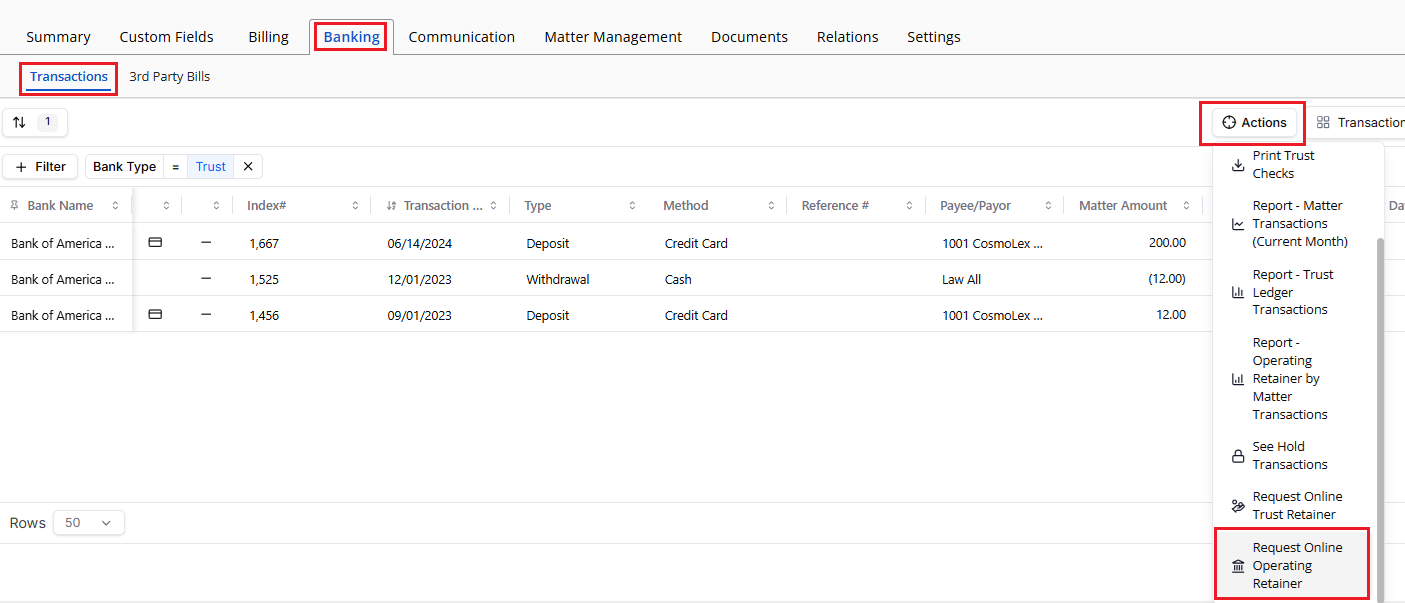
- On the Matters screen, either double-click a matter and from the tabs atop the summary section, click Banking > Transactions.
- From the toolbar on the transactions screen, click Action > Request Operating retainer.
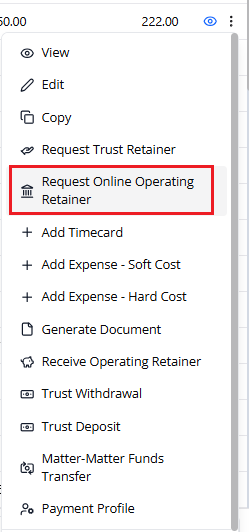
- Or click the matter to highlight it.
- Click on the three dots at the end of the row and from the drop-down, click Request Online Operating Retainer.
- On the Operating Retainer Request screen, from the Bank field's drop-down, click the appropriate operating bank.
Note: Only operating banks associated with this matter will display.
- In the Amount field, enter the amount you want to request from your client.
- Confirm the client's email address is correct. This will populate automatically if it has previously been recorded for the client. You can edit this email address from here if needed.
- In the lower-right corner, click Next.
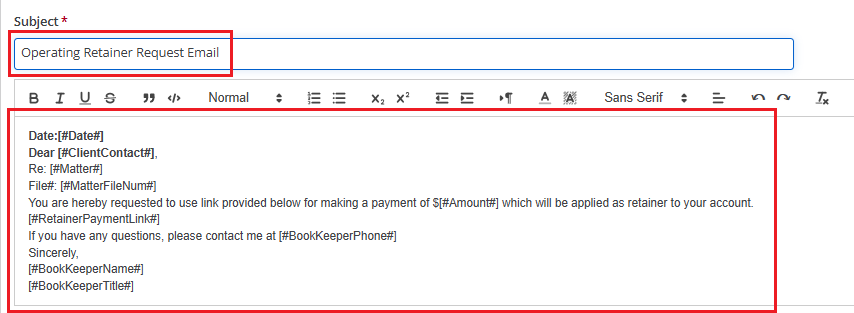
- Review the Operating Retainer Payment Email template text and make any necessary edits.
Note: Do not edit the fields in brackets as those will auto-populate the email with the client's information.
To make permanent template changes, customize your template under Setup > Firm Settings > Email Templates > Online Operating Retainer Payments. Learn more about editing email templates
Important:
- To receive credit card payments into your operating fund, an operating account must be associated with a merchant account through CosmoLexPay.
- If you receive an error stating the operating bank is not configured to receive online payment, it means the operating bank linked to this matter is not integrated with a merchant account.
- To verify which banks are linked to a merchant account, go to Banking. Banks displaying a credit card symbol to their left are connected.
- If using CosmoLexPay
- In the lower right corner, click Send.
The system emails your client requesting an online operating retainer payment and sends a copy to the firm's email address.
The Client Email
Your client receives an email with a retainer payment link.
When your client clicks the link, they are directed to a payment screen to enter their payment information and click Submit Payment.
Important: The client cannot edit the amount displayed.
In your application, the payment amount will:
- Appear as a deposit in your operating bank
- Update the invoice balance and status
- Record the deposit with a credit card or eCheck payment icon
- Update your retainer balance