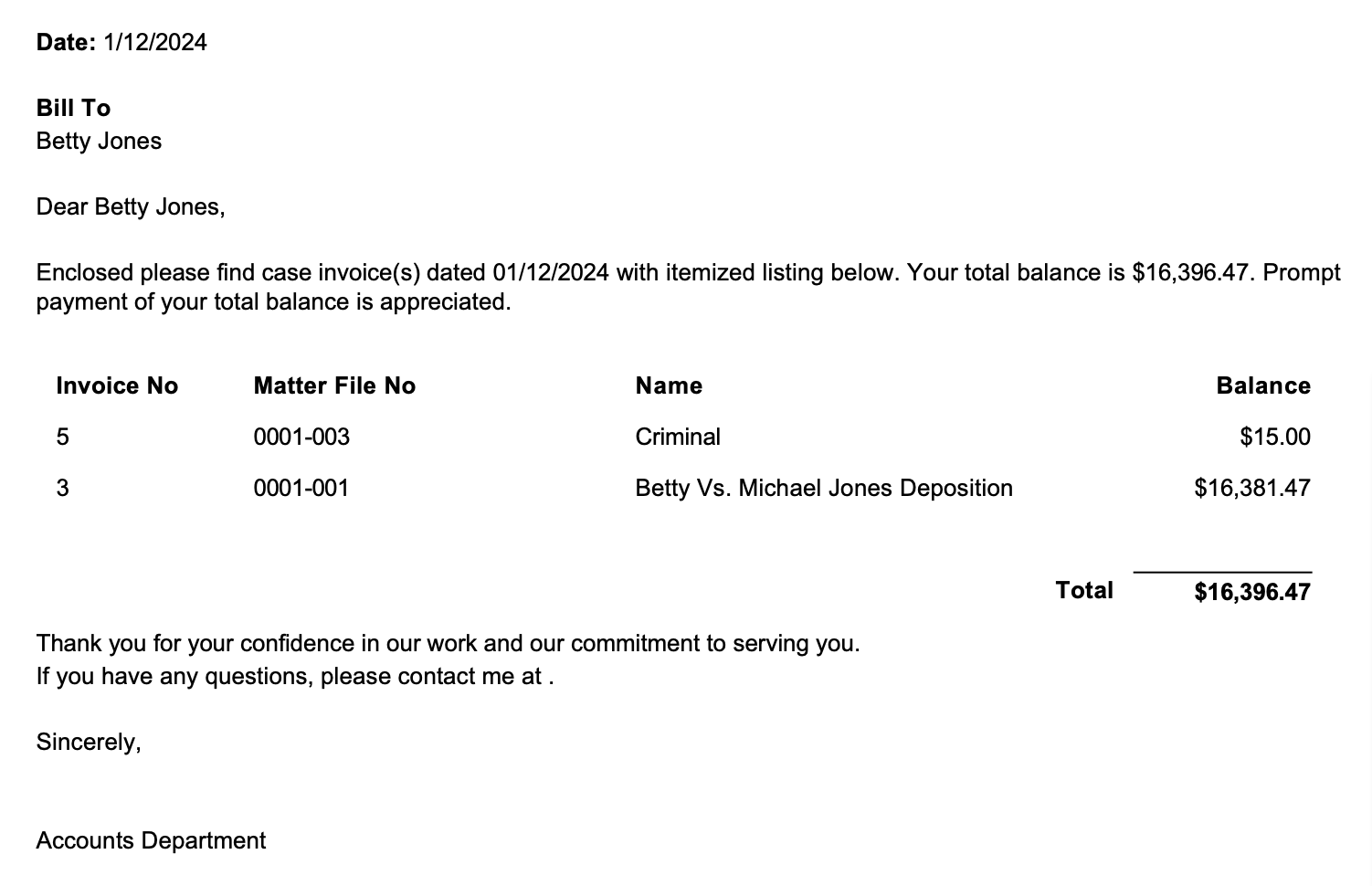
When sending invoices to clients, you have the option to attach a cover page, also known as a Client Statement, to your email or printed invoices. The Client Statement provides a summary of the total amount encompassing all invoices generated for that specific client.
The Client Statement is exclusively accessible from the Firm Billing and cannot be accessed from the invoices section for a specific matter.
Important: Customization for the client statement is not available.
Print a Client Statement with Invoices
To print a client statement with your invoices:
- From the left navigation panel, click Billing.
- From the Billing menu, click Invoice.
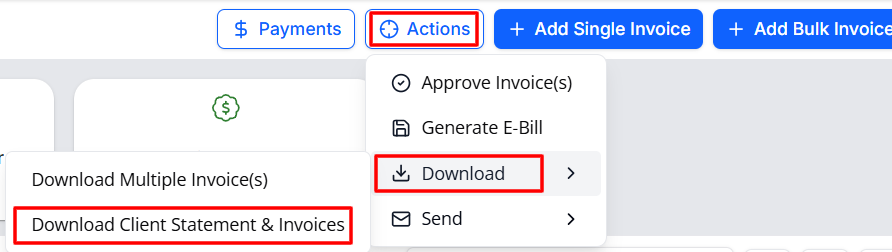
- From the toolbar at the top of the screen, click Actions.
- From the Actions menu, click Download.
- From the options, select Download Client Statement & Invoices.
- On the Download Invoice(s) screen, use the filter above the grid to search for relevant invoice(s) and to select the Invoice Date Range , and select the Status of the invoice(s).
- The presets from All Dates through Last Year will prefill the relevant dates. For all other presets, you must provide a date or date range.
- The Range preset lets you specify begin and end dates.
- In the Document Type drop-down, PDF is the default format. You can switch to an MS Word format.
- From the Download Format drop-down, select from Combined or Individual Files (zip format).
- The Invoice Stage defaults to Approved, but you can switch to Draft.
.png)
- If you want to include invoices previously emailed, downloaded or those that do not have Write-Off amount, slide the toggle buttons off.
- From the Invoice, Matter, and Client tabs above the grid, click Client.
- In the grid section, to further narrow your search, use the filter to select a specific client.
- Click the radio button beside the client's name.
The banner above the grid will display the number and total of invoices selected. - In the top right of the page, click Generate.
- The client statement and invoices are downloaded to your preferred location for printing.
To email your client statement and invoice, learn how to Email Your Invoice.
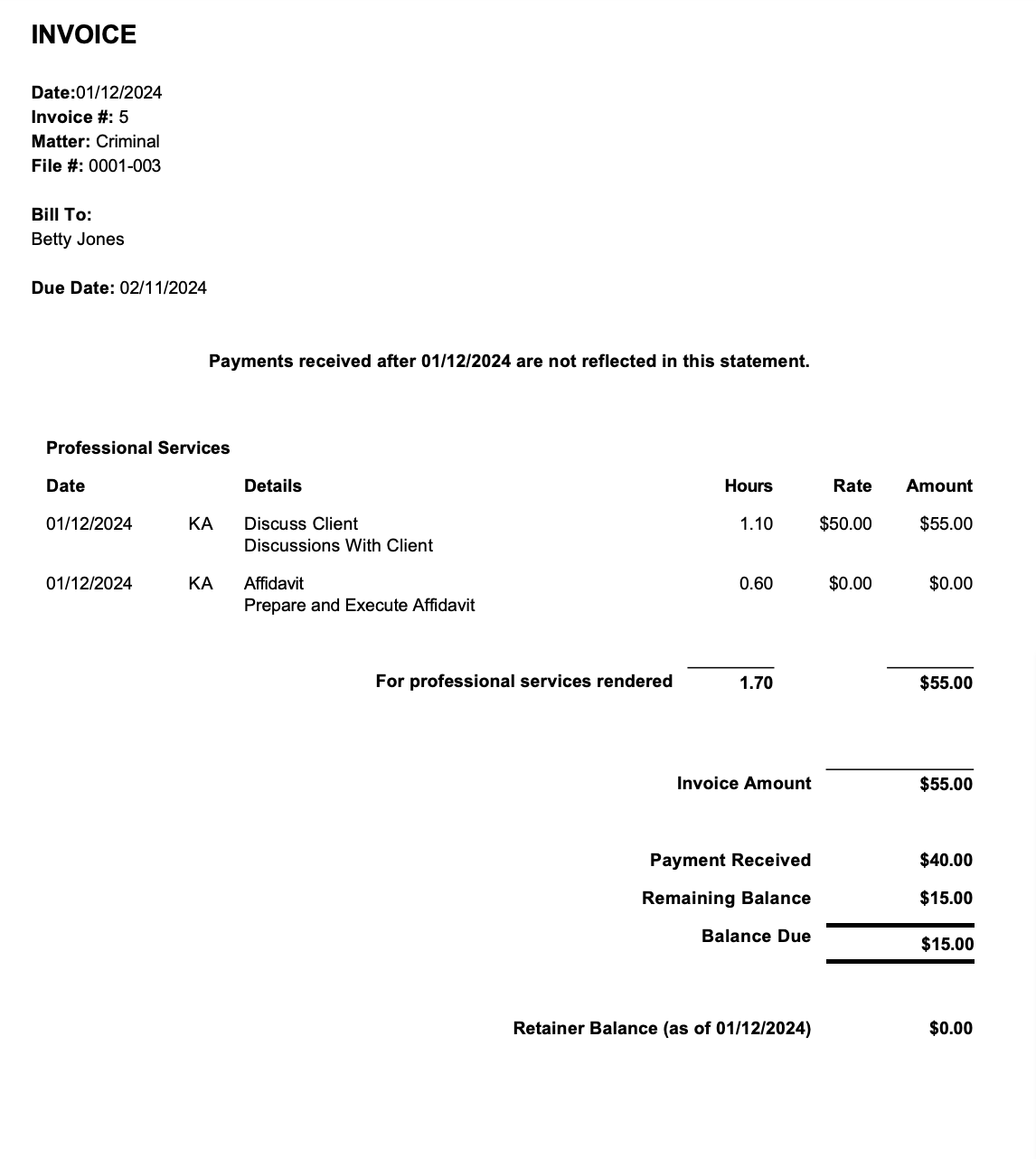
Sample client statement with invoice:
SAMPLE STATEMENT:
SAMPLE INVOICE