Automatic invoice reminders allow you to send follow-up emails to clients with unpaid invoices on a set schedule — no manual action required. Enable it at the firm level, control it per matter, and every reminder email is logged for a full audit trail.
Watch a Video
Enable Automatic Invoice Reminders at the Firm Level
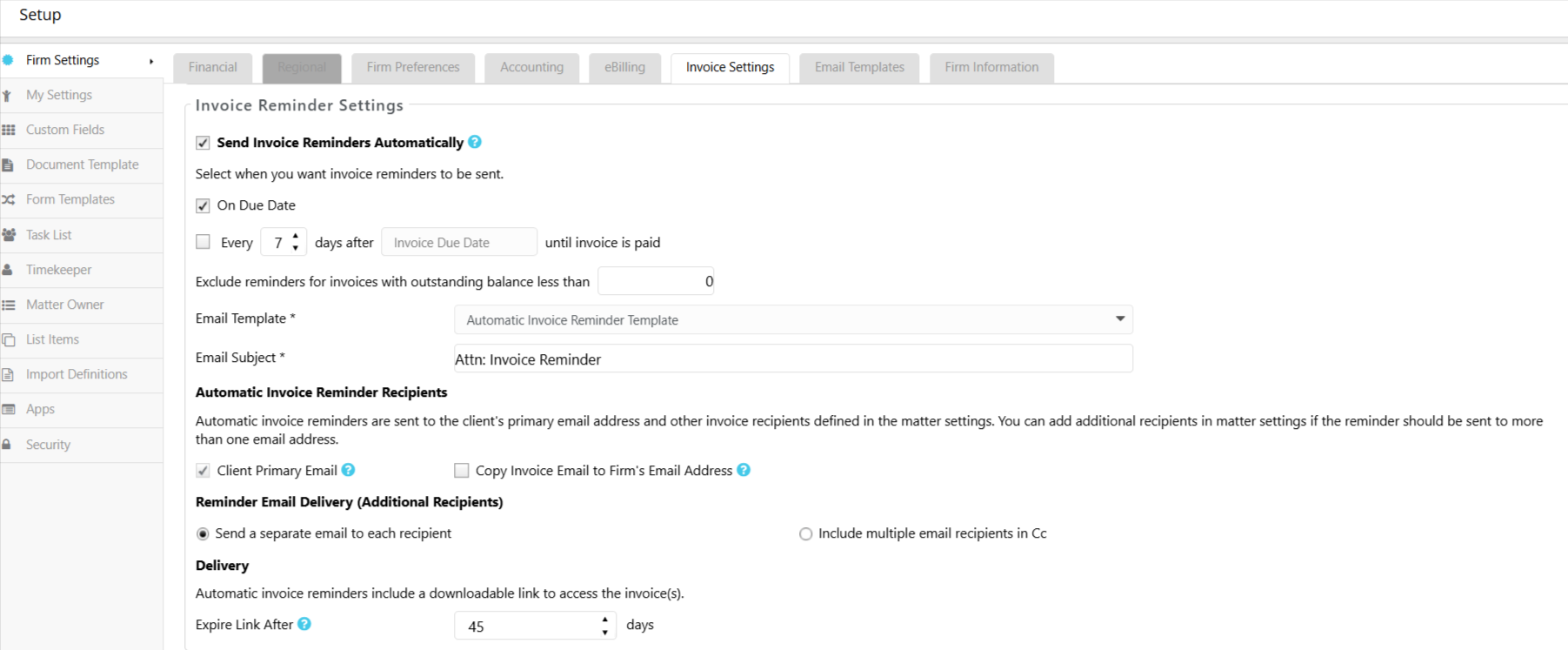
- From the toolbar atop the screen, click your Profile Icon.
- From the drop-down, click Setup.
- From the Setup left navigation, click Firm Settings.
- From the tabs atop the Firm Settings screen, select Invoice Settings.
- In the Invoice Settings section, check the Send Invoice Reminders Automatically checkbox.
- Configure the reminder settings that will apply as your firm default:
- Schedule: Choose to send on the due date, every X days after the invoice date, or every X days after the due date.
- Minimum balance threshold: Enter the minimum outstanding balance an invoice must carry to be included. The default is $0.00, meaning all unpaid invoices are included.
- Email template: Select the template to use for reminder emails. A system default Automatic Invoice Reminder template is available out of the box.
- Subject line: Enter the subject line for reminder emails.
- Recipient preferences: Set who receives the reminder emails.
- Download link expiration: Set how many days the invoice download link remains active. The default is 45 days; the valid range is 3 to 120 days.
- Click Save.
The system evaluates invoice eligibility and delivers reminders based on your firm's time zone. Reminders repeat at the configured interval until the invoice is paid.
Re-Applying Firm Settings to Existing Matters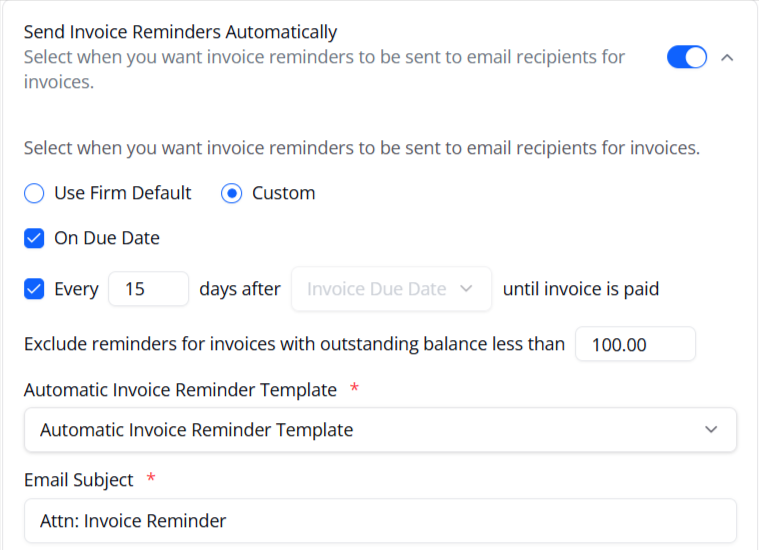
You can override the firm-level reminder settings on individual matters. This is useful for clients who need a different schedule, a different email template, or no reminders at all.
To change the reminder settings on a matter:
- From the left navigation panel, click Matters.
- On the Matters screen, double-click the matter for which you wish to change the settings.
- From the tabs on the Matter's details section, click Settings.
- From the tabs on the Settings section, click Invoicing.
- Locate the Invoice Reminders setting. By default, it is set to Use Firm Default.
- To customize the setting for this matter, switch from Use Firm Default to Custom.
- Adjust any of the following as needed:
- Reminder schedule
- Minimum balance threshold
- Email template
- Subject line
- To disable reminders entirely for this matter, select Disabled.
- Click Save.
The matter-level reminder setting is only visible when the firm-level toggle is turned on. Enable it at the firm level first if you need per-matter control.
View Sent Reminder Emails
Every automatically sent reminder email is recorded in two places:
- System Emails (Communications): Shows the recipient, timestamp, and delivery status for every sent email. From here, you can view the email, download a copy, or revoke the download link.
- Invoice Email History: Accessible from within the invoice itself. Shows all sends associated with that invoice.
On invoice grids, an envelope icon indicates that the invoice has been emailed.
To view sent emails from System Emails:
- From the left navigation panel, go to Practice > Communications.
- From the Communications left navigation, select System Emails.
- Locate the invoice email entry.
- Click the entry to view it, download a copy, or revoke the download link.
To view sent emails from Invoice Email History:
- Open the relevant invoice.
- Select the Email History tab.
Revoking a download link will invalidate the link previously sent to the client. The invoice record itself is not affected. Links can only be revoked from System Emails.