When a lead is ready to become a client, you can turn it into a matter directly from the lead's record, in a single step. CosmoLex fills in the matter with the details the lead already has, so you don't need to re-enter anything, and it can bring the lead's documents, notes, and expenses along with it.
How Lead Conversion Works
- One-step conversion: Create a matter from the lead's own record with the Create Matter action.
- Details carried over: The matter uses the lead's owner and area of law, and the lead's primary contact becomes the matter's client.
- Optional carry-forward: The lead's documents, notes, and expenses can move to the matter as the matter's own documents, notes, and soft costs.
- Converted status: After conversion, the lead moves to the Converted status, stays editable, and records the conversion in its activity log.
Convert a Lead to a Matter
-
From the left navigation panel, click Intake > Leads. Do one of the following:
- Click the eye icon beside a lead and in the Lead Overview header, click Create Matter.
- From the Leads list, open the lead's three-dot menu and select Create Matter.
-
Complete the matter's fields:
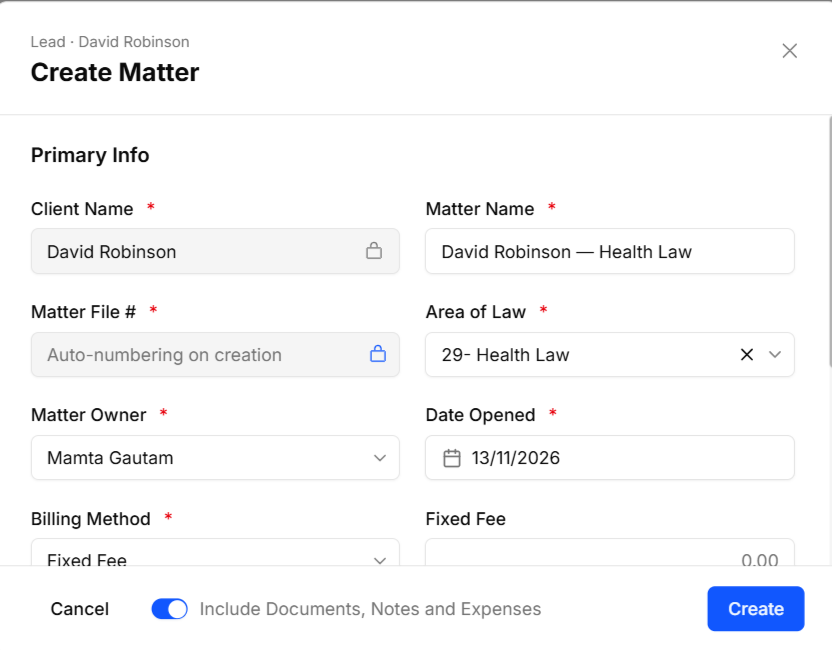
- Matter Name: Defaults to the client's name followed by the matter's file number. You can type a different name.
- File Number: Assigned automatically based on your firm's numbering. You can type your own number instead. If your firm has automatic numbering turned off, this field is required.
- Area of Law: Defaults to the lead's area of law.
- Owner: Select from your firm's Matter Owners. The list shows only the owners you're permitted to assign.
- Date Opened, Billing Method and its amounts, Trust Banks, Billing Status, Matter Type, and Labels.
- Include Documents, Notes and Expenses: Turn on this toggle to bring all three over to the new matter. For details, see Bring the Lead's Documents, Notes, and Expenses to the Matter.
-
Click Create Matter.
What Changes After Conversion
Once the matter is created:
- The lead's primary contact changes from type Lead to Client.
- The lead moves to the Converted status.
- The lead's activity log records the status change, the contact type change, and a converted to matter entry that names the new matter.
Note A lead can be converted to a matter only once. If the lead is already being converted, or another user has just converted it, you won't be able to convert it again.
Bring the Lead's Documents, Notes, and Expenses Along

When you turn on Include Documents, Notes and Expenses during conversion, your work on the lead continues on the matter:
- Documents: Copied into a Lead Documents folder on the matter. Each document is copied individually, so one document that fails to copy doesn't affect the others.
- Notes: Copied to the matter with their category and labels, which become the matter's note labels.
- Expenses: Copied to the matter as soft costs, keeping their billing status, tax status, and sales tax rates.
Forms, emails, and tasks stay on the lead and aren't copied to the matter.
Note: Items are copied in the background after the matter is created. If the copy is still in progress, you'll see Matter created with a notice that the transfer is still underway, and the lead shows the copy as pending until it finishes. If anything doesn't copy successfully, a carry-forward report lists the affected categories and directs you to the Activity Log, where each category shows how many items were copied and which ones failed. A copy failure never undoes the conversion or affects the other categories.
Work with a Converted Lead
After a lead has been converted to a matter:
- The Create Matter action is unavailable on the Lead Overview and no longer appears in the lead's row menu on the Leads list.
- You can still edit the lead from the Lead Overview or the Leads list. CosmoLex asks you to confirm first and reminds you that changes to the lead don't update the matter.
- The Matters section on the lead's Summary tab shows the new matter, with a link to open it.
- The Leads list shows the matter's file number in the Matter File # column, with a link to the matter. You can filter the list by Converted to Matter (yes or no) or by matter number.