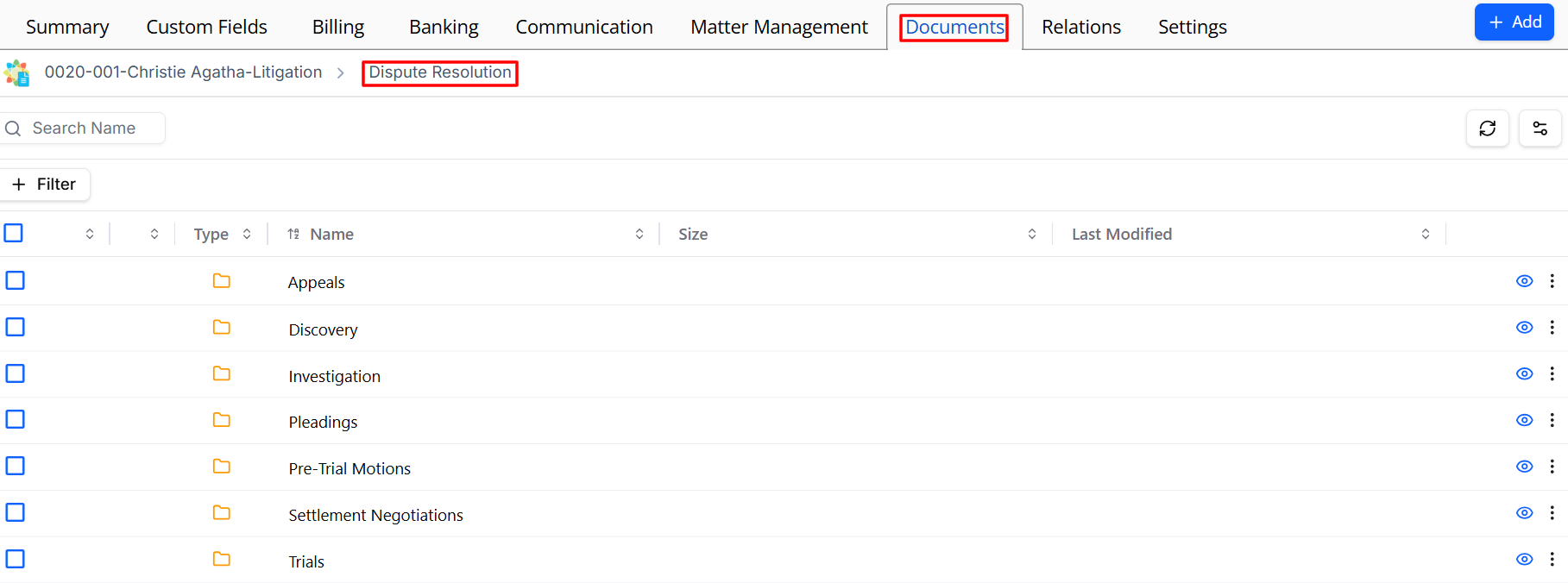
Our document storage solutions give you two folders by default, internal documents and client portal documents. To give you the flexibility to create a folder structure based on your area of law, you can create reusable folder templates that apply automatically when a new matter is created — keeping your document organization consistent across the firm without any extra effort.
Watch a Video
Create a Document Folder Structure
To create your own document folder structure based on your requirements:
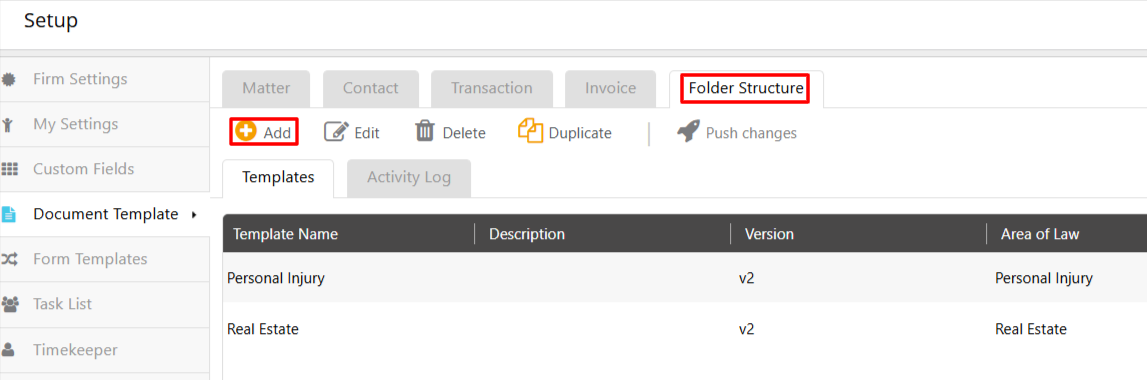
- From the toolbar, click your Profile icon.
- From the drop-down, click Setup.
- From the Setup left navigation, click Document Template.
- From the tabs atop the Document Template screen, click the tab Folder Structure.
- From the toolbar, click Add.
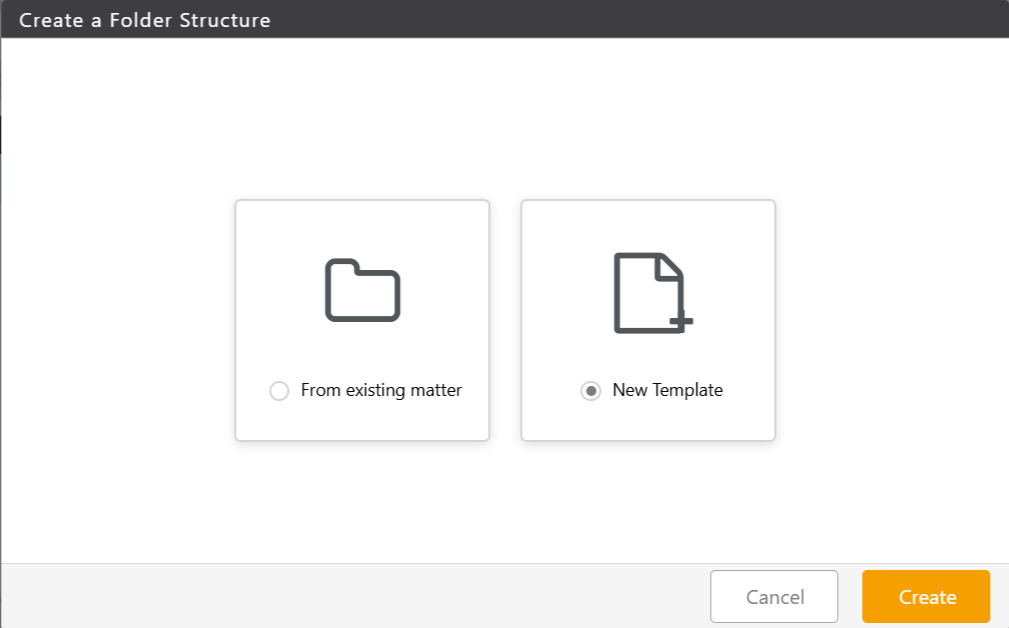
From Existing Matter
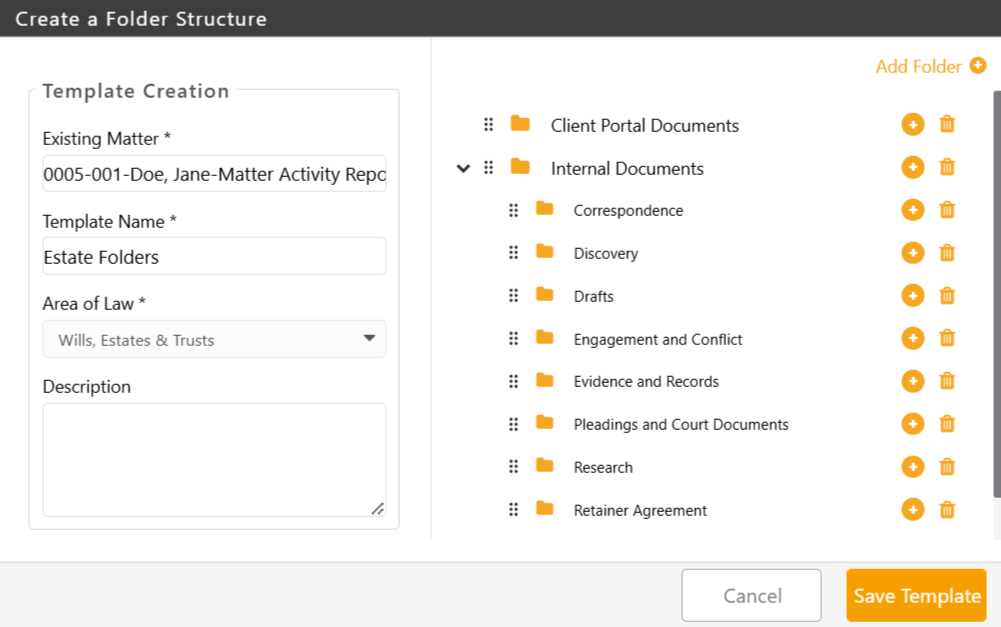
In the Create a Folder Structure window, enter the Existing Matter name.
All the folders related to the matter will display to the right.
Note: You can use the + (plus) icon to the right to add more folders or subfolders, or use the delete icon to delete an unnecessary folder.In the Template Name field, give your new folder structure template a name.
From the drop-down choose the Area of Law.
If you wish to add a description to the template, enter in the Description field.
Once satisfied, click Save Template.
Your folder structure will be added to the list of templates.
New Template
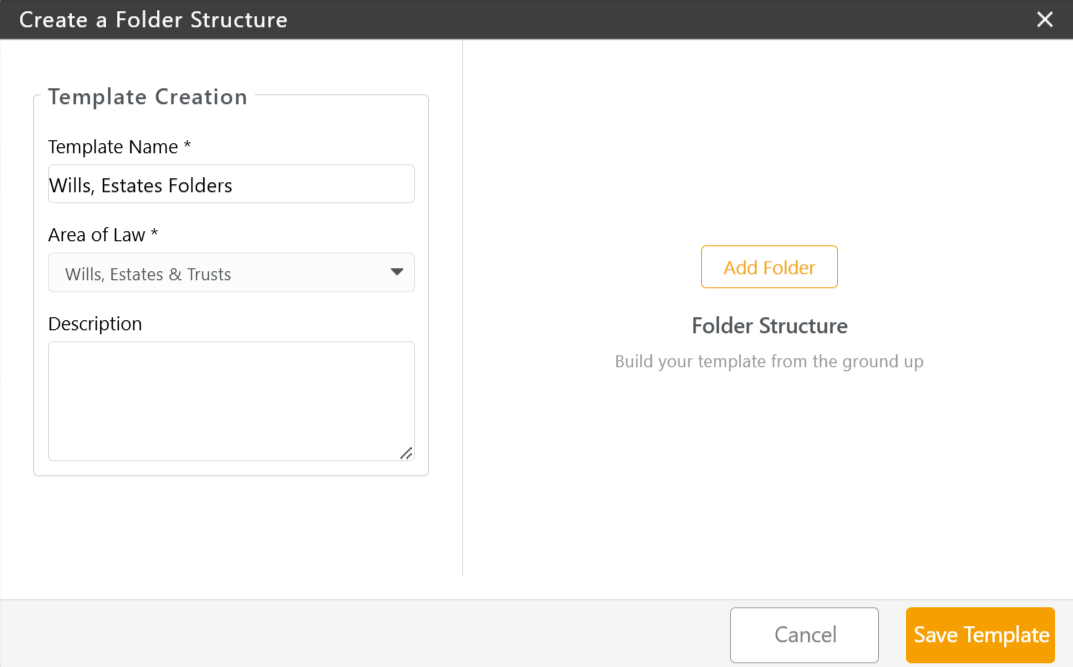
If you choose create a new template, follow the steps below:
Enter a name in the Template Name field.
From the Area of Law drop-down, select an Area of Law.
Add a description, if desired.
In the right of the window, click Add folder.
You can keep adding more folders by clicking Add Folder in the top right, or click the + (add) icon to the right of the folder to create subfolders. Use the delete icon to delete an unnecessary folder.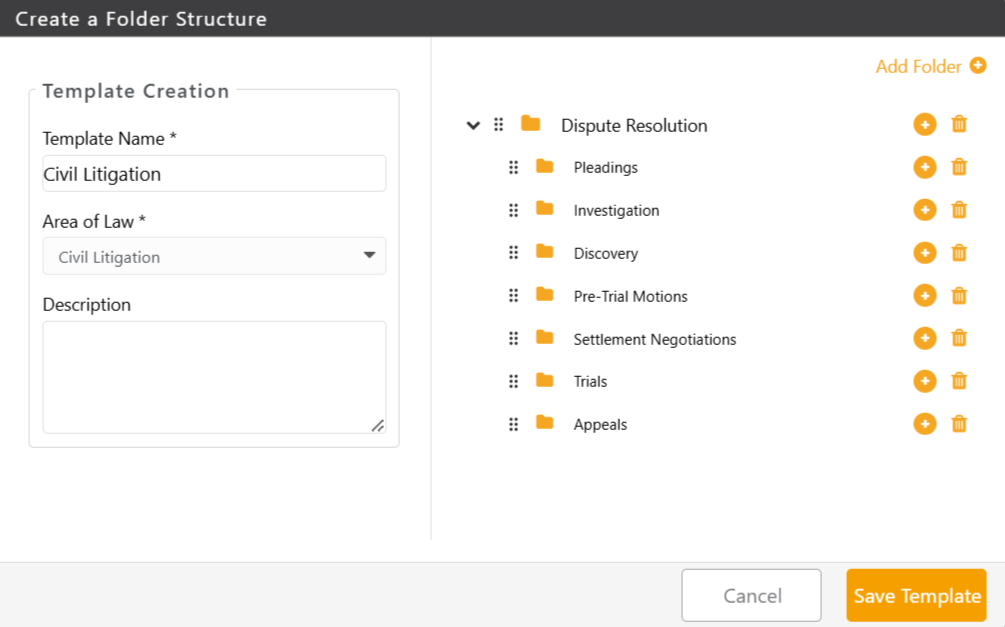
Once satisfied, click Save Template.
Your folder structure will be added to the list of templates.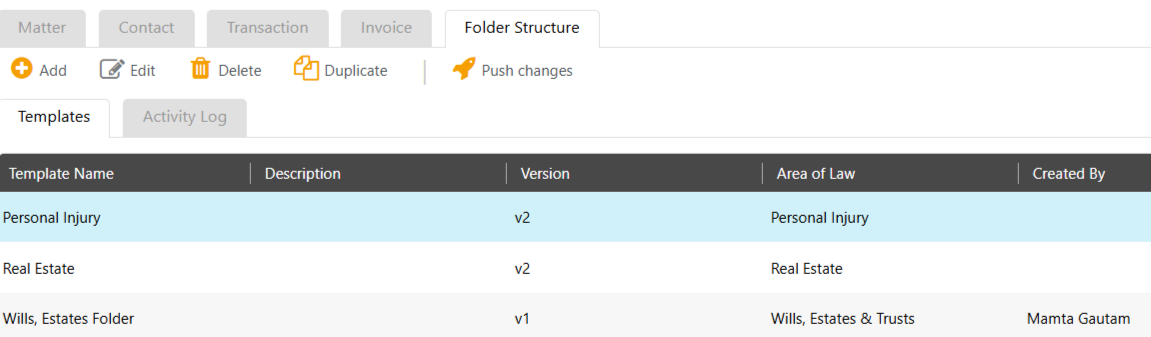
You can confirm who created or made changes to an existing template by clicking Activity Log in the toolbar.
Note: Any changes made to an existing template, will have change the version name.Use the buttons in the toolbar to Edit, Delete, or Duplicate a template.
Edit a Document Folder Structure
To edit a document folder structure:
- From the toolbar, click your Profile icon.
- From the drop-down, click Setup.
- From the Setup left navigation, click Document Template.
- From the tabs atop the Document Template screen, click the tab Folder Structure.
- From the toolbar, click Edit.
- On the Folder Structure window that opens, make your desired changes.
Once satisfied, click Save Template.
You will get a warning telling you that the changes will not apply to existing matters using the template.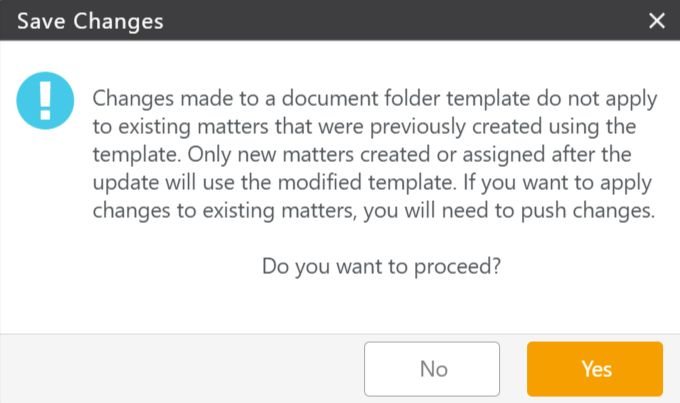
To proceed, click Yes.
You will get a message that the folder was updated successfully.To push changes to existing matters using the template, from the toolbar, click Push Changes.
Acknowledge the warning message by clicking Push Changes.
The changes you made will update applicable matters using the template.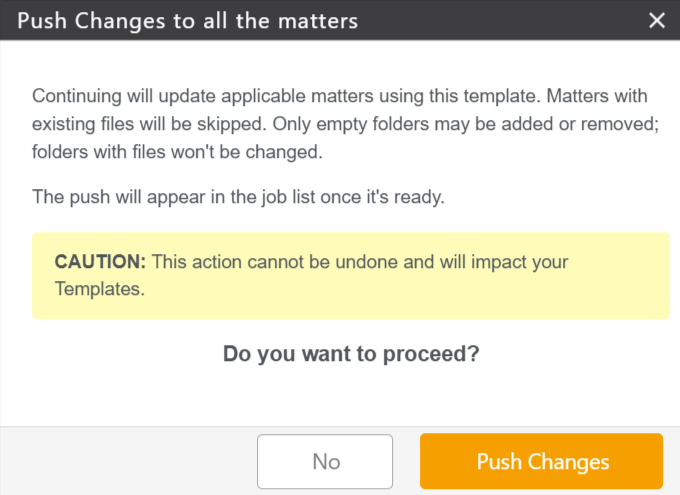
Delete a Document Folder Structure
To delete a document folder structure:
- From the toolbar, click your Profile icon.
- From the drop-down, click Setup.
- From the Setup left navigation, click Document Template.
- From the tabs atop the Document Template screen, click the tab Folder Structure.
- From the toolbar, click Delete.
Your folder structure will be deleted.
Duplicate a Document Folder Structure
To duplicate a document folder structure:
- From the toolbar, click your Profile icon.
- From the drop-down, click Setup.
- From the Setup left navigation, click Document Template.
- From the tabs atop the Document Template screen, click the tab Folder Structure.
- From the toolbar, click Duplicate.
A copy of the folder structure will be created. - On the window that opens, you can rename the folder structure, change the area of law or make changes to the folders within.
- Once you have made your changes, click Save.
A new folder structure will be created with your edits.
Include a Document Folder Structure For New Matters
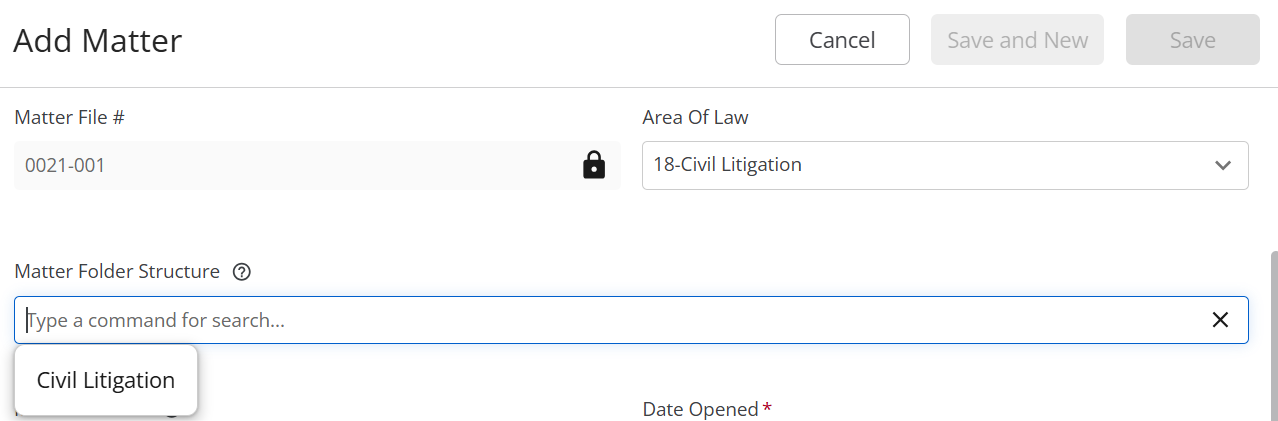
During matter creation, you can include a document folder structure for the new matter:
- From the left navigation panel, click Matters.
- From the toolbar atop the Matters screen, click Add Matter.
- Complete the other fields on the Add Matter screen and select the Area of Law.
- If a folder structure is created for that specific area of law, it will display in the Folder Structure field.
- Select the Folder Structure and click Save.
All the folders created for that area of law will display in the Matter's Documents section.