Once you have set up your document storage solution, you can manage your documents from the application.
Watch a Video
From Matter Details
To upload documents or folders:
- From the left navigation panel, click Matters.
- On the Matters screen, double-click the matter and scroll down to the Matter's Summary.
- From the tabs atop the Matters summary section, click Documents.
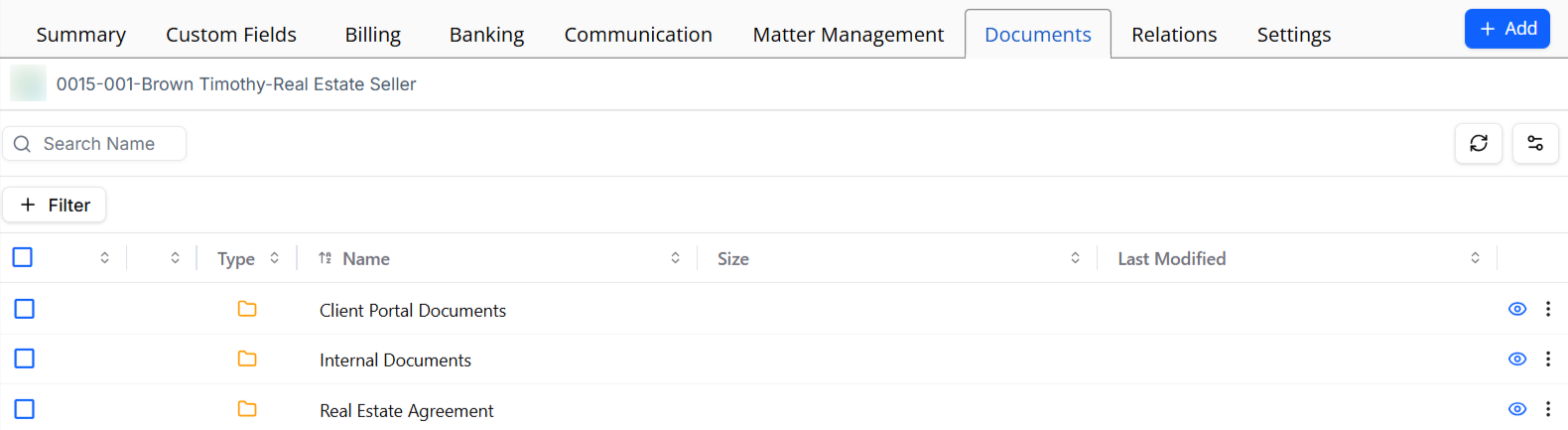
- On the Documents screen, single-click the applicable subfolder.
The subfolder's contents display. - From the toolbar, click Add > Add File.
- In the Add File browser, to the far right of the Choose File field, click Browse.
- In the browser window, locate the file you want to add.
- Single click the file to highlight it. To select multiple files, press and hold the Ctrl (Windows) or Command (Mac) key and then single-click the files to highlight them.
- Click Open.
For single files, the file name populates the Choose File field. For multiple files, a file list displays at the bottom of the screen. - Click Upload.
The system uploads the files to the subfolder and displays them onscreen.
From Documents
To upload documents:
- From the left navigation panel, click Documents.
- To access the matters folders, click the expand icon.

- To search for a specific matter, click the magnifying glass icon and enter the matter's name.
- On the Documents screen, single-click the applicable matter's folder.
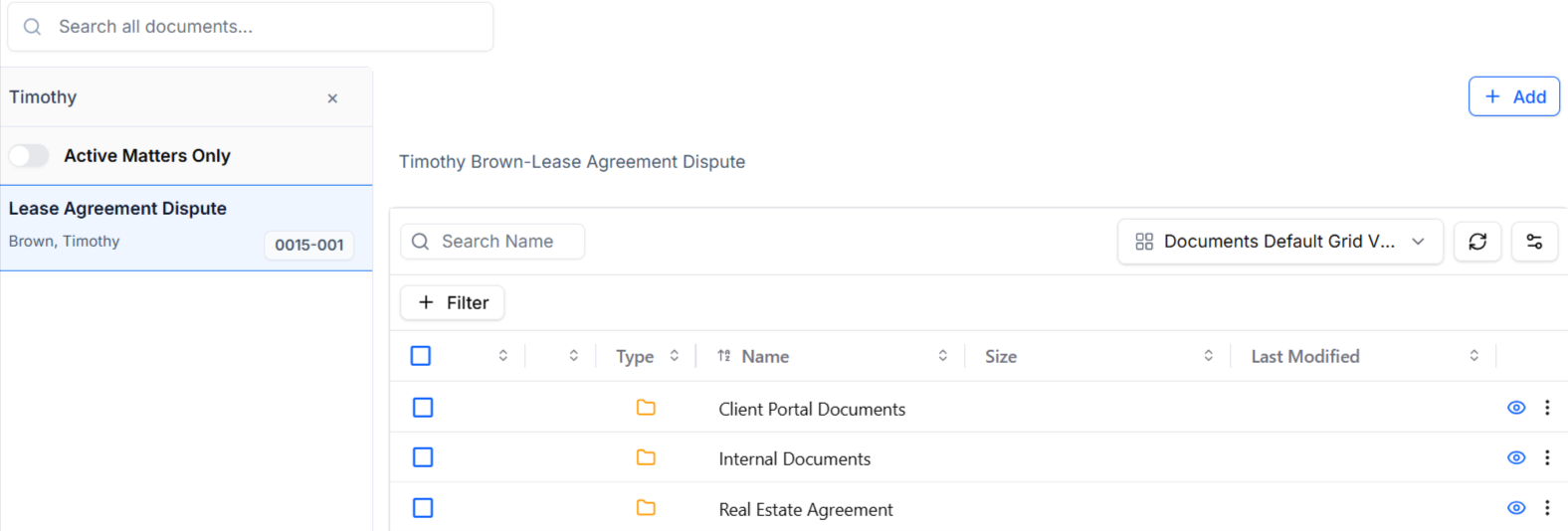
- Click the subfolder within which you want to add your document.
The folder's contents display on the right half of the screen. - From the toolbar, click Add > Add File.
- In the Add File browser, to the far right of the Choose File field, click Browse.
- In the browser window, locate the files you want to add.
- Single click the file to highlight it. To select multiple files, press and hold the Ctrl (Windows) or Command (Mac) key and then single-click the files to highlight them.
- Click Open.
For single files, the file name populates the Choose File field. For multiple files, a file list displays at the bottom of the screen.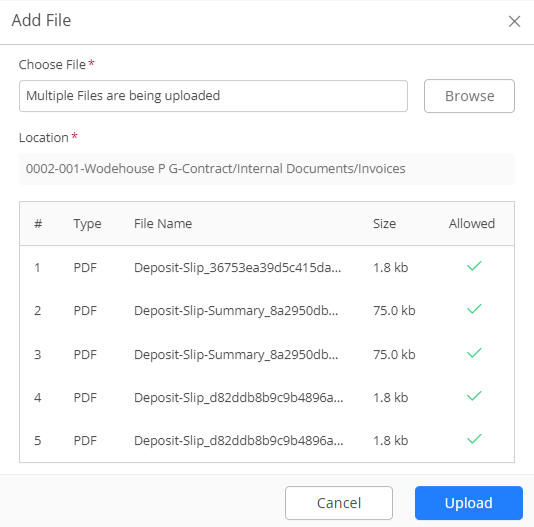
- Click Upload.
The system uploads the files to the subfolder and displays them onscreen.