You can group your custom fields to create custom pages for your matters and contacts.
Watch a Video
Create a Custom Page
To create a custom page:
- From the toolbar, click your Profile icon.
- From the drop-down, select Setup.
- From the Setup left navigation, click Custom Fields.
- From the tabs atop the Custom Fields screen, click either Matter or Contact, as applicable.
- Click Pages.
- From the toolbar atop the Pages screen, click Add.
Note: All new custom fields are associated with the System page.
- From the Available Fields section, single-click your desired fields to highlight them.
Note: Press and hold the CTRL key to select multiple fields at once.
- Either click the double arrows or click and drag the highlighted entries to the Selected Ordered Fields column.
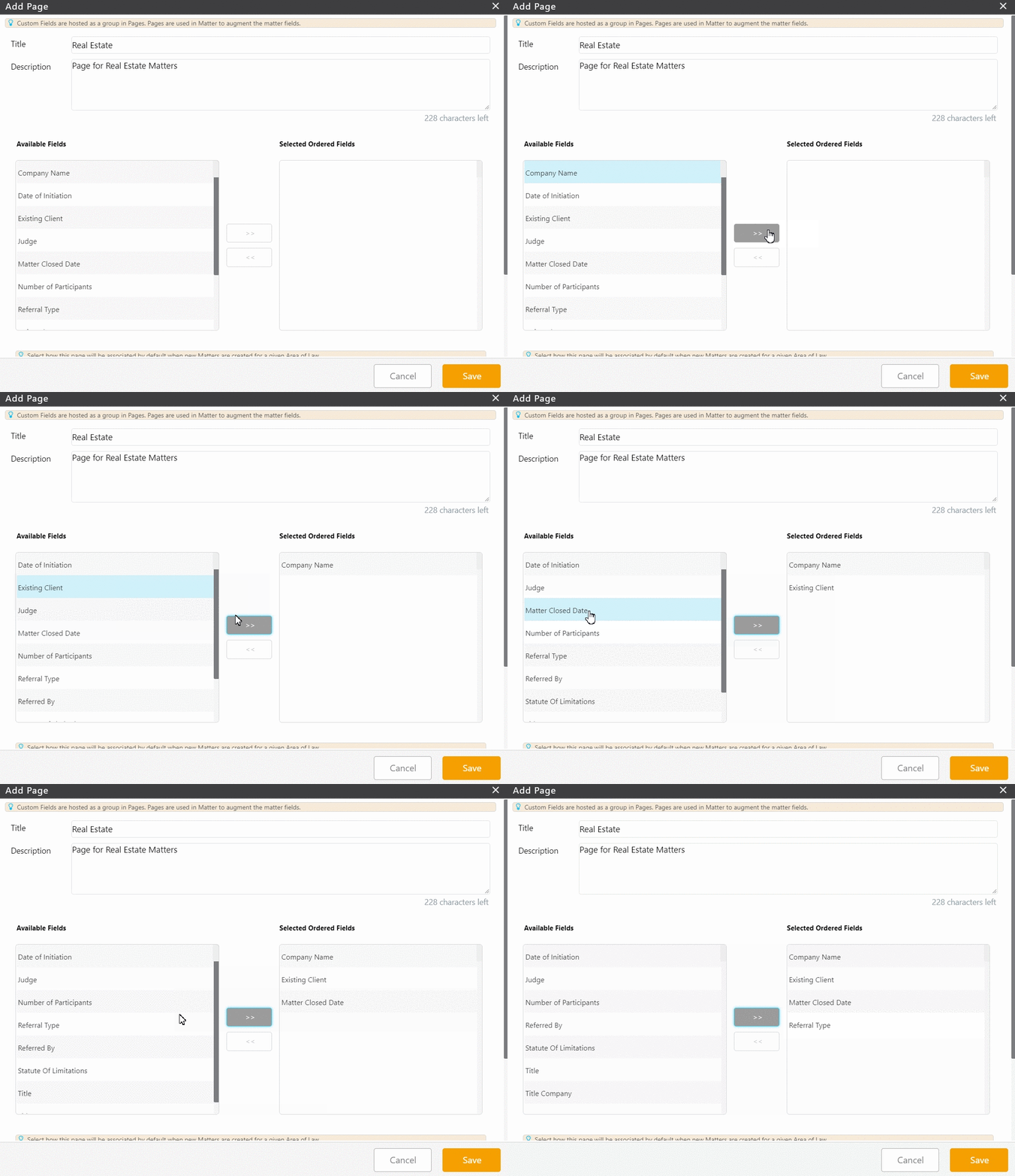
- Drag and drop the fields to order them as needed.
- Take the appropriate action:
- For a matter page, click the radio button to associate your page based on your Area of Law.
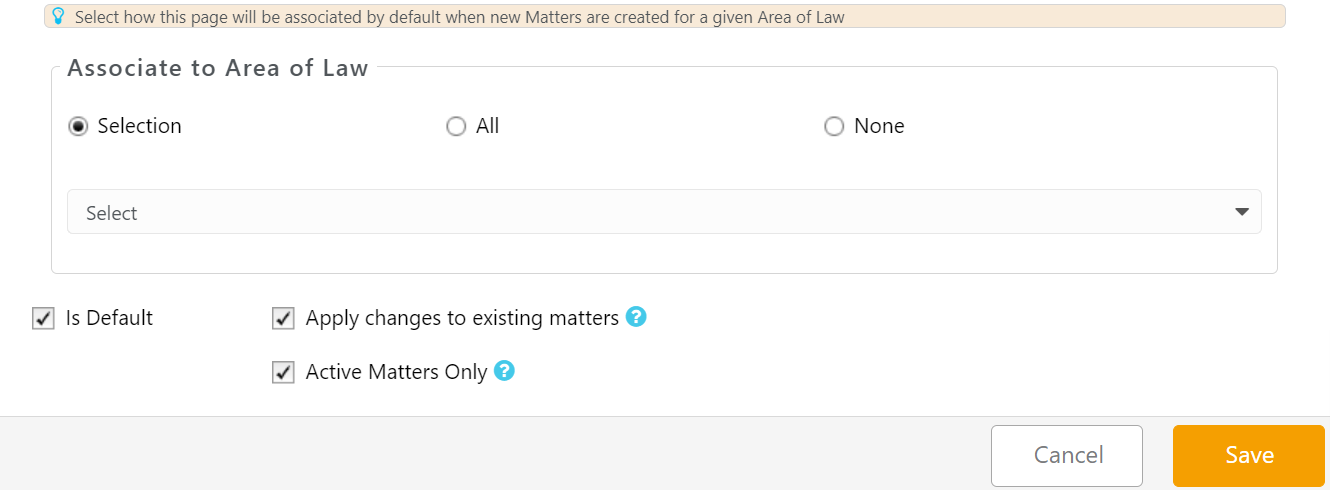
- For a matter page, click the radio button to associate your page based on your Area of Law.
| Selection | Use the drop-down to select the applicable areas of law. |
|---|---|
| All | Associates the page with all areas of law. Selecting All in the Area of Law section means that an area of law MUST be assigned to the matter in order for the page to appear in the matter. |
| None | The page is not associated with any area of law and must be manually assigned. |
| Is Default | Checking this box will make this your default |
| Apply changes to existing matters | If you check this box, system will assign this newly created page to all the existing matters associated with selected area of law |
| Active Matters Only | By checking this box you can choose to apply the changes to active matters only |
- For a contact page, click the radio button to associate your page based on contact type:
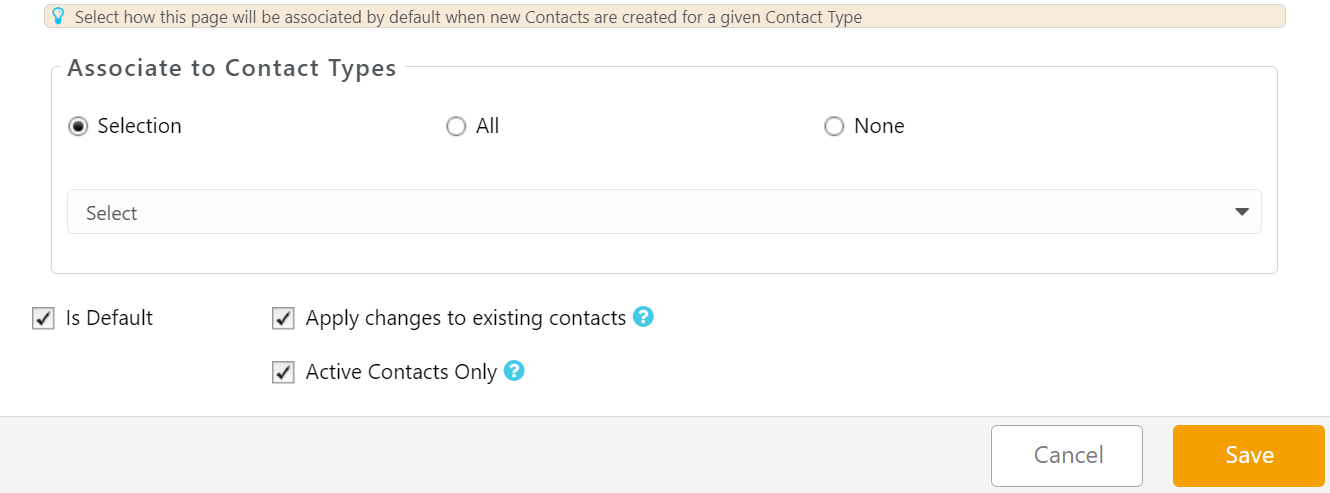
- For a contact page, click the radio button to associate your page based on contact type:
| Selection | Use the drop-down to select one or multiple contact types with which to associate the page. |
|---|---|
| All | Associates the page with all contact types. |
| None | The page is not associated with any contact type and must be manually assigned. |
| Is Default | Checking this box will make this your default |
| Apply changes to existing matters | If you check this box, system will assign this newly created page to all the existing matters associated with selected contact type |
| Active Matters Only | By checking this box you can choose to apply the changes to active matters only |
- Click Save.
Your custom page is complete.