You can check for conflicts of interest between clients and contacts from various matters.
Watch a Video
Note: To run a conflict check, you must first set up relations between your contacts.
Run a Conflict Check
To run a conflict check:
- From the left navigation panel, click Matters.
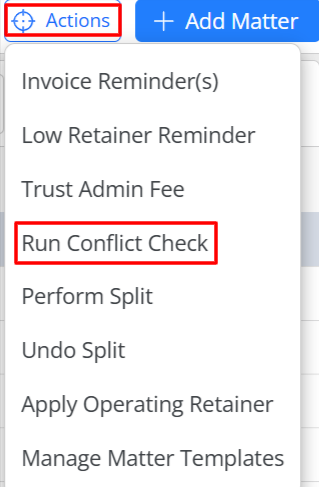
- In the toolbar atop the Matters landing page, click Action > Run Conflict Check.
- Click the Search Names field, and click Add Name.
- After entering a name, click enter. You can add multiple names, if desired, which will display below.

- By default all areas in Searching In will be checked. To exclude any area from the conflict check, uncheck the box beside it.
- The Search for Partial Matches is enabled by default. You'll see near-matches and variant spellings on your very first search.
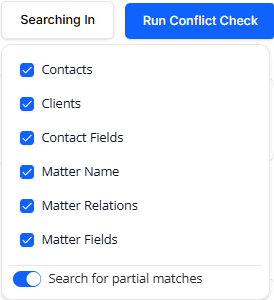
- Click Run Conflict Check.
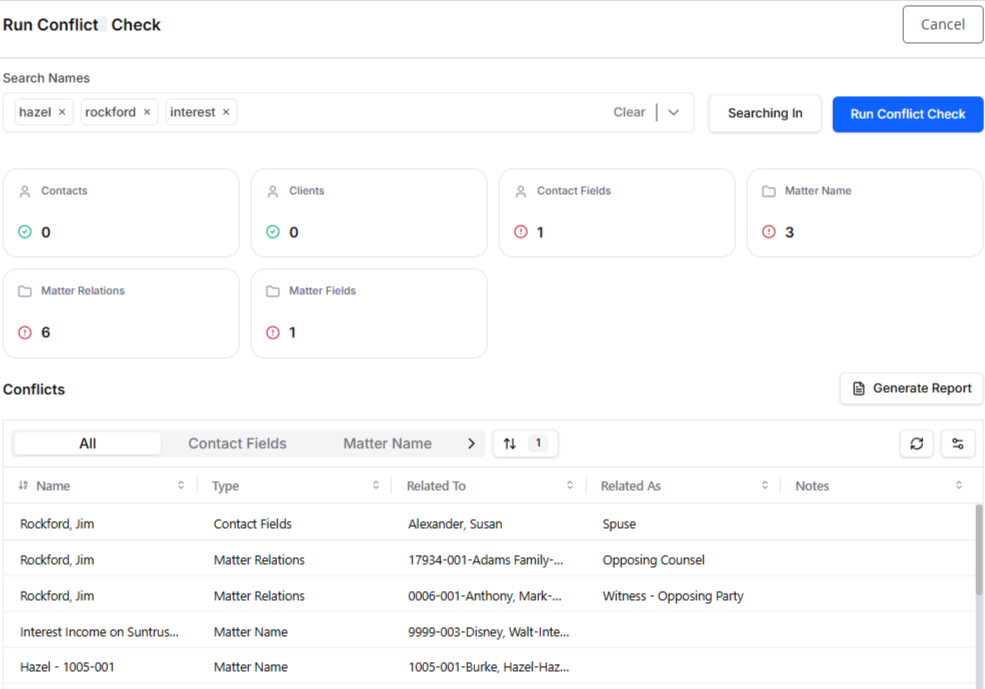
The system provides clear visibility into all areas that conflicts are identified and the number of potential conflicts.
-
To see the conflict in a specific area, click the arrow at the end of the ribbon above the grid and select the area by clicking on it.
The results will display in the grid below.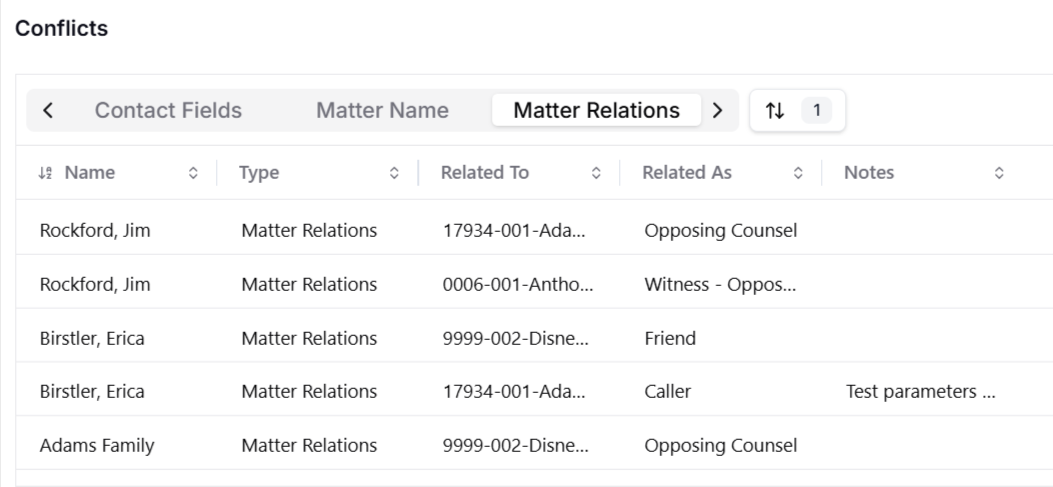
-
If you wish to generate a conflict check report, click Generate Report.

-
In the Generate Report window that opens, choose to generate the report in PDF or Excel format and click Generate.
Your report will be generated and saved to the downloads in your device.
Also see Conflict Check Report