You can store and manage the contact information for payees to whom you regularly make payments.
Watch a Video
Add a Payee
To add a payee:
- From the left navigation panel, click Contacts.
- From the Contacts menu, click Payee.
- From the toolbar atop the Payee screen, click Add Payee.
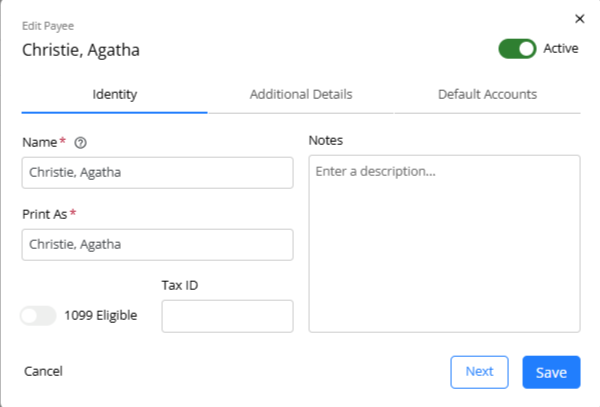
- In the Identity section of the Add Payee form, in the Name field, enter the payee's name.
- In the Print As field, enter their name as it should display on a check.
- If the payee is eligible for 1099, slide the toggle button ON.
- In the Tax ID field, enter the tax ID, if needed.
- In the Notes field, enter any notes you want on file for the payee, if desired.
- You have three options for saving. If you wish to:
- Complete the remaining fields, click Next.
- Add another payee, click Save and New.
- Save the payee and complete the remaining fields later, click Save.
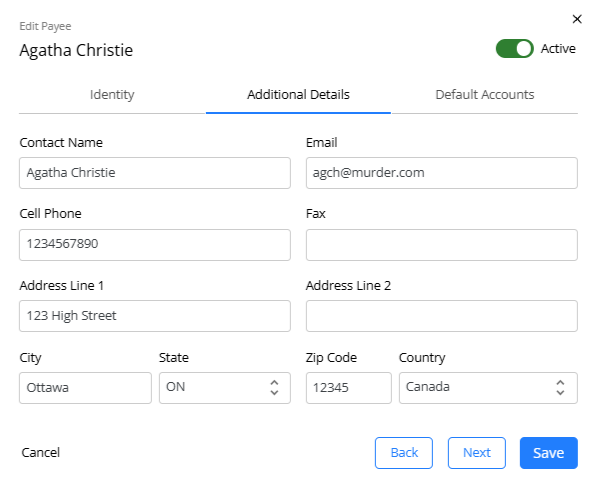
- In the Additional Details section, enter the payee's email id, cell #, address etc.
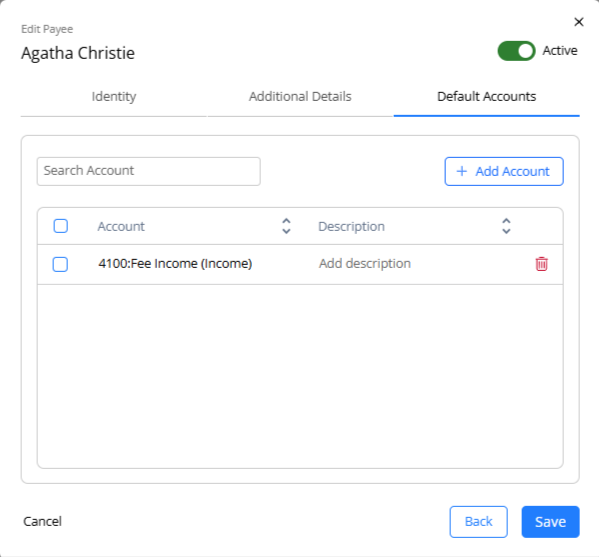
- In the Default Account section, click Add Account if your COA does not display and from the Account drop-down, select the relevant COA and add a description, if desired.
- In the Notes field, enter any notes you want on file for the payee, if desired.
- In the lower right corner, click Save.
The system saves your payee for display in the Payor/Pay to drop-down when you enter transactions.
Edit a Payee
To edit a payee:
- From the left navigation panel, click Contacts.
- From the Contacts menu, click Payee.
- On the Payee screen, select the payee and click on the three dots at the end of the row and from the drop-down, click Edit.
- On the Edit Payee form, click to make your changes in any section.
- In the lower right corner, click Save.
The system saves your changes.
Delete a Payee
To delete a payee:
- From the left navigation panel, click Contacts.
- From the Contacts menu, click Payee.
- On the Payee screen, select the payee and click on the three dots at the end of the row and from the drop-down, click Delete.
The Delete Payee message box reads: Are you sure you want to delete Payee ....?
- Click Delete.
The system deletes the payee.