Introduction
The Client Portal is a secure way to communicate and share information with your clients. You can invite your clients to a private page to access:
- Invoices
- Tasks
- Events
- Notes
- Documents
- Intake Forms
- Payment Profile
You can also exchange messages and comments for instant communication.
Step 1: Enable Firm Level Settings
To enable firm level settings:
- From the toolbar, click your Profile icon.
- From the drop-down, click Setup.
- From the Setup left navigation, click Firm Settings.
- From the tabs atop the Firm Settings screen, click Firm Preferences.
- On the Firm Preferences screen, scroll down to the Client Portal section.
- By default, the Client Portal toggle is ON and green. If you wish to turn it off, click to slide to gray OFF.
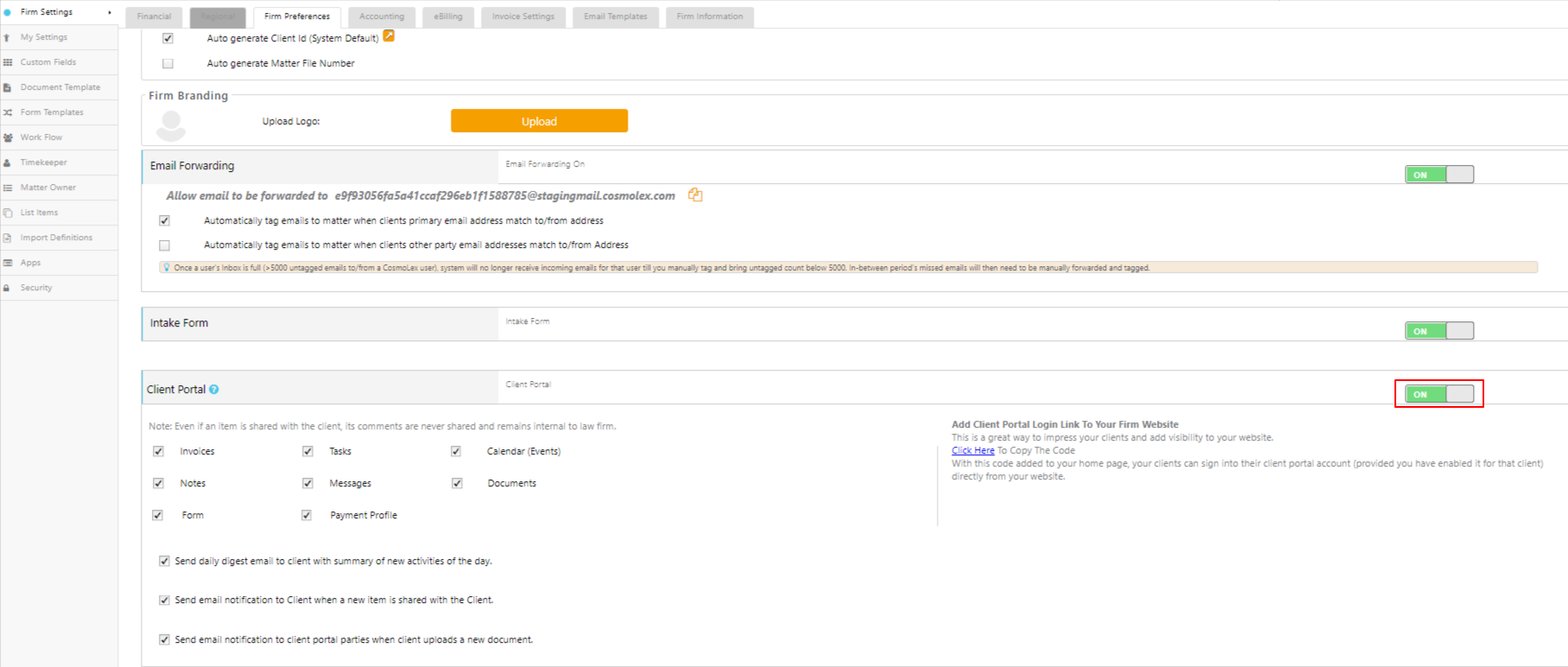
- Under the Permissions section, the boxes are checked by default. Uncheck the boxes beside the areas for which you do NOT want to permit sharing. You can add further restriction at the matter level.
Important:
If you check an item's box on the firm level, it displays on the matter level. Conversely, unchecking boxes at the firm level removes them from the matter level. Invoices and Messages are on as default on the firm level.
Step 2: Enable Matter Level Settings
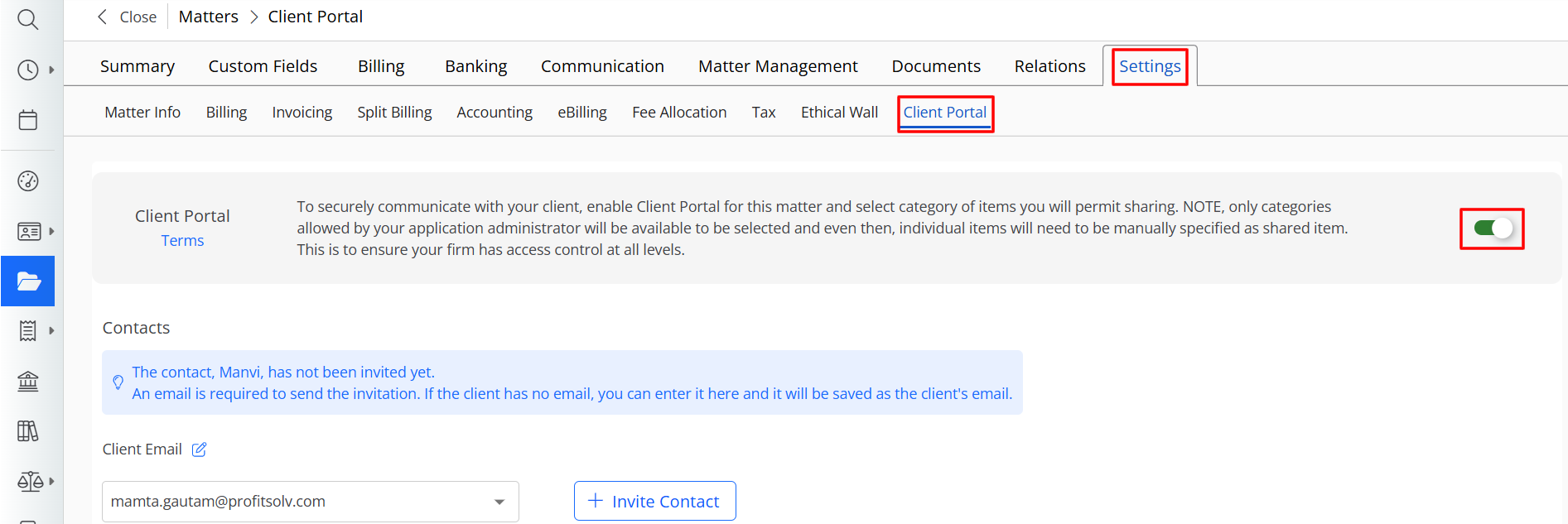
To enable matter level settings:
- From the left navigation panel, click Matters.
- On the Matters screen, double-click the matter and scroll down to its summary section.
- From the tabs atop the summary section, click Settings.
- From the tabs on the Settings section, click Client Portal.
- On the Client Portal screen, in the upper right corner, click the gray OFF switch.
The switch turns ON and green. On the Matters screen, a silhouette icon displays to the left of the client's name to indicate you can share items for the matter via the client portal.
Enabling the New Client Portal
Clients of firms currently enrolled in the Pro plan and higher are currently able to opt into a rewritten, streamlined interface for the Client Portal areas. As this new Client Portal interface is improved, it will be rolled out to more firms.
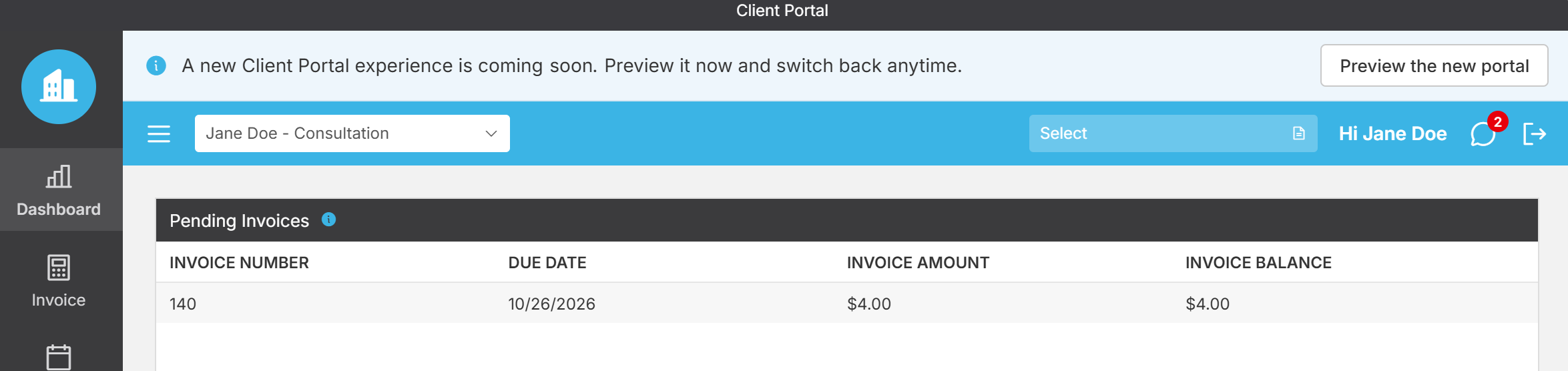
Viewing the New Client Portal
After previewing the new Portal, clients will be able to either toggle back on the previous Client Portal look, or permanently stay on the new interface, using the banner at the top.
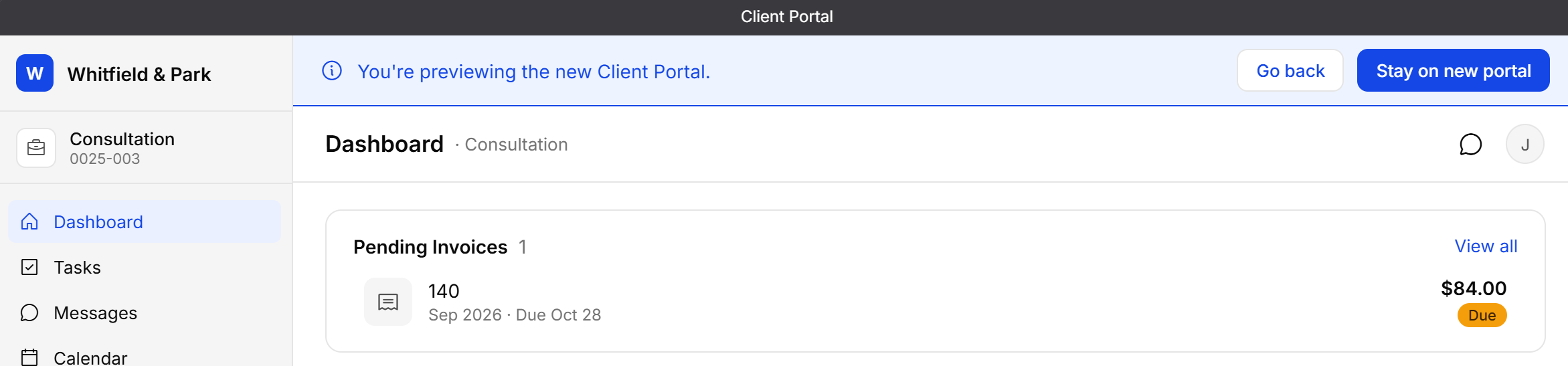
Client Portal pages in the new interface should retain a familiar functionality and layout that clients have already come to expect. Both of these Client Portals access the same information from your firm.
This includes the following returning features:
| Dashboard | View pending invoices, upcoming tasks, and upcoming events. |
|---|---|
| Task | View tasks the firm has shared. |
| Messages | Read and respond to messages from permitted firm users. |
| Calendar | View calendar events the firm has shared. |
| Documents | Download, view, and upload documents the firm has shared. |
| Invoice | Download and view invoices the firm has shared and pay invoices online via our payment processing integrations. |
| Notes | View notes the firm has shared. |
However, there is a new tab for Forms accessed from the left-hand side:
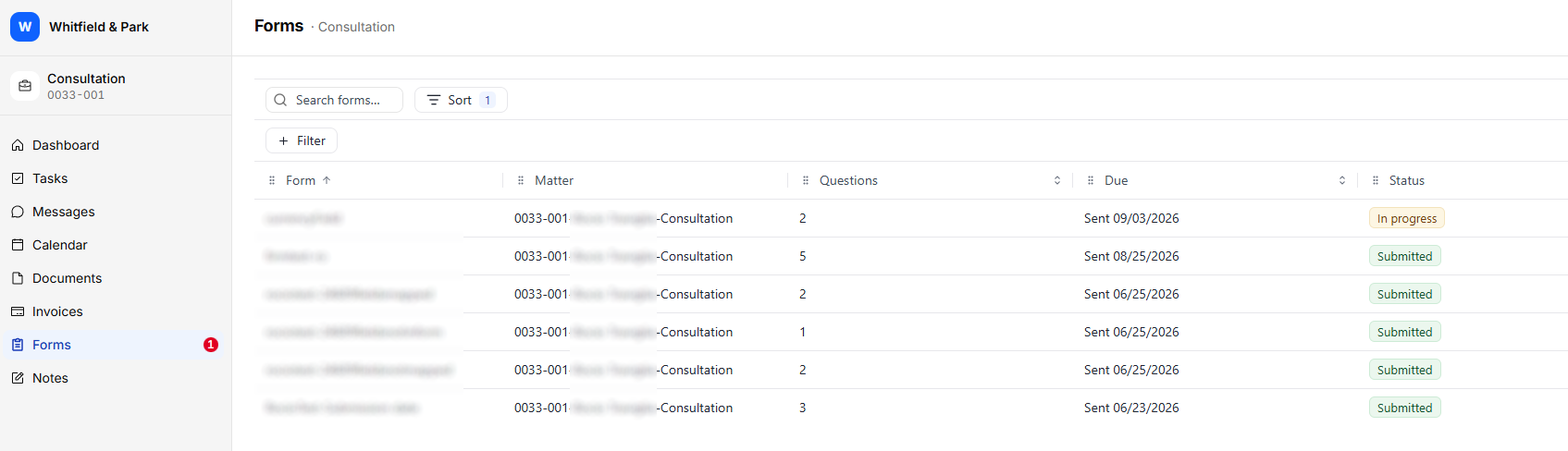
Within this new Forms tab, any forms sent by the firm can be viewed by the client, and modified and submitted from within the Client Portal if they haven't been submitted already.