You can use comments to communicate with firm users regarding calendar events.
From Matter Details
Add a Comment
To add a comment to a calendar event:
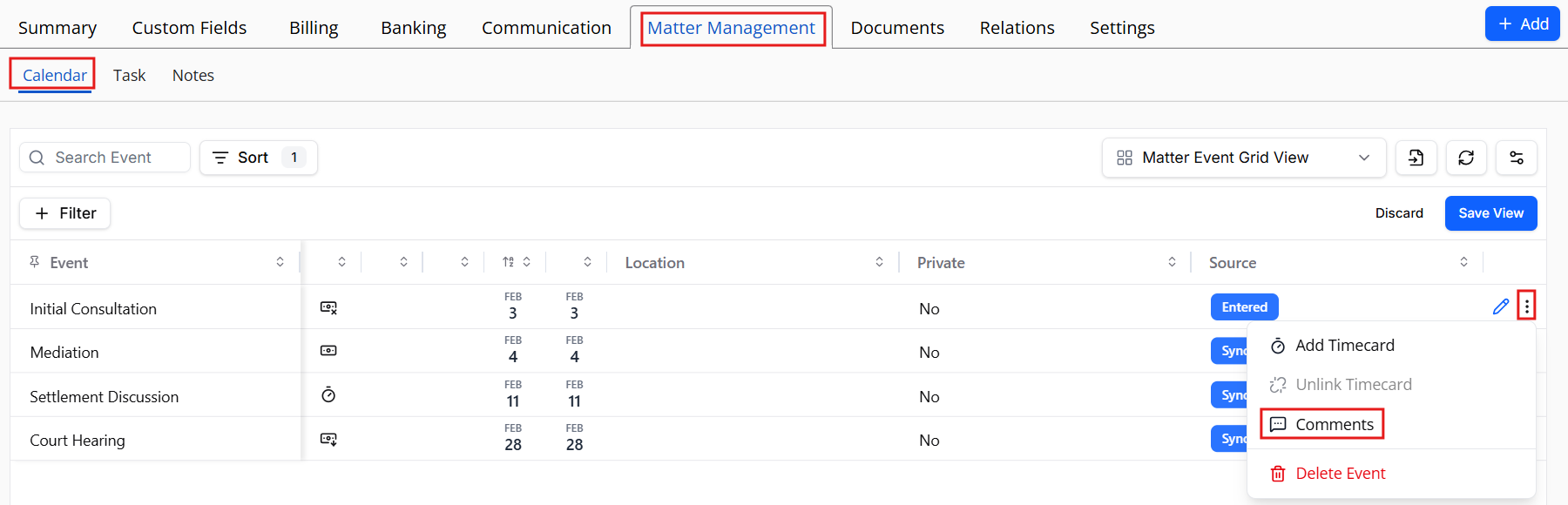
- From the left navigation panel, click Matters.
- On the Matters screen, either double-click the matter or single-click it, then click on the three dots at the end of the row and from the drop-down, click View.
- From the tabs atop the Matter Summary section, click Matter Management.
- From the tabs on the Matter Management section, click Calendar.
- On the Calendar screen, single-click the calendar event to highlight it.
- Click on the three dots at the end of the row and from the drop-down, click Comments.
The Comments screen opens. If there are no previous comments, the screen reads There are no comments to display yet. Otherwise, the previous comments display.
- Click Comment.
- On the Comments screen, enter your comments.
- Slide the toggle to Send email to notify, if desired.
- Click Add.
- In the lower right corner, click Close.
The system adds the comment to the note.
Edit a Comment
To edit a calendar event comment:
- From the left navigation panel, click Matters.
- On the Matters screen, either double-click the matter or single-click it, then click on the three dots at the end of the row and from the drop-down, click View.
- From the tabs atop the Matter Summary section, click Matter Management.
- From the tabs on the Matter Management section, click Calendar.
- On the Calendar screen, single-click the calendar event to highlight it.
- Click on the three dots at the end of the row and from the drop-down, click Comments.
- On the Comments screen, to the far right of the comment you wish to edit, click the three dots.
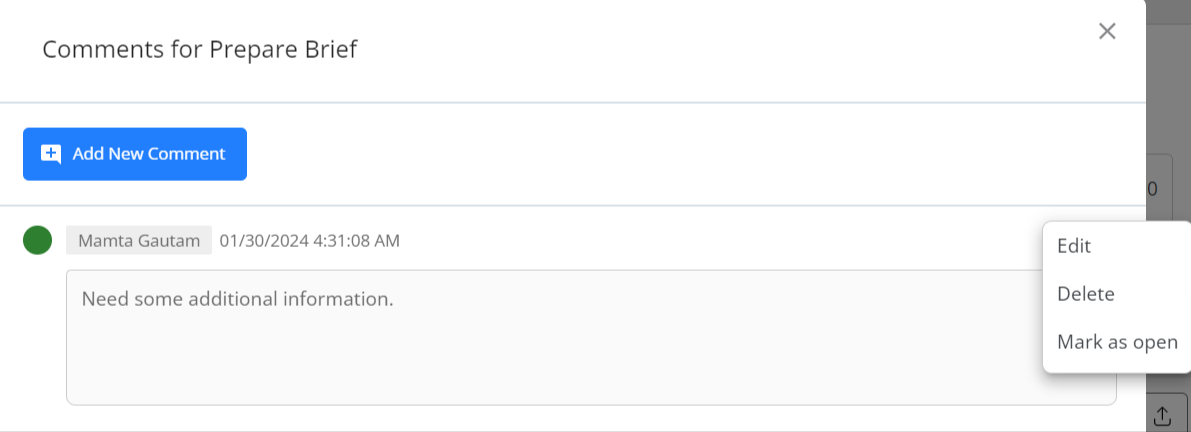
- From the drop-down, click Edit.
- In the comments box, make your updates.
- Click Save.
The system saves your updates.
Mark a Comment as Open or Closed
Marking a comment as open allows tagged firm users to reply to it while marking a comment as closed closes the comment thread.
To mark a calendar event comment as open or closed:
- From the left navigation panel, click Matters.
- On the Matters screen, either double-click the matter or single-click it, then click on the three dots at the end of the row and from the drop-down, click View.
- From the tabs atop the Matter Summary section, click Matter Management.
- From the tabs on the Matter Management section, click Calendar.
- On the Calendar screen, single-click the calendar event to highlight it.
- Click on the three dots at the end of the row and from the drop-down, click Comments.
- In the Comments box, to the far right of the comment, click the three dots.
- From the drop-down, click Mark as Open or Mark as Closed as applicable.
A green open icon displays for comments marked open. A gray closed icon displays for comments marked close.
- Click Close.
The Comments screen closes.
Delete a Comment
To delete a comment:
- From the left navigation panel, click Matters.
- On the Matters screen, either double-click the matter or single-click it, then click on the three dots at the end of the row and from the drop-down, click View.
- From the tabs atop the Matter Summary section, click Matter Management.
- From the tabs on the Matter Management section, click Calendar.
- On the Calendar screen, single-click the calendar event to highlight it.
- Click on the three dots at the end of the row and from the drop-down, click Comments.
- In the Comments box, to the far right of the comment, click the three dots.
- From the drop-down, click Delete.
The Delete Comment box reads: Are you sure you want to delete selected comment?
- Click Yes.
The system deletes the comment.
From Calendar
Add a Comment
To add a comment to a calendar event:
- From the left navigation panel, click Calendar.
- From the tabs atop the Calendar screen, click Settings.
- From the Select View drop-down, click on the radio button to select either Calendar or Details.
The Calendar tab displays your events in a calendar grid with Day, 5 Days, Week and Month view options. The Details tab lists your calendar events as line items.
- Single-click the calendar event to highlight it.
- Take the appropriate action:
- From the Calendar Tab
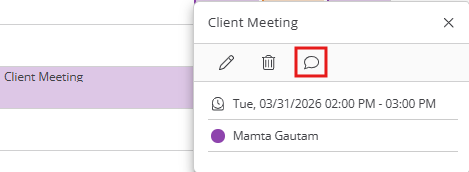
- Click the Comments icon.
The Comments screen opens. If there are no previous comments, the screen reads There are no comments to display yet. Otherwise, the previous comments display.
- Click the Comments icon.
- From the Details Tab
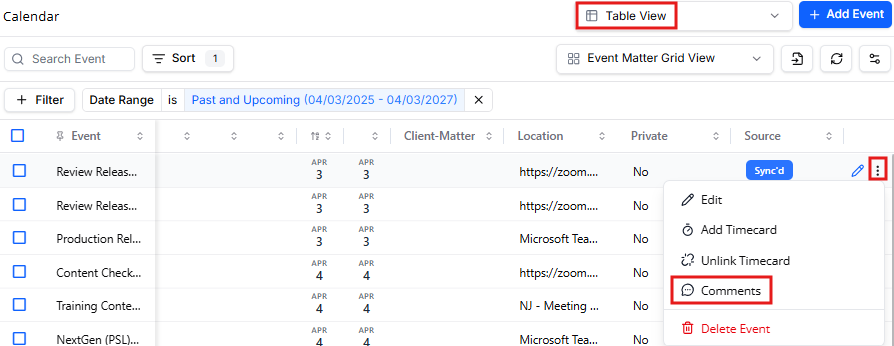
- Scroll to the end of the row, click on the three dots and from the drop-down, click Comments.
The Comments screen opens. If there are no previous comments, the screen reads There are no comments to display yet. Otherwise, the previous comments display.
- Scroll to the end of the row, click on the three dots and from the drop-down, click Comments.
- From the Calendar Tab
- Click Comment.
- In the Comments screen, enter your comments.
- Check the box to Send email to notify, if desired.
- Click Add.
- In the lower right corner, click Close.
The system adds the comment to the note.
Edit a Comment
To edit a calendar event comment:
- From the left navigation panel, click Calendar.
- From the tabs atop the Calendar screen, click Settings.
- From the Select View drop-down, click on the radio button to select either Calendar or Details.
- The Calendar tab displays your events in a calendar grid with Day, 5 Days, Week and Month view options. The Details tab lists your calendar events as line items.
- Single-click the calendar event to highlight it.
- Take the appropriate action:
- From the Calendar Tab
- From the toolbar, click the Comments icon.
- The Comments screen opens. If there are no previous comments, the screen reads There are no comments to display yet. Otherwise, the previous comments display.
- From the Details Tab
- Scroll to the end of the row, click on the three dots and from the drop-down, click Comments.
- The Comments screen opens. If there are no previous comments, the screen reads There are no comments to display yet. Otherwise, the previous comments display.
- From the Calendar Tab
- To the far right of the comment, click the three dots.
- From the drop-down, click Edit.
- In the comments box, make your updates.
- Click Save.
The system saves your updates.
Mark a Comment as Open or Closed
Marking a comment as open allows tagged firm users to reply to it while marking a comment as closed closes the comment thread.
To mark a calendar event comment as open or closed:
- From the left navigation panel, click Calendar.
- From the tabs atop the Calendar screen, click Settings.
- From the Select View drop-down, click on the radio button to select either Calendar or Details.
- The Calendar tab displays your events in a calendar grid with Day, 5 Days, Week and Month view options. The Details tab lists your calendar events as line items.
- Single-click the calendar event to highlight it.
- Take the appropriate action:
- From the Calendar Tab
- From the toolbar, click the Comments icon.
- The Comments screen opens. If there are no previous comments, the screen reads There are no comments to display yet. Otherwise, the previous comments display.
- From the Details Tab
- Scroll to the end of the row, click on the three dots and from the drop-down, click Comments.
- The Comments screen opens. If there are no previous comments, the screen reads There are no comments to display yet. Otherwise, the previous comments display.
- From the Calendar Tab
- Click Comment.
- In the Comments box, to the far right of the comment, click the three dots.
- From the drop-down, click Mark as Open or Mark as Closed as applicable.
A green open icon displays for comments marked open. A gray closed icon displays for comments marked close.
- Click Close.
The Comments screen closes.
Delete a Comment
To delete a comment:
- From the left navigation panel, click Calendar.
- From the tabs atop the Calendar screen, click Settings.
- From the Select View drop-down, click on the radio button to select either Calendar or Details.
- The Calendar tab displays your events in a calendar grid with Day, 5 Days, Week and Month view options. The Details tab lists your calendar events as line items.
- Single-click the calendar event to highlight it.
- Take the appropriate action:
- From the Calendar Tab
- From the toolbar, click the Comments icon.
- The Comments screen opens. If there are no previous comments, the screen reads There are no comments to display yet. Otherwise, the previous comments display.
- From the Details Tab
- Scroll to the end of the row, click on the three dots and from the drop-down, click Comments.
- The Comments screen opens. If there are no previous comments, the screen reads There are no comments to display yet. Otherwise, the previous comments display.
- From the Calendar Tab
- Click Comment.
- In the Comments box, to the far right of the comment, click the three dots.
- From the drop-down, click Delete.
The Delete Comment box reads: Are you sure you want to delete selected comment?
- Click Yes.
The system deletes the comment.