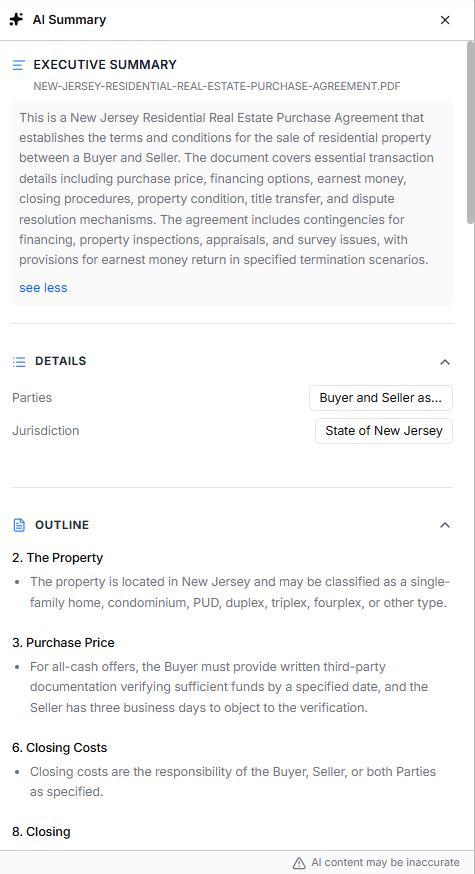
With the AI-powered document search tool, you can use natural-language queries to find relevant information across all your documents.
Watch a Video
Note: The AI document search feature is currently available for native document storage in US only.
If you don’t see this feature, contact your onboarding specialist, customer success manager, or CosmoLex Support to have it enabled.
The AI search feature supports the following file types:
| Family | Extensions |
|---|---|
| Word | docx, dotx, docm, dotm, doc, dot, rtf |
| Excel | xlsx, xlsm, xlsb, xlt, xls, csv |
| PowerPoint | pptx, ppt |
| OpenDocument | odt, ods, odp |
| eml, msg | |
| Text | txt, text, md, html, htm, xhtml |
| Images | png, jpg, jpeg, jfif, jfi, jpe, tif, tiff, bmp, webp, heic, heif, avif |
Search For Documents
To use AI to search for documents:
- From the left navigation panel, click Documents.
- To the right of the list of documents, you will see the suggested prompts.
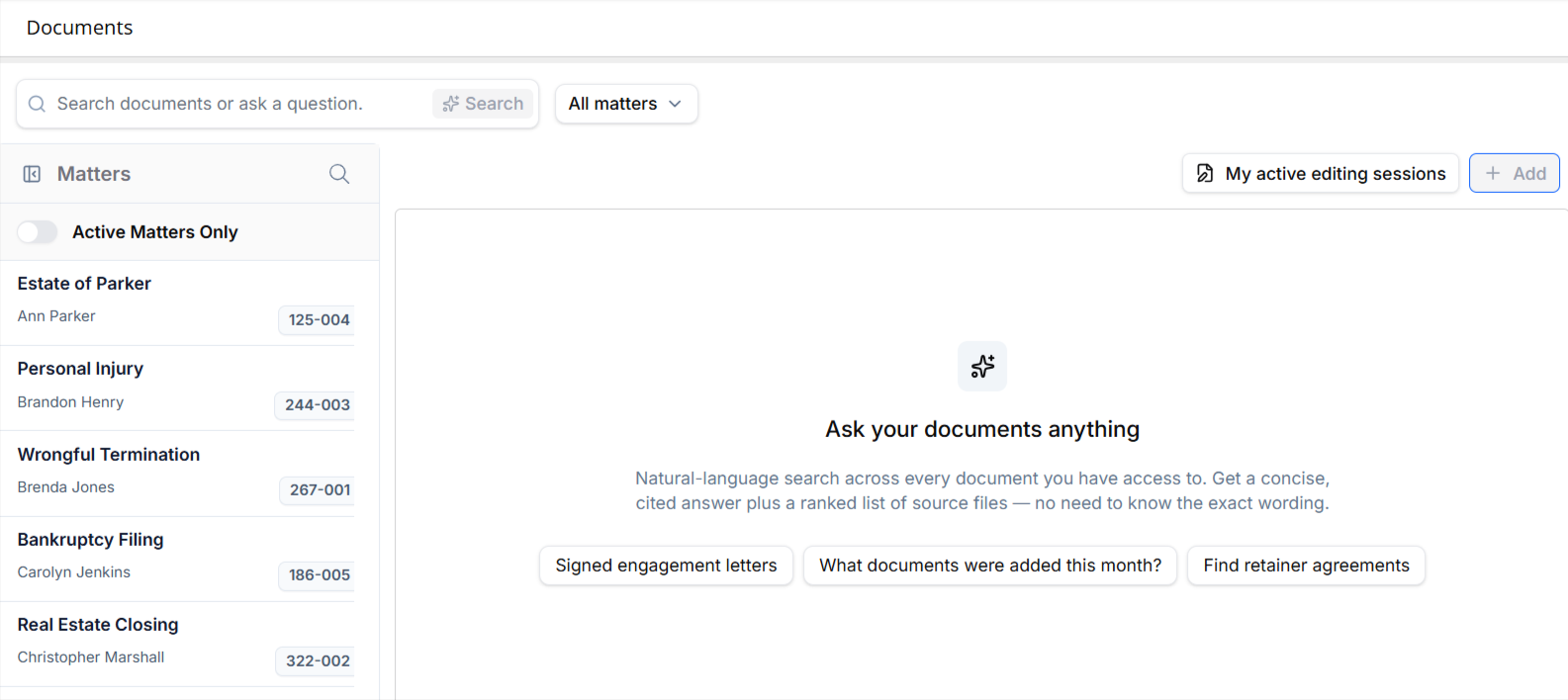
- Click on any of the listed common search queries.
-
To search for specific documents, in the search bar atop the documents screen, enter your search term.
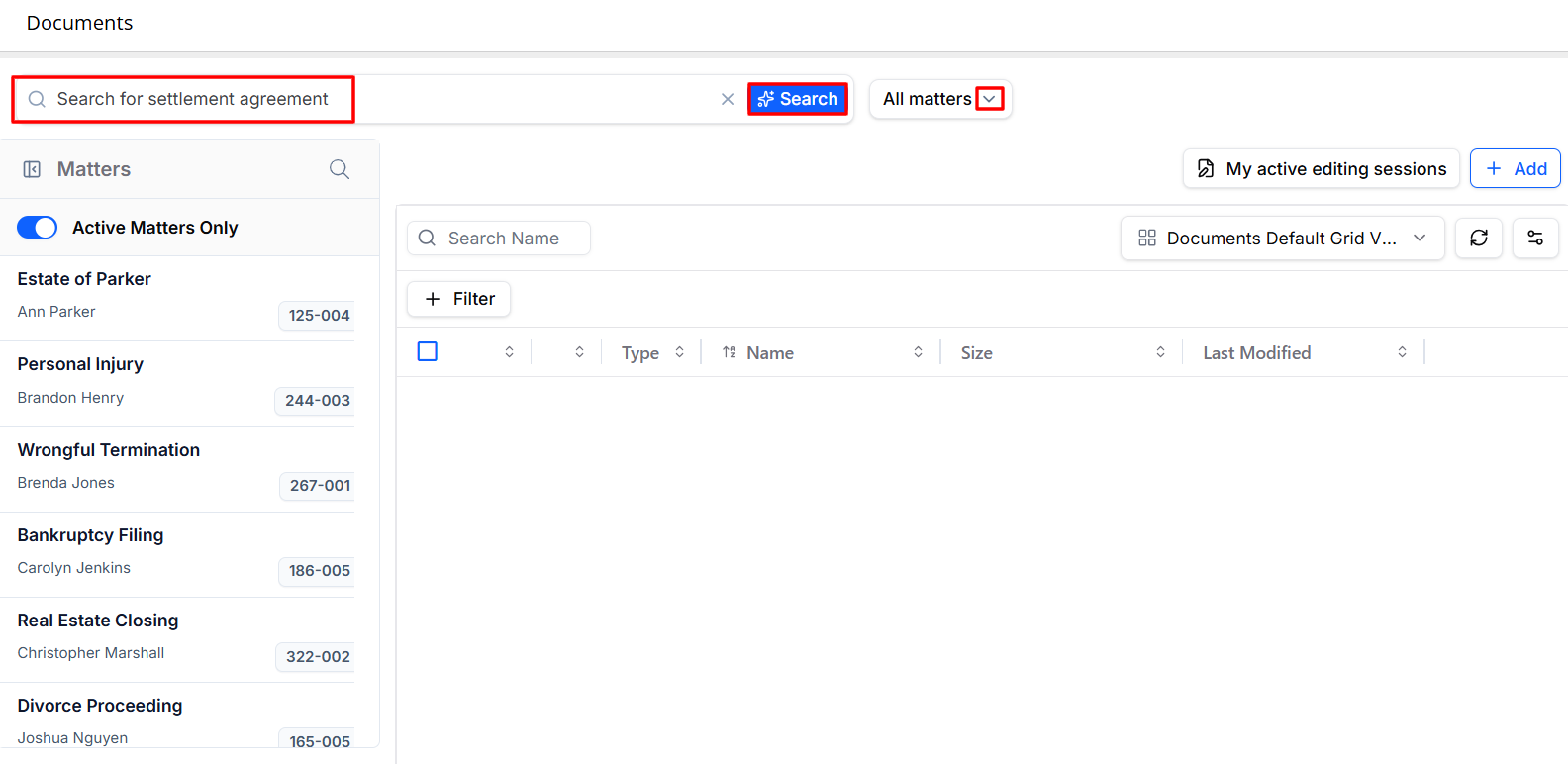
- The AI search will go over all your documents and list those that have the term in the result.
If you wish to search for a document associated with one matter, click All Matters and select the matter from the drop-down.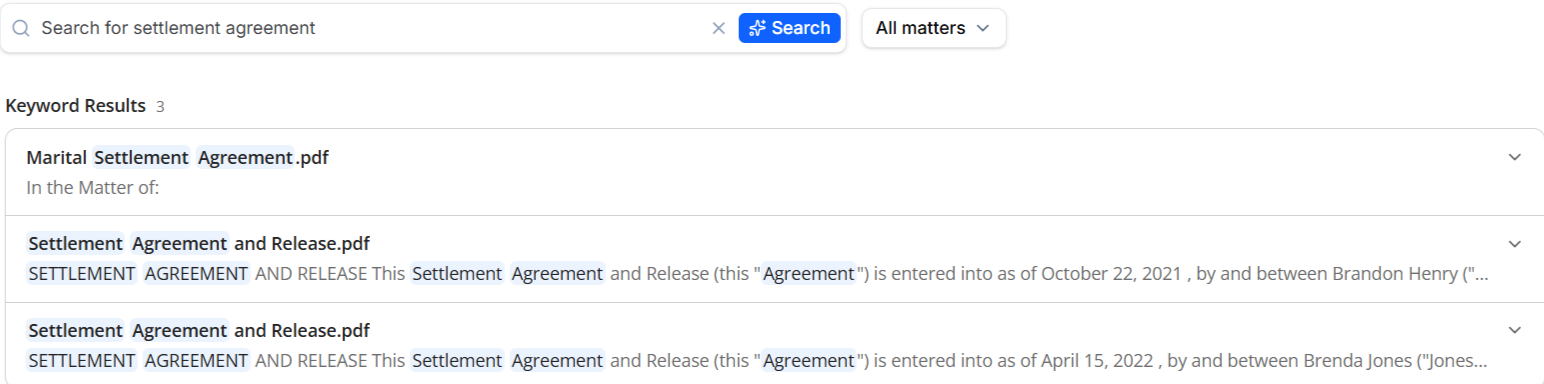
- Select the document you wish to see and click Open Document.
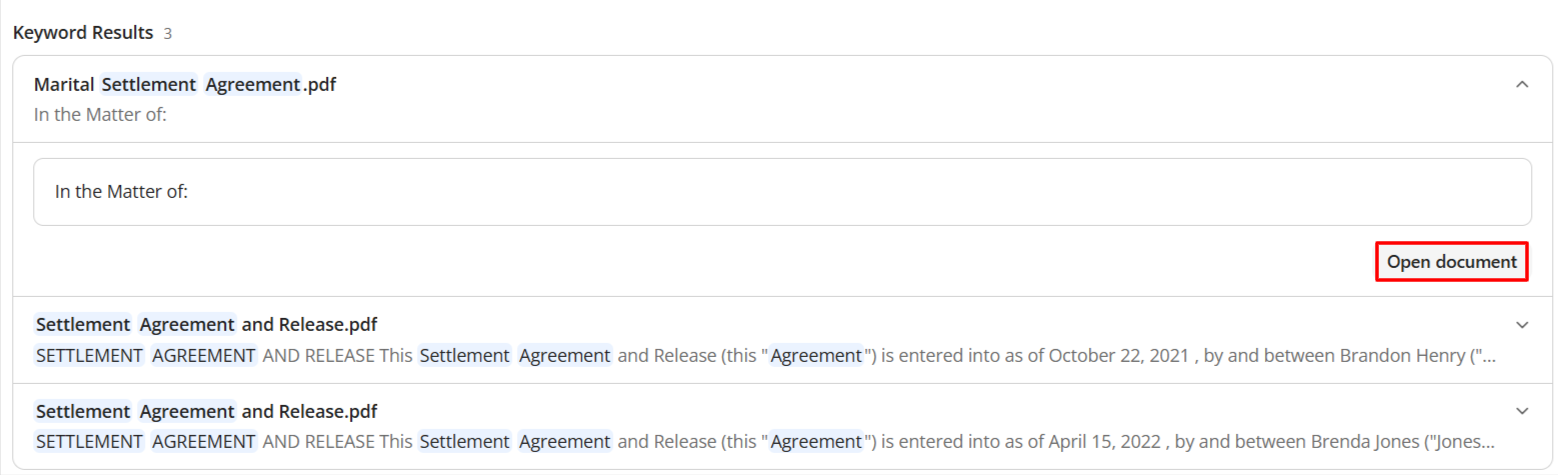
The system will display the document along with an AI Summary of the document that includes an executive summary, details providing up to 7 high-level attributes, and an outline section with headings from the document and brief summaries of each.
Note: You are advised to verify the accuracy of the content.