Pipeline - Inbox Feature for CosmoLex CRM
Set up and use the Pipeline Inbox to manage leads and cases visually with a drag-and-drop board of customizable status columns.
The Pipeline Inbox feature is a dynamic new feature designed to enhance the productivity and organization of legal professionals using CosmoLex CRM. This innovative feature provides a visual representation of your leads and cases (if using your CRM as a CMS), enabling you to manage your workflow more efficiently.
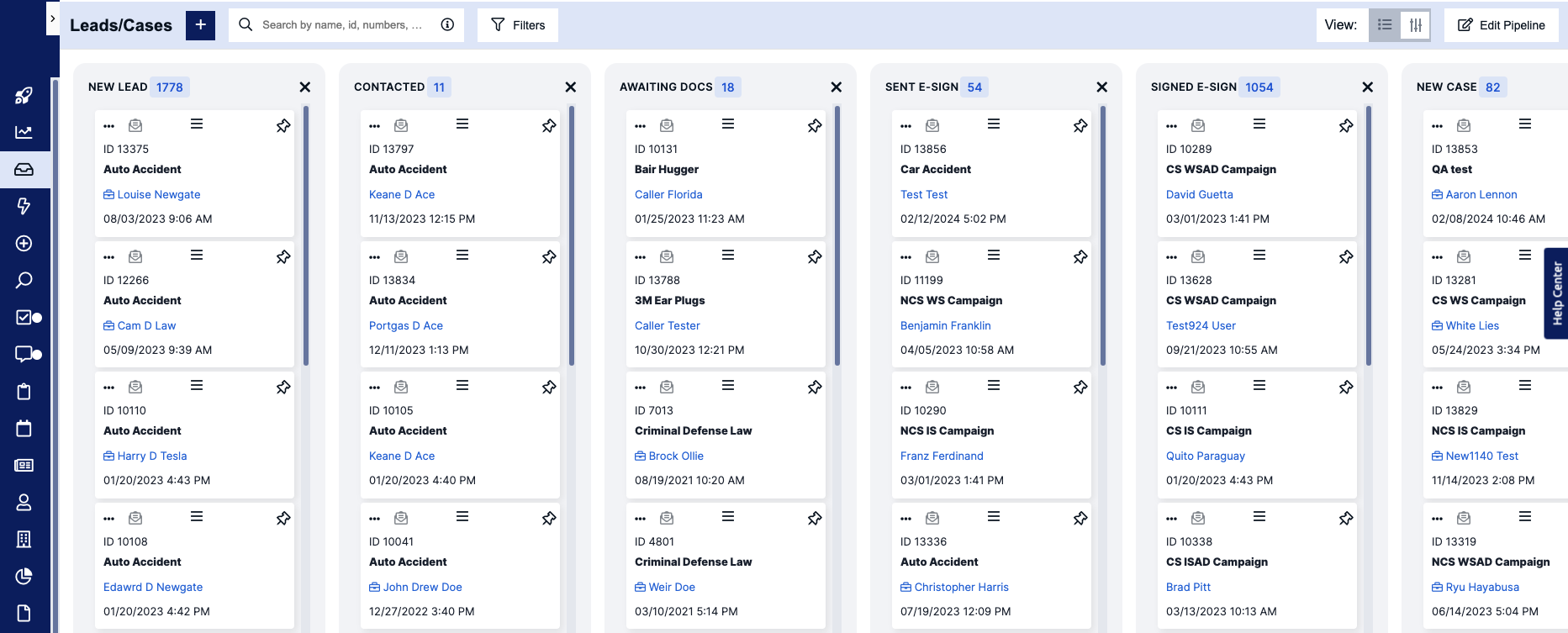
In this article, we will guide you through the functionality and benefits of using Pipeline, ensuring you can leverage its full potential to streamline your operations and improve client satisfaction.
Key Features of Pipeline Inbox
Visual Workflow Management
- Drag-and-Drop Interface: Easily move leads or cases between different statuses/stages of your workflow with a simple drag-and-drop action.
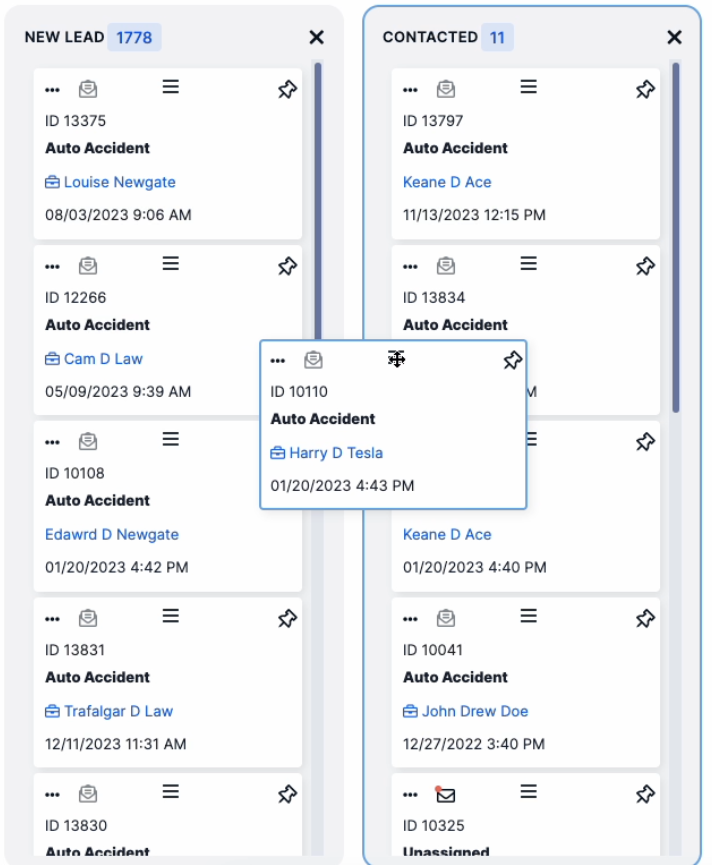
- Customizable Columns: Tailor the Pipeline board to reflect your unique process statuses/stages, from initial consultation to case closure.
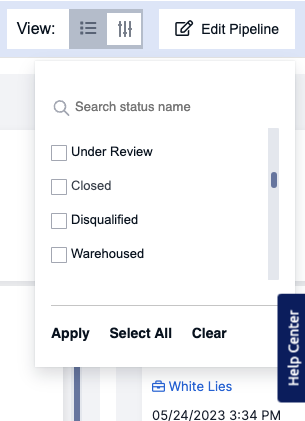
- Pipeline card actions: Just like the standard inbox view, you can use the same actions in the Pipeline view. Leave notes on leads/cases, add tasks, change the case type , and more all from the Pipeline cards.
Getting Started with Pipeline Inbox
Accessing the Pipeline Inbox
- Navigate to the standard Inbox of your CosmoLex CRM platform.

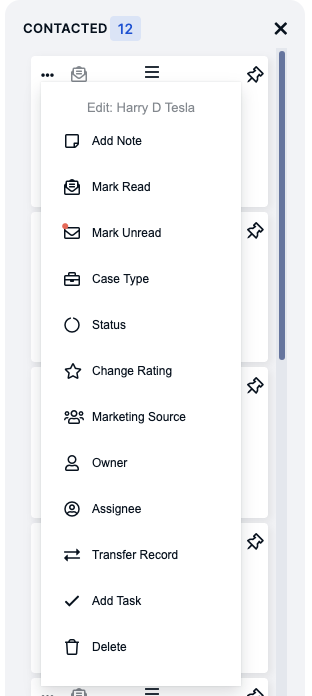
- To change your inbox layout to Pipeline, click on the "View" toggle next to the current selected inbox icon

Setting Up Your Pipeline Layout
Click on "Edit Pipeline" to select the statuses that you want to see inside of your board. Here you can select the statuses you want added to your board as well as remove any statuses you want to hide.
Note: The status order is based on the current order of system statuses located in setup > Global Settings and Statuses (admin access required)
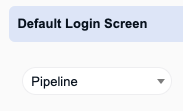
Default Login Screen
How to update your default login screen to Pipeline
Navigate to your user settings > under the Default Login Screen dropdown select "Pipeline" to set it as the default view when you log into the system each time.
Best Practices
- Regularly Review and Update Your Board: Ensure your Pipeline Inbox accurately reflects your current workload and priorities.
- Engage Your Team: Encourage team members to actively use and contribute to the Pipeline board for improved collaboration.
The Pipeline Inbox feature is a powerful addition to our CosmoLex CRM, designed to help legal professionals manage their workflows more visually and efficiently. By following the steps outlined in this article and incorporating the best practices into your daily routine, you can enhance productivity, improve client service, and foster better teamwork. Start using Pipeline today to transform the way you manage your legal practice!