How to integrate leads from LinkedIn Ads to CosmoLex CRM
Route LinkedIn lead-gen ad submissions into CosmoLex CRM automatically.
This would require:
- Linkedin account information
- A Zapier account. Linkedin does not have a direct webhook integration
Zapier Step-by-Step Guide
-
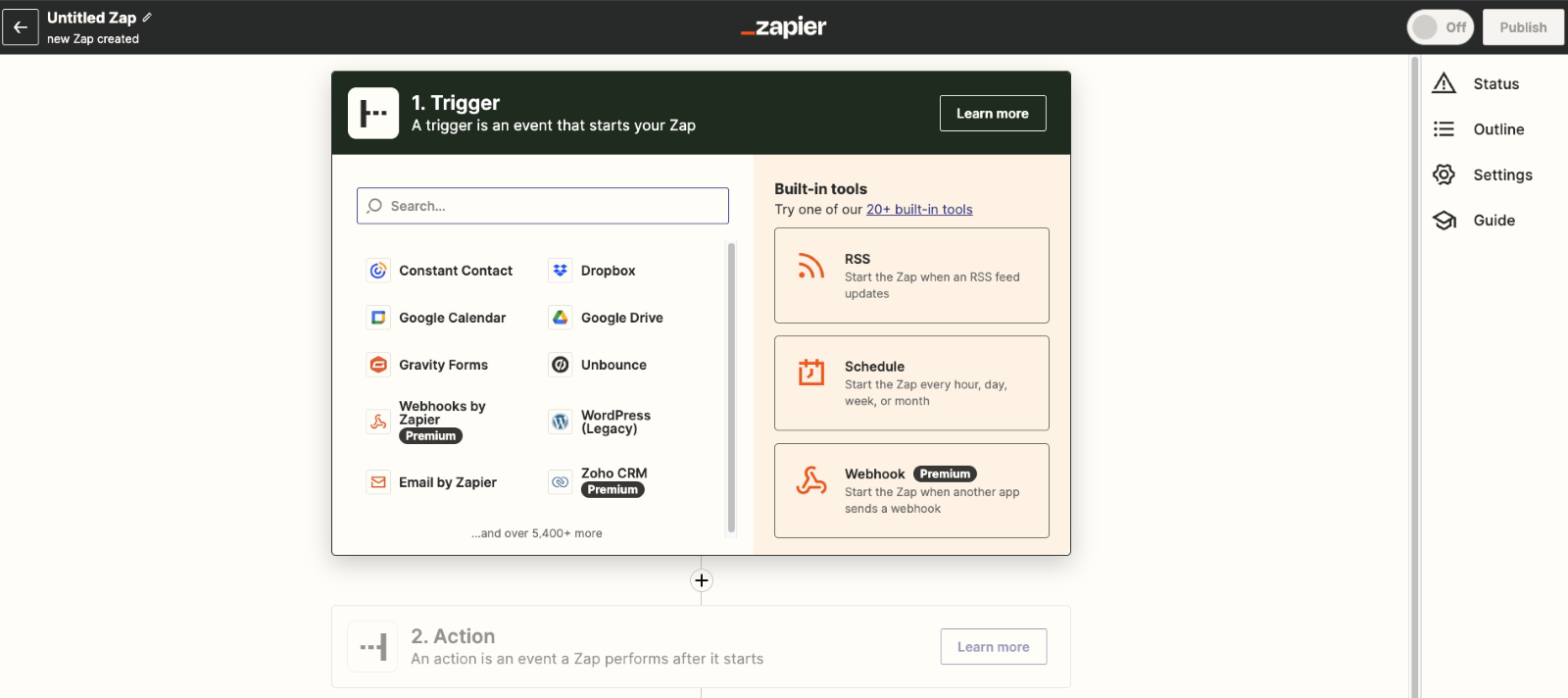
Create a new zap.
-
Search for and select "LinkedIn Ads."
-
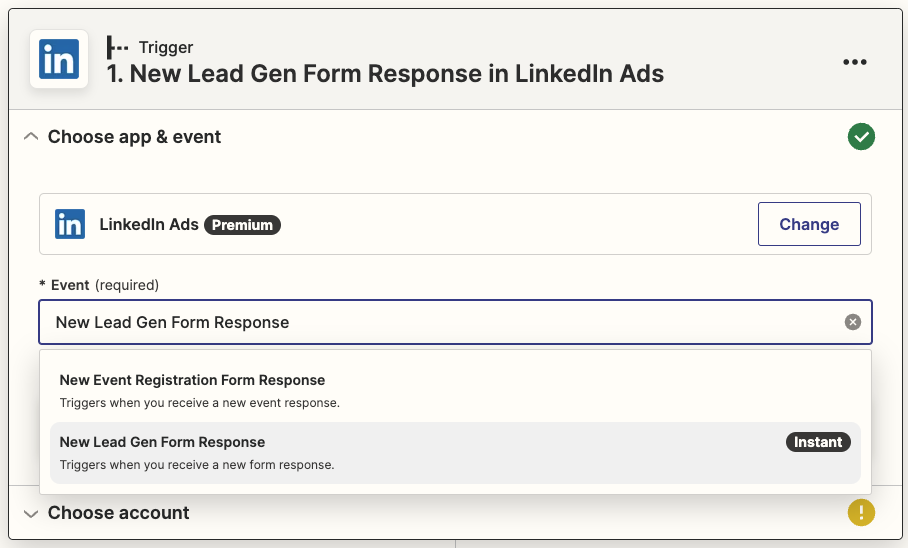
Choose New Lead Gen Form Response From the Event menu
-
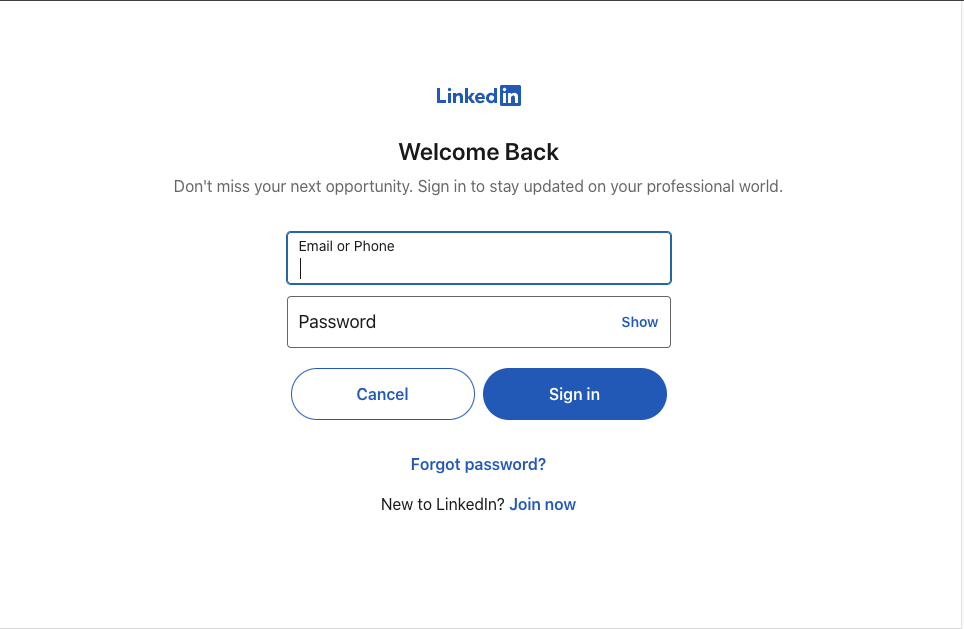
Connect your LinkedIn account
-
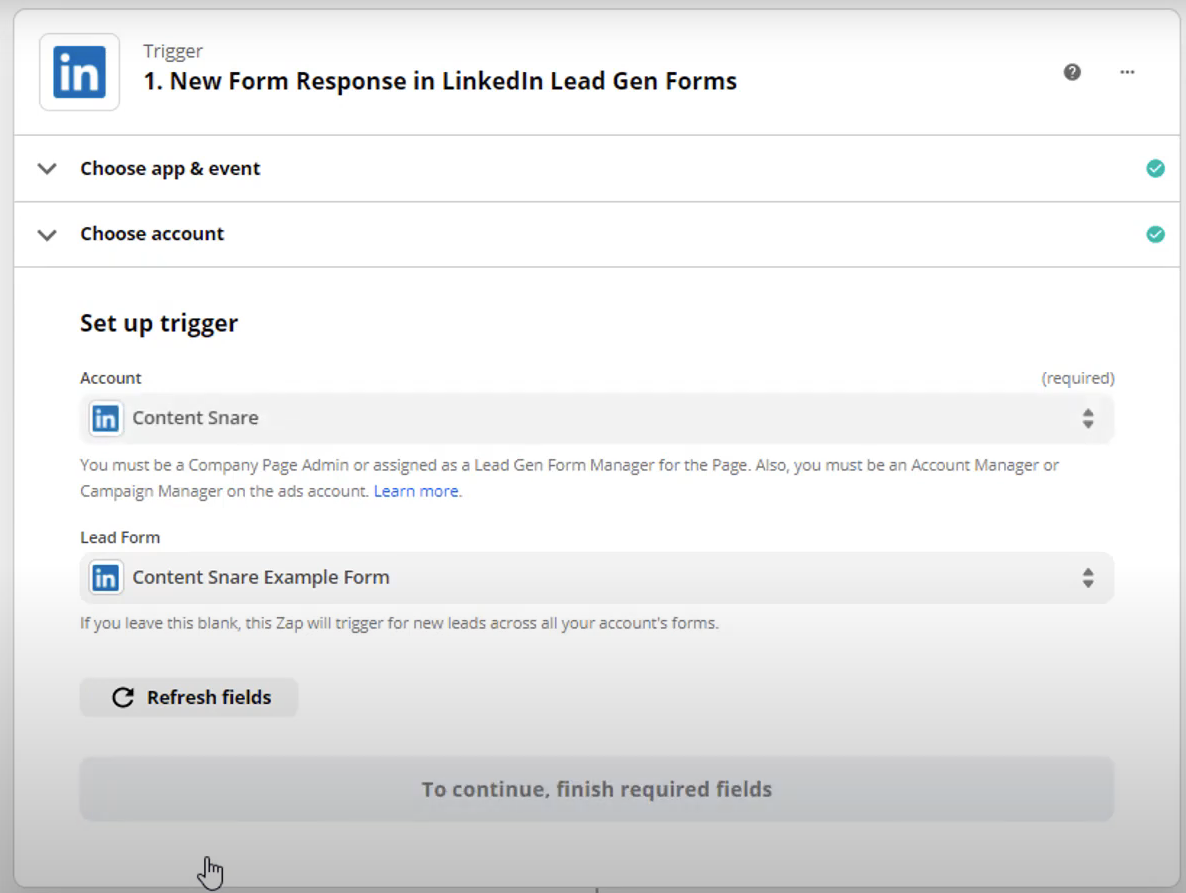
Once connected, select the LinkedIn Account that you want to integrate your leads from
-
Select the lead form that you’re running an active campaign on
-
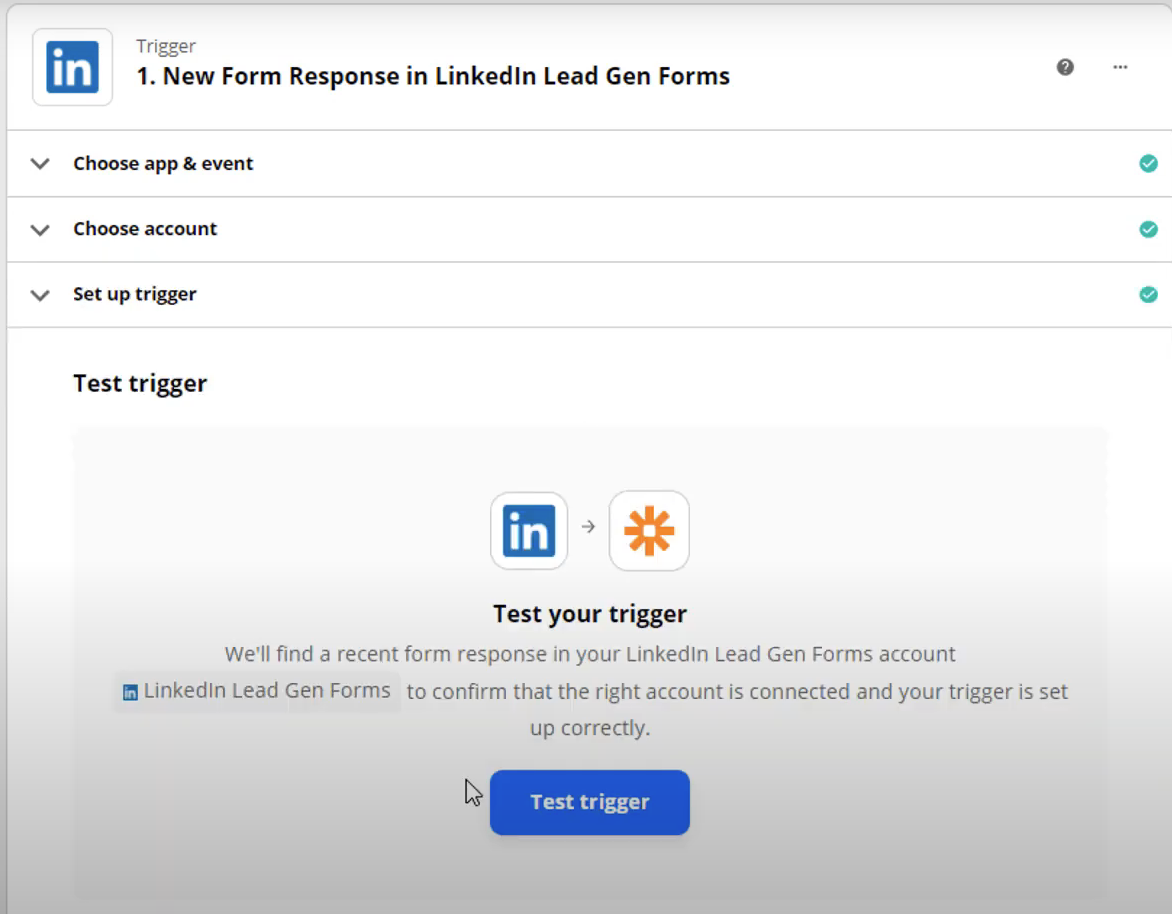
Click on Test Trigger to pull a lead example to complete setting up the integration with
-
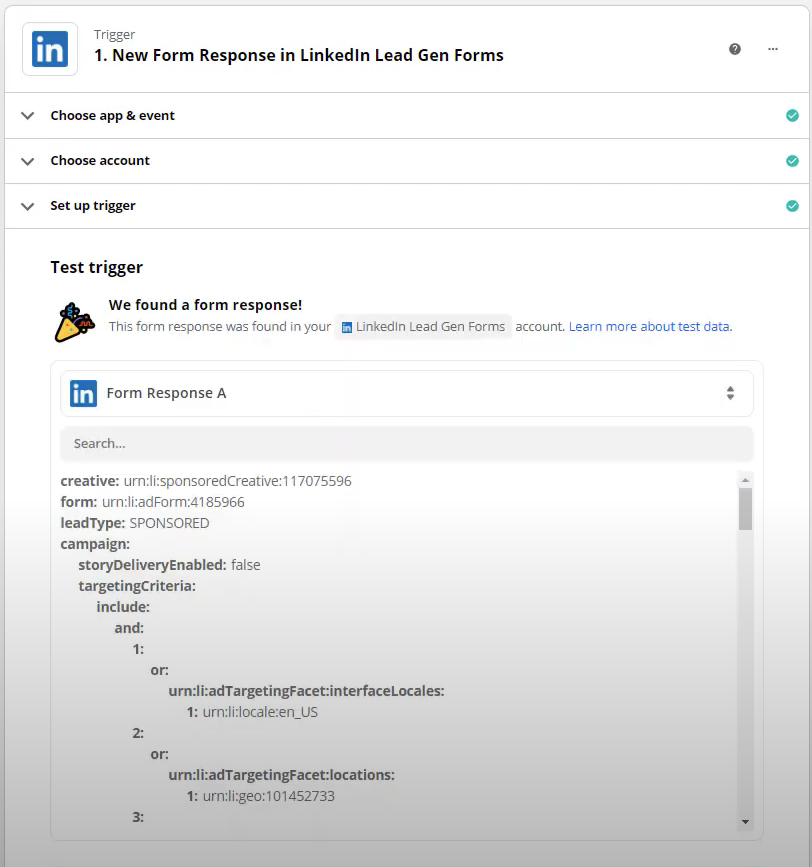
Select a test lead and click Continue
-
Now that we are synced with your Linkin ad form, you now have set up a webhook to post your leads to CosmoLex CRM.
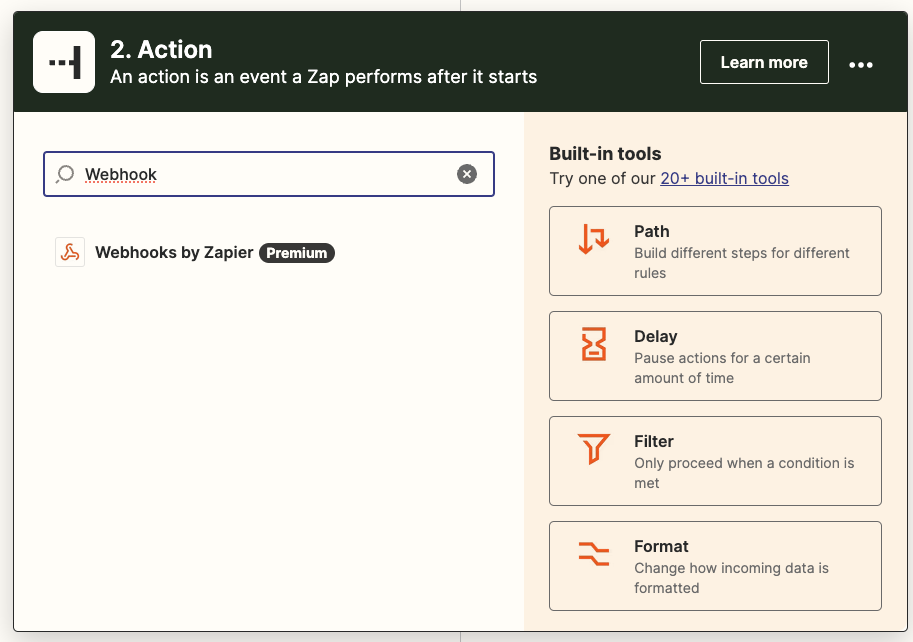
Search for “Webhook” and select “Webhooks by Zapier”
-
Select POST under the Event drop down & press continue
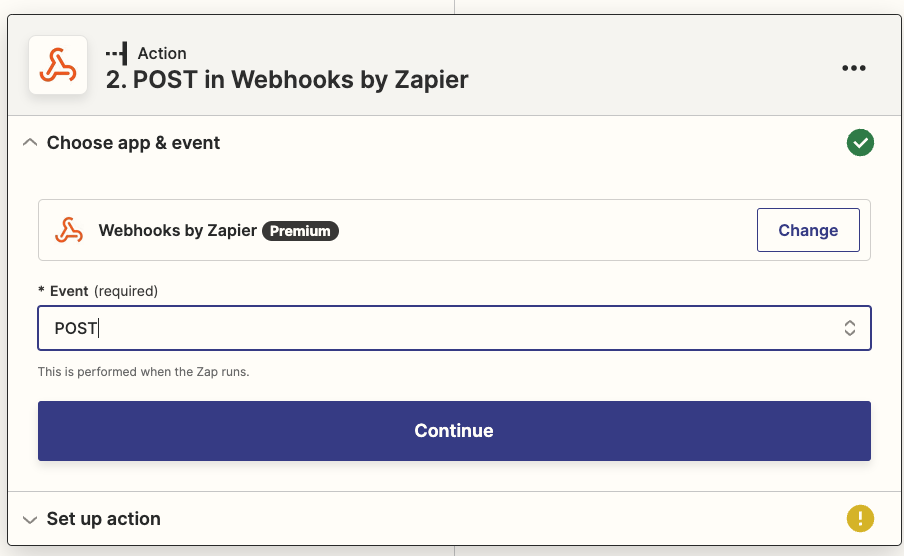
-
Next step you will need to enter in your CosmoLex CRM integration URL in the URL field
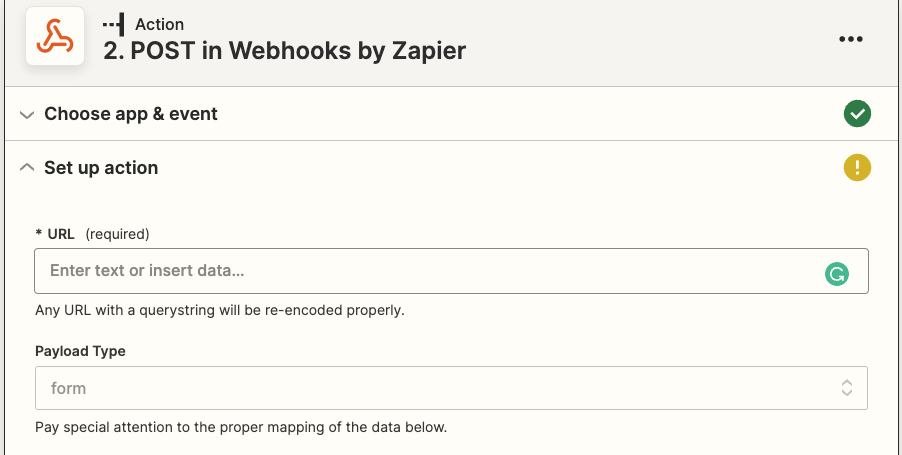
-
To get this information, login to CosmoLex CRM & navigate to Setup > 3rd Party Integrations. On this page you will see a label for Endpoint URL.
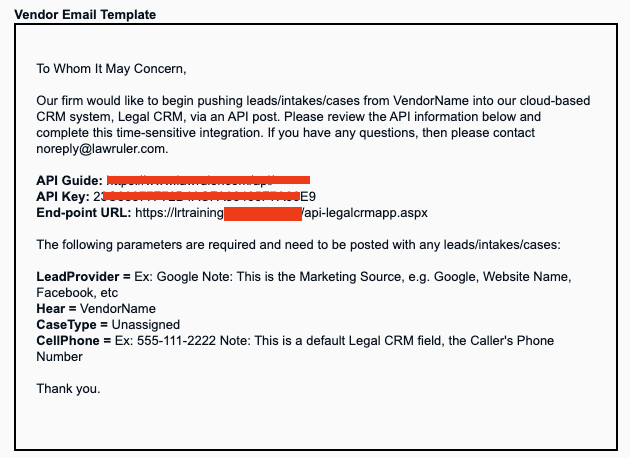
-
Copy and paste that into Zapier in the URL field
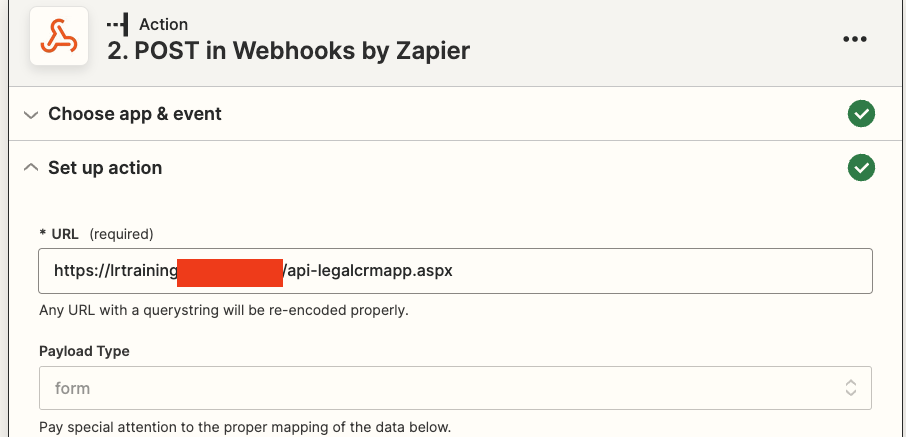
-
Mapping your fields. In this step you can add as many data points (fields) as you like but first you need to add the required CosmoLex CRM API parameters
Key: (You can find this in Setup > 3rd Party Integrations > API Key)
CaseType: (This must match the case types that are configured into CosmoLex CRM)
LeadProvider: (Ex: Google Note: This is the Marketing Source, e.g. Google, Website Name, Facebook, etc)
FullName: (or FirstName & LastName)
Example:
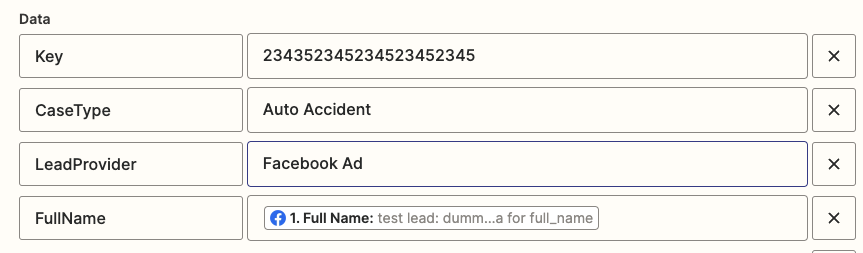
-
Mapping your additional data points (fields). You now can add any other data points that are supported in the CosmoLex CRM API guide. On the left enter in your data point name and on the right click into the field to grab data points from your LinkedIn ad form.
We will use adding the leads email address as an example below.
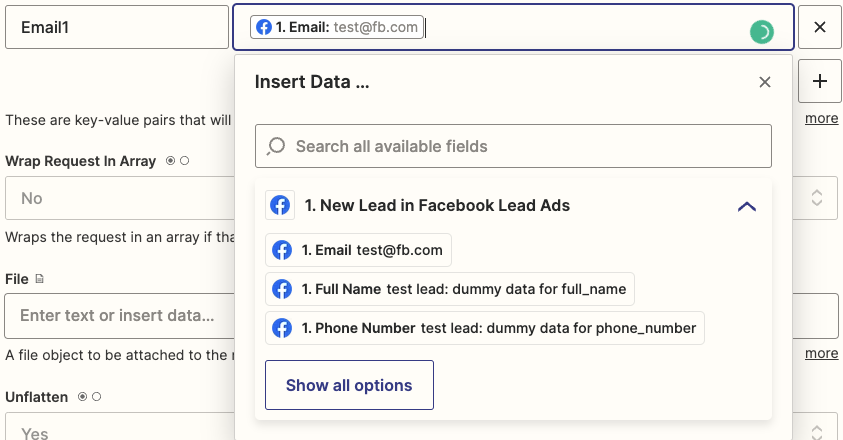
“Email1” is the default parameter for email in the CosmoLex CRM API. So on the right I mapped it to the Facebook ad data point!
-
Once you have customized your webhook by adding in your data points, you can press continue
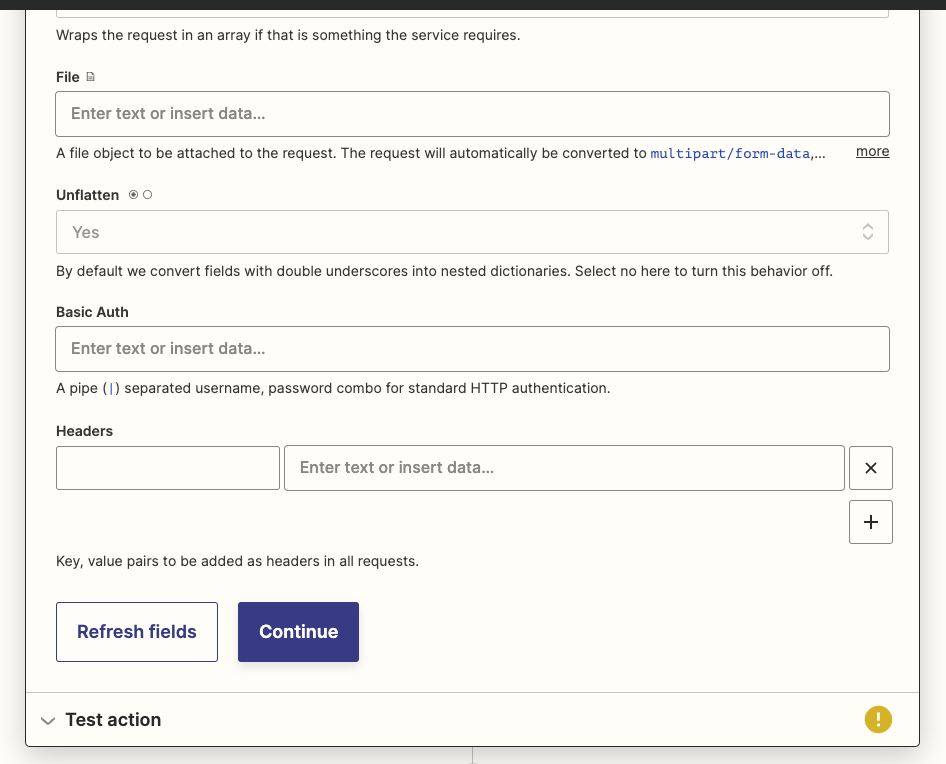
-
On the last step you can press the “Test action” button to trigger your test lead to CosmoLex CRM.

Once you have confirmed that your lead was successfully created in CosmoLex CRM, and the data points are mapped as you see fit you can go ahead and publish the Zapier integration!

Click Publish Zap.