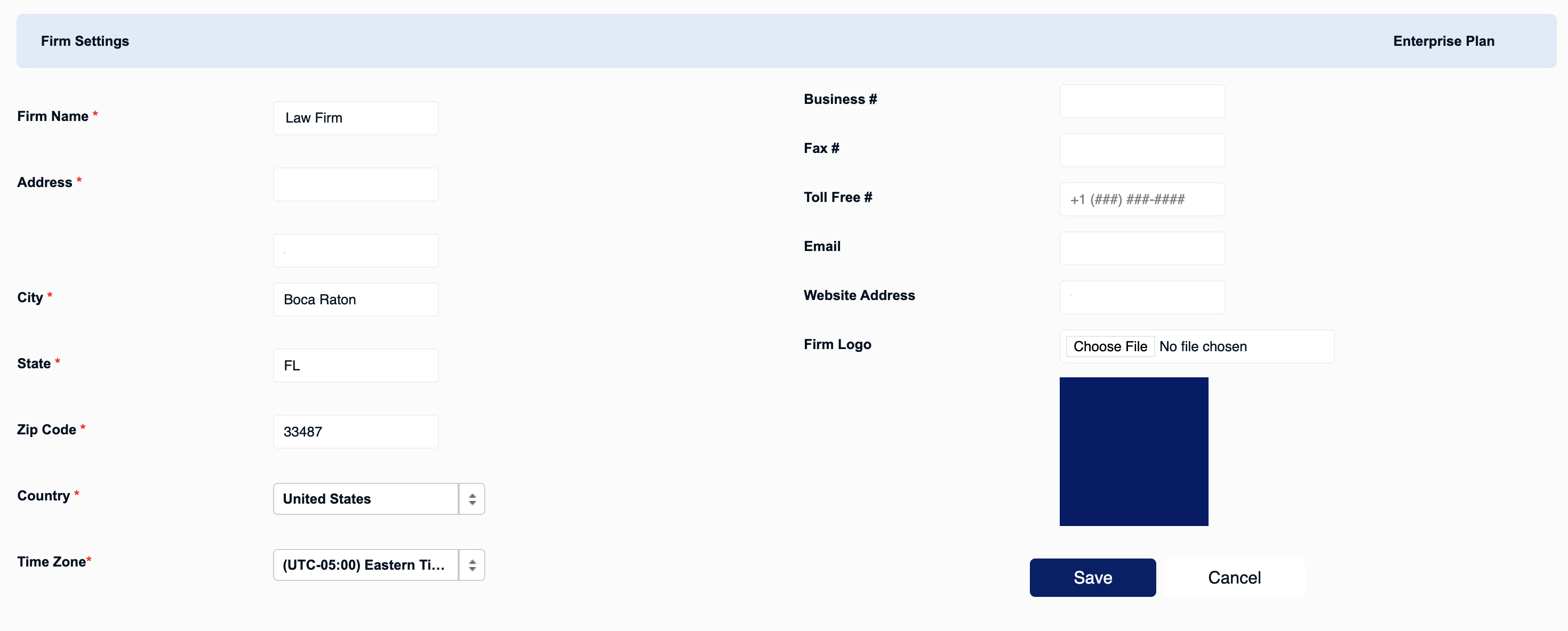
Setting up Your Firm’s Settings, Address, and Logo
Customize your firm's name, address, logo, and portal details that feed mail-merge codes for emails, texts, and documents.
One of the first steps to going live with the CRM is to customize your portal with your firm's information. The information configured for your firm can later be used via mail merge codes to automatically insert the firm's name, logo, address, and more on emails, texts, and/or documents!
For more, see Setting Up Document Templates.
Note: Only users with Admin Rights will have access to make the changes described in this article.
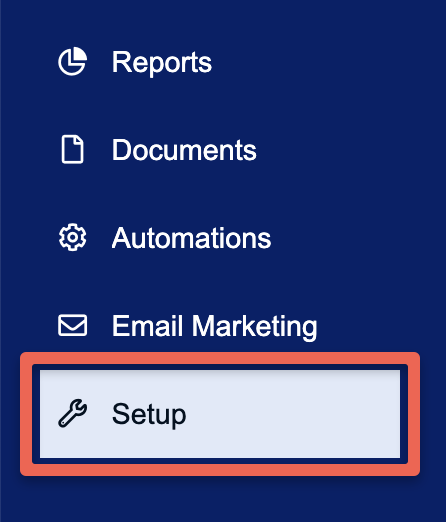
Using the main navigation menu on the left-hand side of the screen, click on Setup.
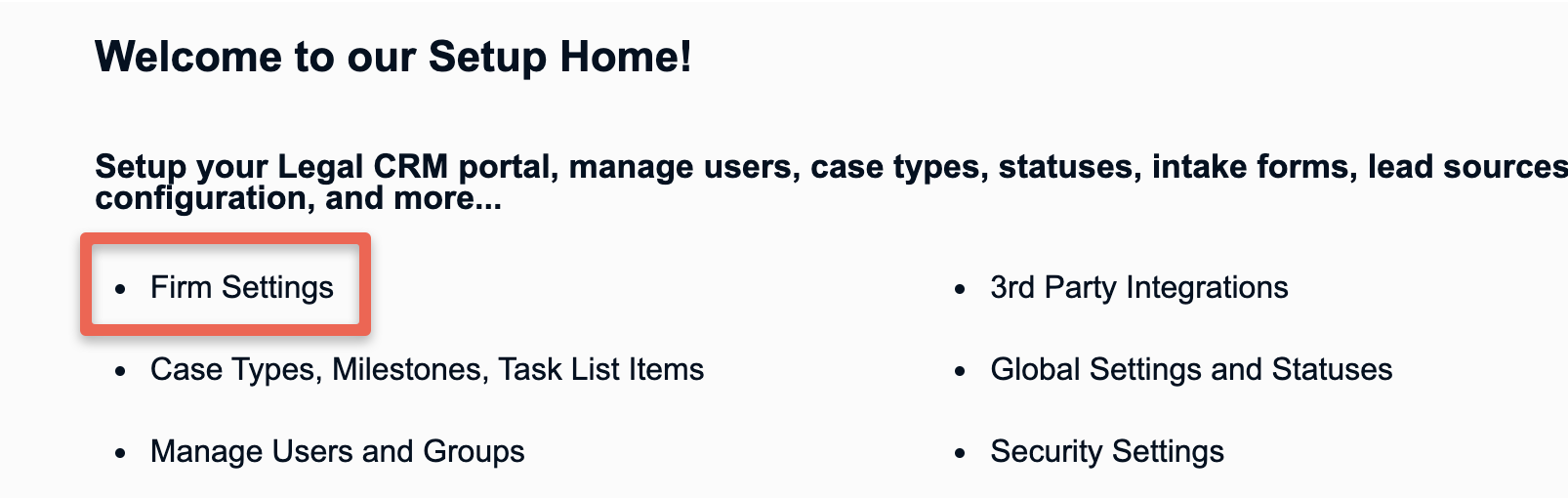
Next, navigate to the Firm Settings page.
Use this page to customize the portal with your firm’s name, address, contact details, and, most importantly, your company logo. The company logo is important because it will appear in automated emails and reports from the CRM. Please note that the email entered into the Email field will be the address used for any emails where "Firm" is selected as the sender.
Once you've updated your firm's information, and uploaded your company logo, press the Save button to finish editing the Firm Settings.