Configuration of Automation Schedule (Snooze Settings), New Intake Defaults, and Role Names
Schedule when automations run, set default assignment for manually created records, and rename user roles.
The CRM offers the ability to schedule your automations to run during certain days and hours, this is referred to as your portal's Snooze Settings. The CRM also offers the ability to default the assignment of manually created records to a specific user as well as customize the name of the user roles provided in the system. The maintenance and customization of these features will be discussed in the article below.
Only users with Admin Rights will have access to make the changes mentioned in this article.
Snooze Settings
Snooze Settings allow you to control the days of the week and times of the day when automated emails and SMS should and shouldn’t send out from your CRM portal.
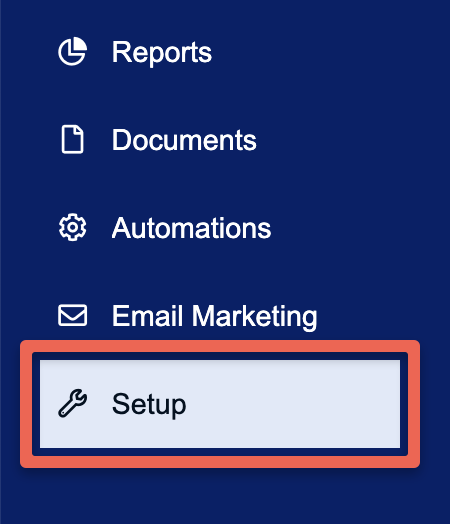
Using the main navigation menu on the left-hand side of the screen, click on Setup.
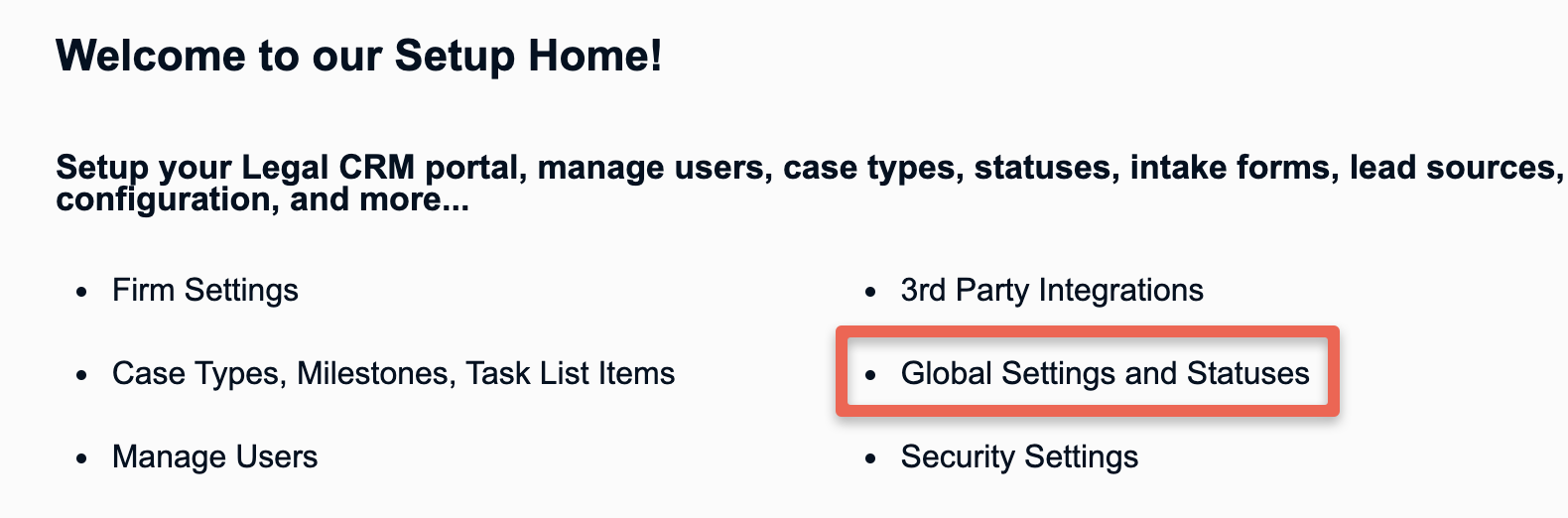
Navigate to the Global Settings and Statuses page.
Scroll down on the page and locate the Snooze Campaign Settings section or use the menu on the right side of the page to quickly jump to this section.
The Campaign Days of Week to Run setting will determine which days of the week automations will be triggered from the portal. For example, if you want automations to go out every day except on the weekends, then you will want to leave all days selected except for Saturday and Sunday.

The Campaign Start Time and Campaign Stop Time settings will control the times of the day when the automations will trigger. For example, if your Snooze Settings are set to start at 8:00 AM and stop at 6:00 PM, then automations will only be triggered during those hours. So, if an automation is set to trigger at 4:00 AM, the system will hold it in a queue and then automatically trigger it at 8:00 AM instead.

Lastly, the Active Snooze Campaign setting should always be ON so your Snooze Settings can be active in the portal.

Don’t forget to click the Save button after making any changes to the aforementioned settings.
New Intake Defaults and Role Names
The CRM offers settings that allow you to select a default Assignee, Owner, and/or Case Type for new leads that are manually created in the portal. You can also rename any of the available default user roles to better suit your firm's needs.
To get started, on the Global Settings and Statuses page, locate the Assign Users, User Roles, Opt-In Settings section or use the menu on the right side of the page to quickly jump to this section.
Here you will be able to set defaults for the Assignee, Owner, and/or Case Type for all new leads that are created in the portal manually by using the “New Intake” page.

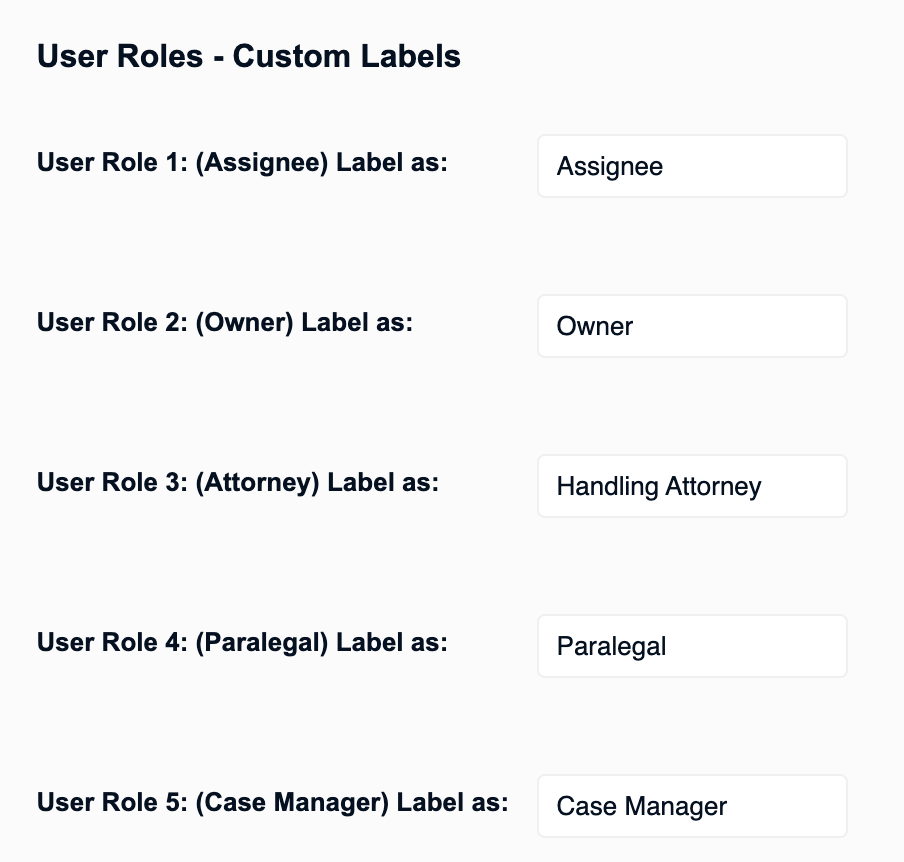
This section also allows you to change the labels of the default user roles in the system. For example, if you want the “Assignee” role to display the label of “Intake Specialist” instead, this is where you can make that change.
Don’t forget to click the Save button after making any changes to these settings.