How to Use Notes in CosmoLex CRM
Add, search, pin, edit, and record voice-memo notes on a lead or case to track important conversations and details.
Notes are essential for any firm and allow firms to keep track of important conversations and details related to a case. CosmoLex CRM makes adding and keeping track of notes simple and streamlined.
Notes
After navigating to the notes tab inside of any lead/case record, you will be able to add new notes to the record and also view any existing notes. The search bar at the top can be used to search through the existing notes by keyword.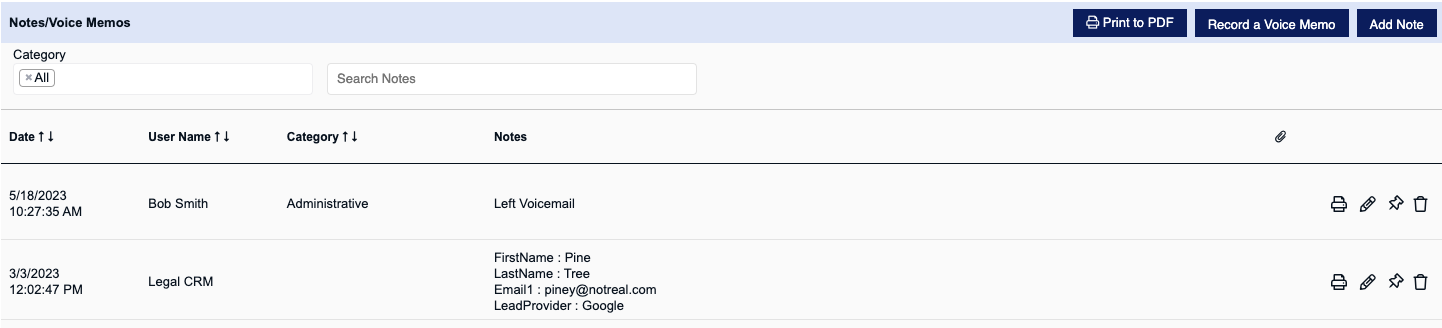
To create a new note, click on the Add Note button located in the upper-right corner of the tab. A pop-up will appear for you to compose your new note. In the pop-up, you will also have the ability to select a Notes Category, attach a file, and/or apply text formatting. Click the Save button to add the note.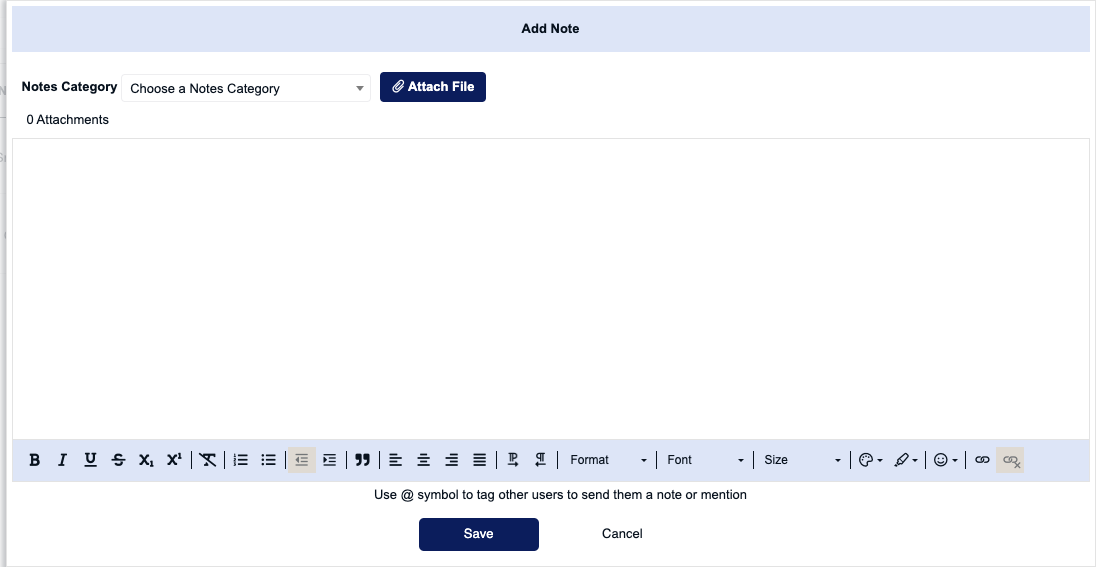
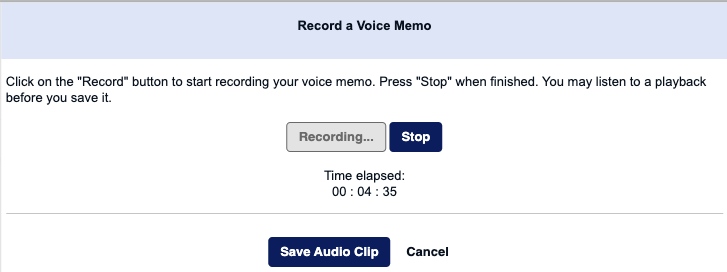
You will also have the option to record a voice memo if you wish to dictate a note instead of typing it. To do this, click on the Record a Voice Memo button in the upper-right corner of the tab. In the pop-up that appears, click on the Record button to start recording the voice memo. Click the Stop button once you’ve finished recording. You will be able to playback the recording and you can also delete it and re-record if needed. Once you’re happy with the voice memo recording, click the Save Audio Clip button to add the voice memo as a note. Any voice memo files added as a note will also be automatically added to the Documents tab of the record. To record a voice memo, you will need either a computer with a built-in microphone or an external audio device with microphone capability.
Have an important note that you want to be clearly visible at all times? CosmoLex CRM has you covered with our Pin/Unpin feature. To pin a note, simply click on the pin icon to the right of your note. The pin icon color will change to a dark blue, to indicate your note has been pinned.

To unpin a note, simply click on the pin icon to the right of your note. The pin icon color will change to white, indicating that the note is no longer pinned.
To edit an existing note, click on the pencil icon to the right of the note. To delete an existing note, click on the trashbin icon to the right of the note (only accounts with the Delete Rights user permission will be able to delete a note).

For notes with a file attachment, you will see a paperclip icon to the right of the note. Click on the paperclip icon to download the file.
